
Appearance
Adding a new vendor mid-review
A common scenario: an assignee opens a document, the vendor isn't recognized, downstream Metadata fields show
—Not set—. The fix is to add the vendor to the Vendors entity, then re-run the lookup using Reset data. This recipe walks through it end to end.
Teaches: Entities, Reset Data, the empty-cell rule, the Initial Workflow re-run.
The scenario
Alex Morgan opens an invoice in Studio for the Acme Invoices project. Most fields populated correctly — the engine extracted vendor tax ID, invoice number, total, dates. But several Metadata fields show —Not set—:
vendorNamevendorAccountcurrencydefaultGLAccountpaymentTerms
These should have been populated by the project's Initial_Workflow running a vendor lookup. The fact that they're all blank suggests the Vendors entity has no row matching the extracted vendorTaxId. The vendor is new.
Step 1 — Confirm the missing vendor
Before adding the vendor, check what's actually on the document.
In Studio, the vendorTaxId field shows LT987654321. Search the Vendors entity for this value:
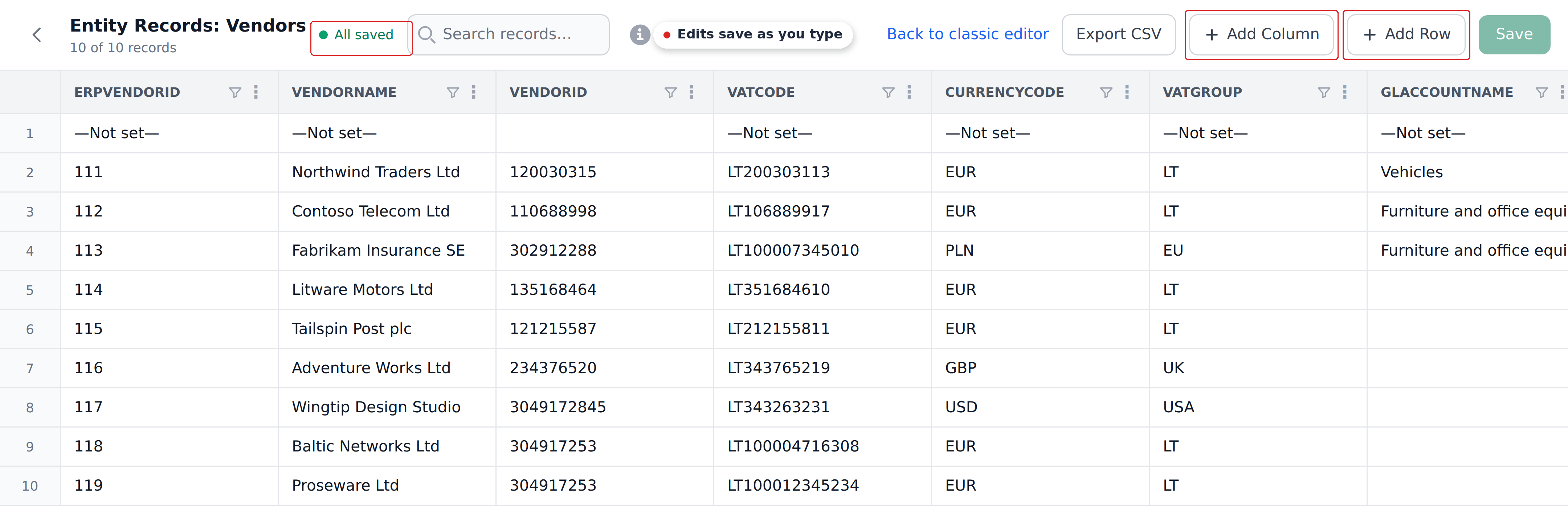
- Settings → Mapping → Entities & Definitions, then Records on Vendors.
- Search the records for
LT987654321.
No rows match. Confirmed — the vendor is missing.
Step 2 — Add the vendor to the Vendors entity
In the Vendors record view:
- Click Add record.
- Fill in the columns:
| Column | Value |
|---|---|
vendorTaxId | LT987654321 |
vendorName | Acme Lithuania UAB |
vendorAccount | 30-9876543 |
currency | EUR |
defaultGLAccount | 6020 |
paymentTerms | Net 30 |
bankAccount | LT121000011101001000 |
- Click elsewhere to commit each cell, or use the row's save action.
The new row appears in the Vendors entity. Future documents matching this vendorTaxId will pull these values.
Leave cells you don't know empty
If you don't have all the vendor's data yet — say you're missing the bank account — leave that cell blank. The empty-cell rule means the document's bankAccount field stays unchanged when the lookup runs. You can fill in the missing column later via the Vendors entity, and re-run the lookup again.
Step 3 — Go back to the document
Navigate back to the document in Studio. The Metadata fields still show —Not set— — the lookup hasn't re-run yet.
The Initial Workflow has already finished for this document. Adding a vendor doesn't automatically backfill existing documents. You need to manually trigger a re-run.
Step 4 — Reset data on vendorName
Click the Reset data action on the vendorName field. The Initial Workflow re-runs for this single field.
The workflow's vendor-lookup step now finds the matching row (the one you just added), and writes:
vendorName=Acme Lithuania UABvendorAccount=30-9876543currency=EURdefaultGLAccount=6020paymentTerms=Net 30bankAccount=LT121000011101001000
Reset data on one field triggers all downstream writes
Even though you only clicked Reset data on vendorName, the Initial Workflow runs the full vendor-lookup definition — which writes multiple fields. The "one field" granularity is which field's —Not set— triggers the re-run; the writes that follow depend on the workflow.
Within 1–2 seconds, the cascade settles. All the Metadata fields update together.
Step 5 — Complete the rest of the review
The vendor's data is now on the document. Continue with the normal review:
- Verify the populated values match what you'd expect.
- Fix any other field issues.
- Pick a department (or other manual fields) from the dropdowns.
- Click Validate when all mandatory fields have real values.
The document moves to Validated and the next stage of the approval flow.
Why this works
Three pieces of the engine come together:
- The Vendors entity is just data. Adding a row is a normal entity edit. The next lookup that runs will see the new row.
- Reset data re-runs the Initial Workflow for a field. The trigger is "this field has
—Not set—and I want to retry." The workflow's vendor-lookup step finds the new row. - The cascade flows downstream. The vendor-lookup step writes multiple fields; later steps in the workflow build on those writes.
The pattern is a small example of the engine's broader composability — entities are decoupled from definitions, definitions are decoupled from workflows, and you can introduce data at any point and pull lookups against it on demand.
What about a Reset data button vs an edit?
Two adjacent affordances do different things:
- Reset data on
vendorName— re-runs the Initial Workflow for that field. The whole vendor lookup re-fires. - Editing
vendorNamedirectly — fires the workflow watching that field (e.g.,Vendor Select). The user-driven workflow runs.
For the "new vendor" case, Reset data is the right choice because the workflow that's stuck is Initial Workflow (which couldn't find the vendor at extraction time). Editing wouldn't help — there's no value to type that would magically resolve the missing entity row.
For the "I want to change the vendor to a different one" case, editing is right. Pick a different vendor; the user-driven workflow fires; values update.
What this teaches
- Entities are append-and-go. No special "publish" step — adding a row makes it available immediately.
- The empty-cell rule lets you populate incrementally. Don't have all the vendor's data? Add what you know; the engine handles the partial state.
- Reset data is the "re-run the Initial Workflow for this field" affordance. Useful whenever the underlying entity has changed and you want a re-pull.
- The cascade is wide. One Reset on
vendorNamecan trigger writes to a dozen fields, all because the workflow's vendor-lookup definition has multiple Mapped columns.
The same pattern generalizes to any missing-entity-data case. Adding a GL account, an approver, a department, a product — all the same shape: add the row, Reset data on the affected field, watch the cascade fill in.
What's next
- Routing approvals by invoice total — the next recipe.
- Managing records — the manual entity-edit reference.
- Correcting values & line items — the broader reviewer guide.