
Appearance
Mapped columns
Mapped columns say "when a row matches, take this entity column's value and write it to that document field." The standard mechanism for pushing reference data into a document.
This page covers configuration and the per-column settings. Mapped columns appear in Mapping Definitions; Dropdown Definitions handle writes via Dropdown columns instead.
What a Mapped column is
Each Mapped column has:
- An entity column reference. Which column in the matched row to read from.
- A target document field. Where to write the value, shown as
fieldName (category)— e.g.,vendorName (metadataFields). - A Transform setting. What transformation to apply (today only
No Transformis available; the field is a placeholder for future transforms).
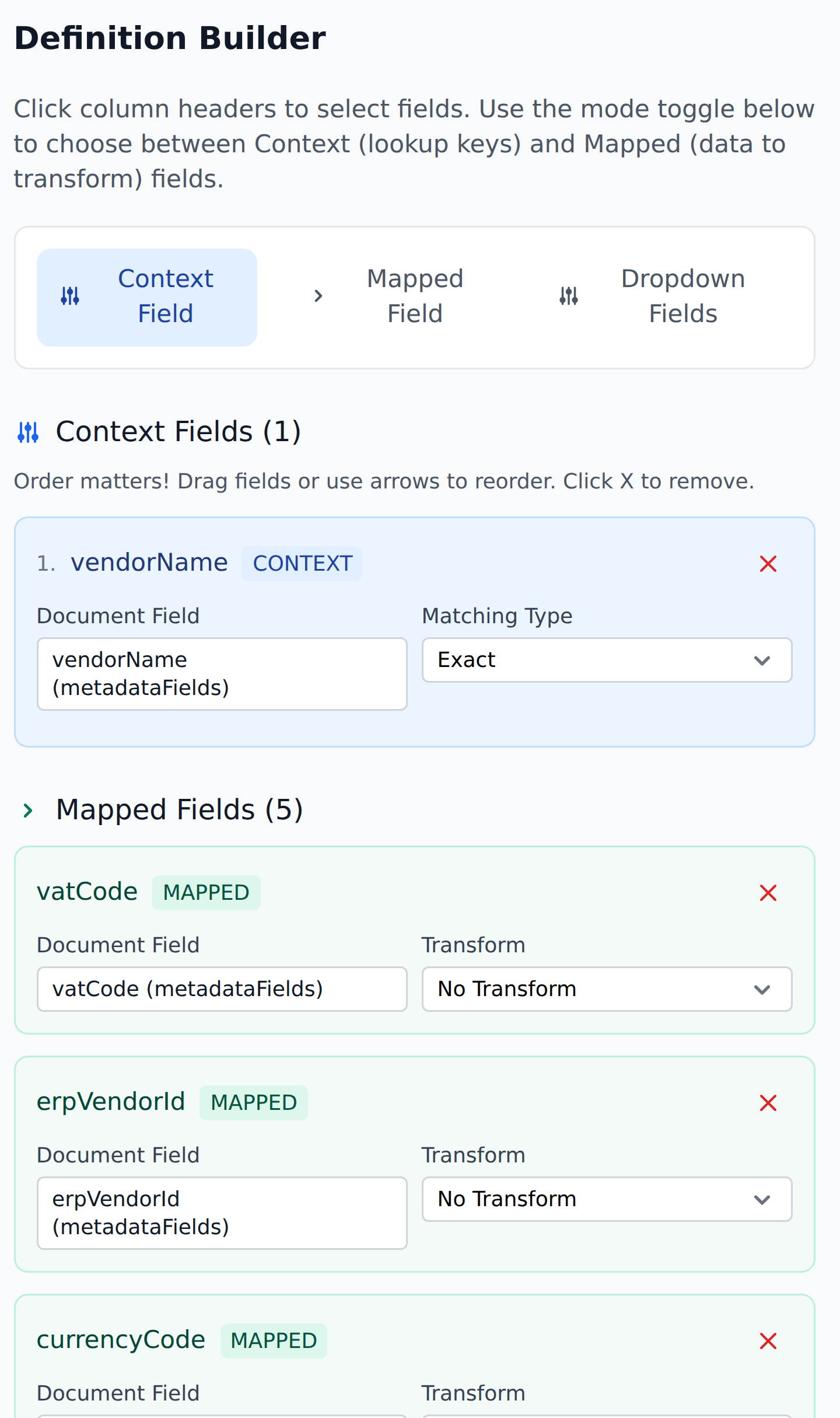
When the definition's lookup matches a row, the engine reads the entity row's value for the referenced column and writes it to the target document field.
To add one, set the mode toggle to Mapped Field and click the column's header in the entity preview.
The write happens once per row
A definition's lookup picks the top matching row (lowest row index satisfying the Context AND). The Mapped columns write values from that one row.
You can configure multiple Mapped columns; they all write from the same matched row. Three Mapped columns on a Vendors row write vendorName, vendorAccount, and currency from that single matched row.
The target field's category
When you pick a target document field, you choose from the project's field schema. The picker typically shows fields by category:
metadataFields.<fieldName>mainFields.<fieldName>tableFields.<fieldName>(writes to every row of the table)paymentFields.<fieldName>taxFields.<fieldName>
Note that any field can be a Mapped target — there's no "sacred" extracted-only field. A Mapping Definition can write to VendorId (a Main Field) even though that field came from extraction. The next workflow run overwrites whatever extraction said.
This is sometimes intentional ("we trust our vendor master more than extraction") and sometimes surprising. Be deliberate about Main-field targets.
Switching line items on for export
A workflow can set a document's Line items setting, the toggle in the Studio line-items toolbar that makes Copy to clipboard copy one row per line item. Add a Mapped column whose target is Table Clipboard, listed at the bottom of the target picker. The entity column can have any name.
| Cell value | Result |
|---|---|
true, yes, on or 1 | Line items on |
false, no, off or 0 | Line items off |
| Blank, or any other value | No change |
Letter case doesn't matter. A document with no matching row also keeps its setting.
The empty-cell rule
When the matched entity row has an empty cell for a Mapped column, the corresponding document field is not overwritten.
This is consistent with intent: customers populate as much as they know per row, and the engine writes only the known parts. See The empty-cell rule for the full treatment.
The implication: a Mapped column with an empty cell in the matched row leaves the document field at its current value. No clearing, no —Not set—, no overwrite.
The Transform setting
Each Mapped column has a Transform setting. Today, only No Transform is available — the field is a placeholder for future transforms (uppercasing, date format conversion, currency normalization, etc.).
Treat the Transform field as informational. When future transforms ship, they'll appear here as additional options.
Table-field targets
A Mapped column targeting a table field writes to every row of the table, not a single row. The write applies uniformly across line items.
This is useful for setting a default value across line items (a department code that's the same for the whole invoice). For per-line-item writes (where each row needs its own value), you need a definition whose Context includes a row-distinguishing column — typically a per-row product code.
The classic pattern: a definition with Context (customerInitials, vendorAccount, ProductCode) writes per-row data. Each line's ProductCode differs, so the lookup picks a different row per line.
Multiple definitions writing to the same field
If two definitions both write to the same document field — and both are invoked in the same workflow — the last write wins. The order is the order of steps in the workflow.
This is usually a bug, not a feature. Two definitions writing to the same field means you didn't compose them carefully. If you genuinely want one definition to override another conditionally, the cleaner pattern is to use Context columns to make each definition's match conditional (so only one fires).
Adding Mapped columns
In the definition editor:
- Add Mapped column — appends a new entry. Pick the entity column and the target document field.
- Move up / Move down arrows — reorder. Doesn't affect output (each Mapped column is independent), only display order.
- Delete — remove the Mapped column.
You can have as many Mapped columns as you need. A vendor lookup typically writes 4–6 fields; a complex composite lookup might write 10+.
A worked example
The Initialize Vendors definition in a typical Acme Invoices project:
Definition Name:   Initialize Vendors
Type:              Mapping Definition
Target entity:     Vendors (200 records)

Context columns:
  1. VendorId         Matching Type: Exact

Mapped columns:
  - vendorName (metadataFields)        Transform: No Transform
  - vendorAccount (metadataFields)     Transform: No Transform
  - currency (metadataFields)          Transform: No Transform
  - bankAccount (paymentFields)        Transform: No Transform
When the Initial Workflow invokes this definition:
- Read the document's
VendorId. - Look up Vendors for the row with
VendorIdexactly matching. - If matched, write
vendorName,vendorAccount,currency,bankAccountfrom that row to the corresponding document fields.
Empty cells in any of those columns leave the document fields unchanged.
Dropdown columns vs Mapped columns
Both can write values to document fields. The difference:
- Mapped columns push the matched row's value to the field. The field becomes whatever type it was (text, numeric, date).
- Dropdown columns also write values, but additionally turn the field into a Select-type with options sourced from the matching rows.
If you want a simple value push (write the GL account, write the cost center), use Mapped columns. If you want to drive a dropdown (the field becomes a Select with narrowed options), use Dropdown columns.
What's next
- Dropdown columns — the alternative to Mapped for dropdown-driven fields.
- Context columns — the lookup key that finds the row.
- The empty-cell rule — important for understanding writes.
- Fallback records — what happens on no-match.