
Appearance
Creating entities
Creating an entity is fast — pick a name, save, then add columns. Most of the work is figuring out the right shape.
This page covers the UI flow and the decisions worth making upfront.
Where to create
Settings → Mapping → Entities & Definitions. The page lists every entity in the current project. Click Create Entity to open the new-entity form, or Import to load records from a spreadsheet.
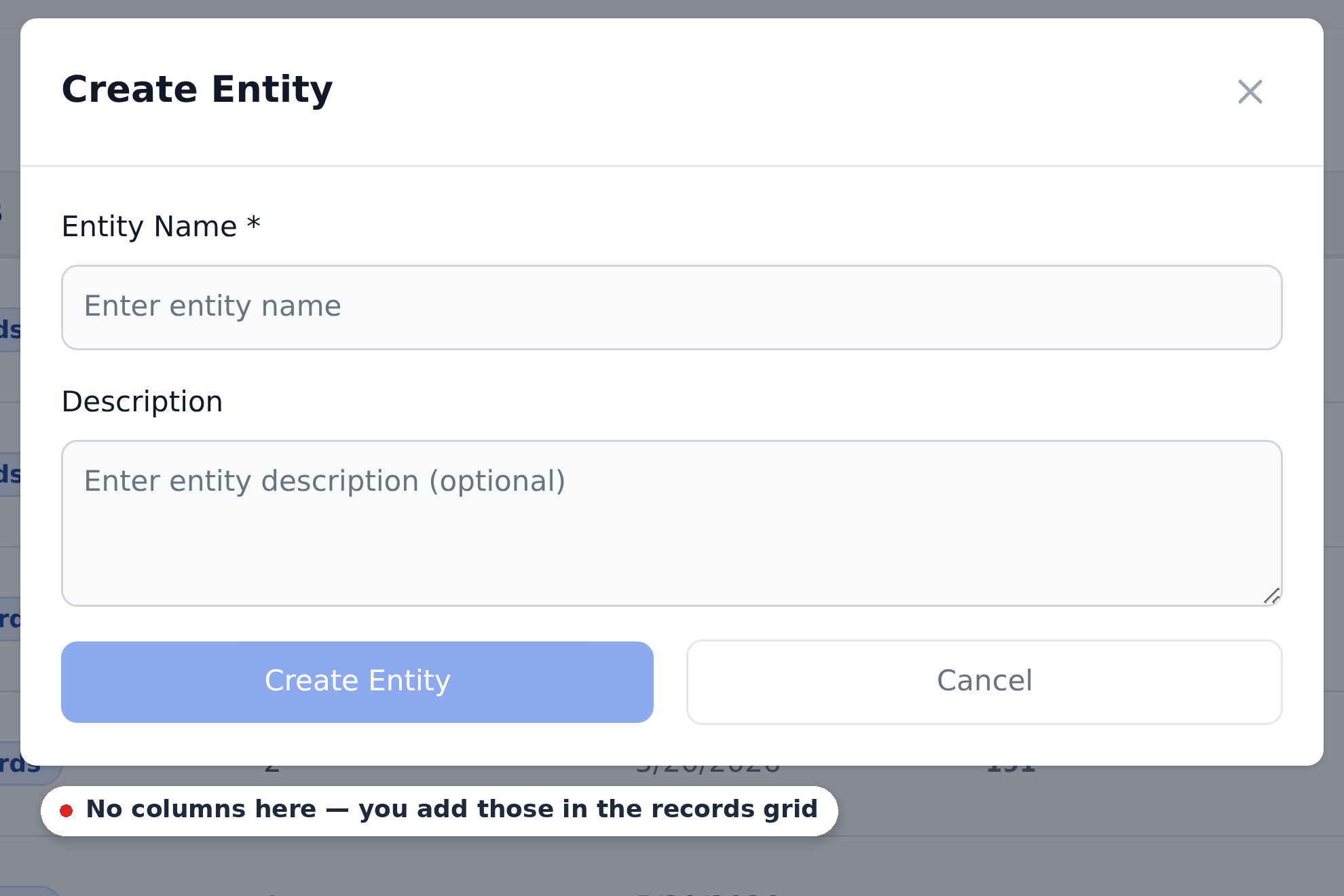
The form asks for two things:
- Entity Name. Required, free text.
- Description. Optional, free text.
There's no column list here. When you save, the entity appears with no columns and no records; you add both with Add Column and Add Row in its record view.
Naming the entity
Names are user-facing — they show up in definitions ("target entity: Vendors") and in the record-view UI. Pick something readable.
Common patterns:
- Plural-noun for collections.
Vendors,Departments,Approvers. Reads naturally. - Specific descriptors for related tables.
Header Products,Item Products. Distinguishes per-document-level from per-line-item lookups. - Domain-specific names if you have multiple subsidiaries.
Polish Vendors,German Vendors— though discriminator-pattern entities (see below) often work better for multi-tenant cases.
Don't agonize. Entities are renameable; the system uses references, not names, internally.
Picking columns
The columns you add in the record view are the schema of the table. Cells are text — no type enforcement.
For a Vendors entity, you might start with:
vendorIdvendorNamevendorAccounttaxIdbankAccountdefaultGLAccountcurrencypaymentTerms
You can add more columns later (via the record view's column-add affordance). You can also rename or remove columns — though be careful with renames if existing definitions reference the old name.
How many columns?
The honest answer: enough to support the lookups you need, plus a few documentation columns for your own readability.
- Too few columns and you can't express the lookups your workflows want.
- Too many columns make uploads slow and the record view cluttered.
For a Vendors entity, 10–15 columns is typical. For a high-cardinality entity like Item Products, 6–8 columns plus a couple of context-narrowing columns is common.
What columns are needed for lookups
For each definition that will use this entity, you need:
- Context columns — the columns that match against document fields. At least one.
- Mapped columns — the columns whose values get written to document fields.
- Dropdown columns (for Dropdown Definitions) — the columns that drive dropdown options.
You don't need to know your definitions ahead of time, but the entity's columns need to be rich enough to support the lookups you have in mind. Adding columns later is cheap; reshaping a populated entity is painful.
The discriminator pattern
For projects serving multiple subsidiaries / tenants / customers, the discriminator pattern is a strong default:
- Add a discriminator column (e.g.,
customerInitials) to every entity that holds tenant-specific data. - Put rows for every tenant in the same entity, distinguished by the discriminator value.
- Use the discriminator as the first Context column in every definition.
For a Vendors entity in a discriminator-pattern project, the columns might be:
customerInitials(discriminator)vendorIdvendorNamevendorAccount- (other columns)
The Vendors entity holds vendors for every tenant; the discriminator narrows the lookup to one tenant's data.
This avoids per-tenant entity duplication. Adding a new tenant means adding rows, not creating new entities or new workflows. See Recipes → Serving multiple companies from one project for the worked example.
The records grid
Records on an entity's row opens its rows in a spreadsheet-style grid.
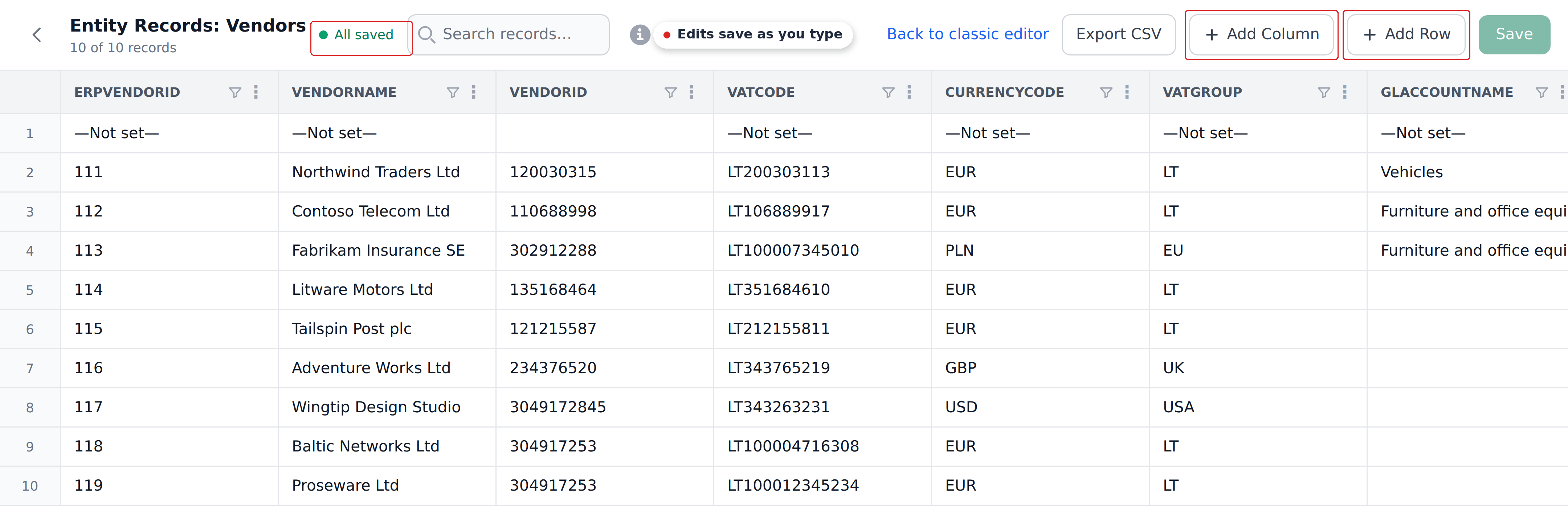
Everything about the table is editable here: Add Column extends the schema, Add Row adds a record, and cells edit in place. The indicator by the title tracks saving — there's no separate save step for cell edits. Export CSV takes a copy out.
After creating
Once the entity exists, you typically:
- Add records — either manually one by one (small entities) or via bulk upload (most cases).
- Create definitions inside the entity — lookup rules that reference the columns.
- Reference those definitions from workflows — so the lookups actually fire.
The entity by itself does nothing. The definitions you put inside it are what get invoked by workflows.
Editing the entity schema later
After creation, the record view lets you:
- Add columns. New columns start empty for every existing row.
- Rename columns. Be careful — definitions that reference the old column name will break.
- Remove columns. Removes the column from every row. Definitions referencing the column will break.
Column changes propagate through the entity immediately. Removed columns don't soft-delete; the data is gone.
Renaming a referenced column breaks definitions
If a definition uses a column as a Context, Mapped, or Dropdown column, renaming that column in the entity makes the definition stop working. The system doesn't automatically rewire references.
Before renaming, search your definitions for references to the column. Or — when in doubt — add the new column, copy data over, update definitions, then remove the old column.
What's next
- Bulk uploading records (xlsx) — the spreadsheet round-trip for populating entities.
- Managing records — adding, editing, and removing individual rows.
- Definitions overview — the lookup rules that live inside entities.