
Appearance
Triggers
A workflow's trigger is what fires it. Three trigger kinds exist: Document Analysed (the
Initial_Workflowonly), On field select (user-driven workflows), and a Recognito-managed assignee-change binding.
This page covers each trigger type, how to configure them, and the timing nuances.
Document Analysed
Fires when the engine finishes extracting fields from a freshly-uploaded document. Used only by the project's Initial_Workflow — every project has exactly one, and you can't create others on this trigger.
In the Workflows page, Initial_Workflow's Triggers column shows No triggers. The binding is invisible — it lives in Recognito's Internal Mapping integration, configured when the project is created. You can edit the workflow's steps freely; you can't change its trigger.
What fires:
- Document upload via any channel (drag-and-drop, email, API).
- Once per document. No retries; if you change Initial Workflow steps, the change applies to newly-uploaded documents.
- After extraction completes. Specifically after the engine has populated initial field values, before the document appears in the queue.
For the full Initial Workflow treatment, see The Initial_Workflow.
On field select
Fires when a specific document field's value changes. This is the trigger type for user-driven workflows.
In the Workflows page, the Triggers column shows the field reference as <category>.<fieldName>:
metadataFields.vendorName— fires when the reviewer picks a value in thevendorNameMetadata field.tableFields.Item_erpItemDescription— fires when a line-item'sItem_erpItemDescriptionis picked.mainFields.SubTotal— fires whenSubTotalchanges.
You configure the trigger field when editing the workflow: tick On field select, then pick the fields to watch.
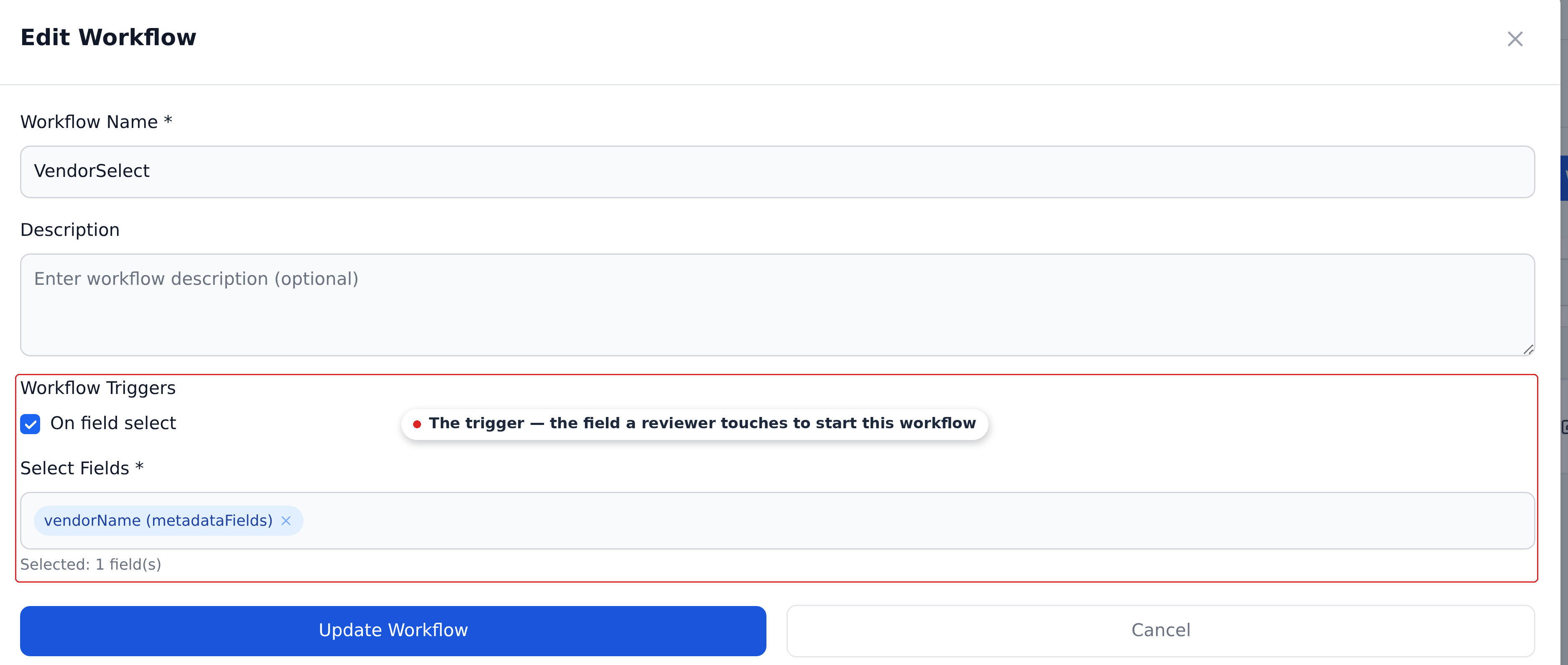
A workflow can watch multiple fields — any one of them changing fires it.
Most workflows watch one field
Multi-field triggers are valid but uncommon. The typical pattern is one workflow per field — Vendor Select watches vendorName, Department Select watches departmentName, and so on. This keeps the firing model crisp.
Trigger timing — Select fields vs text fields
The timing of "On field select" depends on the field type:
| Field type | Workflow fires when… |
|---|---|
| Select field | The reviewer picks a new option — immediate |
| Text field | The reviewer de-focuses the field (tabs out, clicks elsewhere) |
| Numeric field | Same as text — fires on de-focus |
| Date field | Same as text — fires on de-focus (likely; some date-picker UX may vary) |
For Select fields, the click-to-pick is the commit. There's no de-focus step.
For text and numeric fields, the workflow waits until the field loses focus. This avoids firing the workflow on every keystroke as the reviewer types.
If you have a workflow watching a text field and noticed it doesn't fire while the reviewer is typing — that's by design. Wait for de-focus.
The hidden internal trigger (Approvers)
Recognito can bind a workflow to assignee changes through a project setting managed by Recognito administrators. That workflow is often named Approvers, but the setting can name another workflow. This binding is separate from the customer-facing Mapping trigger controls; contact your account manager if you need it.
In the Workflows page, this workflow's Triggers column shows No triggers — same as Initial_Workflow and same as any dead workflow. The UI doesn't distinguish them.
Creating a workflow or entity named Approvers does not enable this behavior by itself. The project must have the assignee-change binding configured.
When you see No triggers
Three cases:
Initial_Workflow— implicit Document Analysed trigger. Always present.- Assignee-change workflow — often called
Approvers; bound through Recognito-managed project settings. - Dead workflows — a workflow the customer created but never assigned a trigger to. Never fires.
Confirm whether a workflow has one of these bindings before removing it. Its name alone does not tell you whether it runs.
Dead workflows
The UI shows No triggers for both Initial_Workflow and any workflow created without configuring a trigger. There's no UI distinction, no warning, no count.
Dead workflows are easy to accumulate:
- An admin creates a workflow, sets up steps, gets pulled into another task, and never adds a trigger.
- An admin removes a trigger to "pause" a workflow and forgets to re-add it.
- A workflow that used to fire on a deleted field still shows in the list with no trigger.
Periodically review No triggers entries. Keep Initial_Workflow and the workflow selected for assignee changes; remove unused workflows after checking those bindings.
Multi-field triggers
A workflow can watch multiple fields. Any of them changing fires the workflow.
Example: a workflow that re-runs when any of customerInitials, vendorName, or Total changes. Useful for "re-compute everything that depends on these key context fields."
In practice, most customers prefer one workflow per field for clarity. Multi-field triggers can be harder to reason about (which field fired? what's the cascade?). Use them sparingly.
Trigger field types and workflow design
Some practical implications of trigger types:
| Trigger field type | Use case |
|---|---|
Select field (e.g., vendorName) | Standard user-driven workflows; reviewer picks a value, cascade fires immediately |
Text/numeric field (e.g., SubTotal) | Workflows that should re-run when extracted values are corrected; fires on de-focus |
| Date field | Workflows depending on a date; fires on de-focus (typically) |
Table field (e.g., Item_erpItemDescription) | Workflows that re-compute per-line data; fires per-row when that row's field changes |
For Select-field triggers, the cascade is snappy — pick a vendor, wait 1–2 seconds, see the cascade results. For text-field triggers, the cascade waits for de-focus — finish typing, click elsewhere, wait 1–2 seconds.
What's next
- Steps and ordering — what happens after the trigger fires.
- The Initial_Workflow — the Document Analysed trigger in depth.
- Cascade rules — what doesn't fire (other workflows watching written fields).
- Async settling — the timing of trigger response.