
Appearance
Correcting values & line items
Editing in Studio is direct — click a field, type or pick a value, click elsewhere to commit. The line-item table adds a few more affordances: split, aggregate, duplicate, find-and-replace.
This page assumes you're already in Studio with a document open. If not, see Reviewing extracted fields.
Editing a field
Click any field in the right pane. The field becomes editable.
- Text or numeric fields — type the new value. Click elsewhere or press Tab to commit.
- Select (dropdown) fields — pick from the options.
- Date fields — type the date or use the picker.
The new value is staged when the field loses focus. Click Update (top-right) when you're ready to save all staged edits.
Watch for the cascade
If the field you're editing has a workflow watching it (a vendor name, a department, a total amount), the related lookups re-run after you commit. Other fields update a second or two later — give them a moment before clicking Validate.
What happens when you change a Select field
Select fields fire workflows immediately when you pick a value. Pick a different vendor name and the workflow watching that field runs — typically updating vendor account, currency, payment terms, and so on.
The cascade happens server-side and takes 1–2 seconds. The trigger field shows the new value right away; the other writes appear together once the workflow finishes. Don't be surprised if multiple fields shift at once a moment after your pick.
What happens when you change a text field
Text fields (and numeric fields, which behave the same way) fire workflows when the field de-focuses — when you click elsewhere or tab out. They don't fire on every keystroke.
This is the right behavior in practice — typing 1 then 2 then 3 shouldn't fire the workflow three times. The workflow waits until you've finished typing.
Reset data — re-run the Initial Workflow
Three buttons sit at the foot of each field group: Reset data, Wrong data, Wrong type.
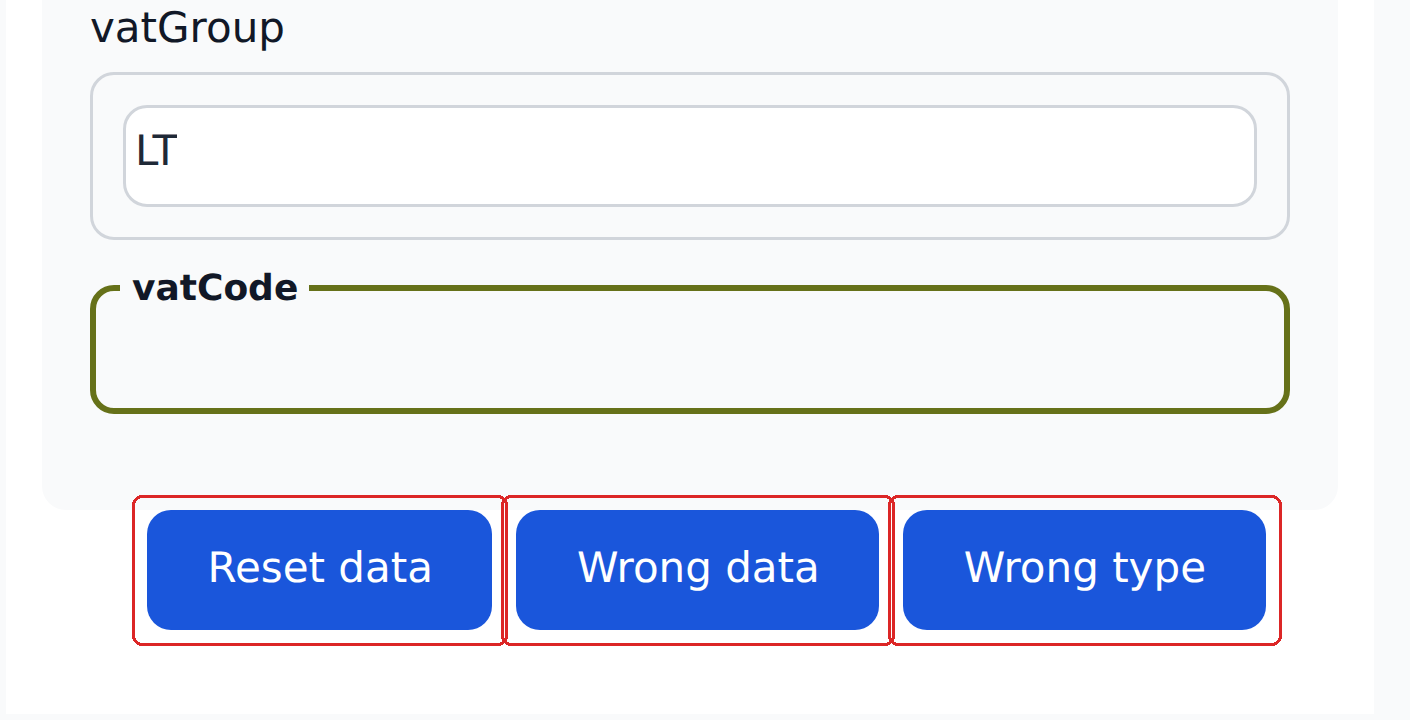
Reset data re-runs the project's Initial_Workflow — useful when the underlying reference data has changed.
The classic case: you notice a vendor isn't in your Vendors entity yet. You ask an admin to add it (or do it yourself if you have permission). You come back to the document and click Reset data on vendorName. The Initial Workflow re-runs, finds the newly-added vendor, and populates vendorAddress, defaultGLAccount, and any other Mapping-fed fields.
Reset data isn't needed for routine edits
If you're just changing a value (picking a different vendor from the dropdown, fixing a typo in a date), the workflow watching that field fires automatically. Reset data is for when the entity data has changed and you want a re-run with the new state.
Line-item editing
The line-items table has its own toolbar. The icons are unlabelled — hover for a tooltip, or use this map.
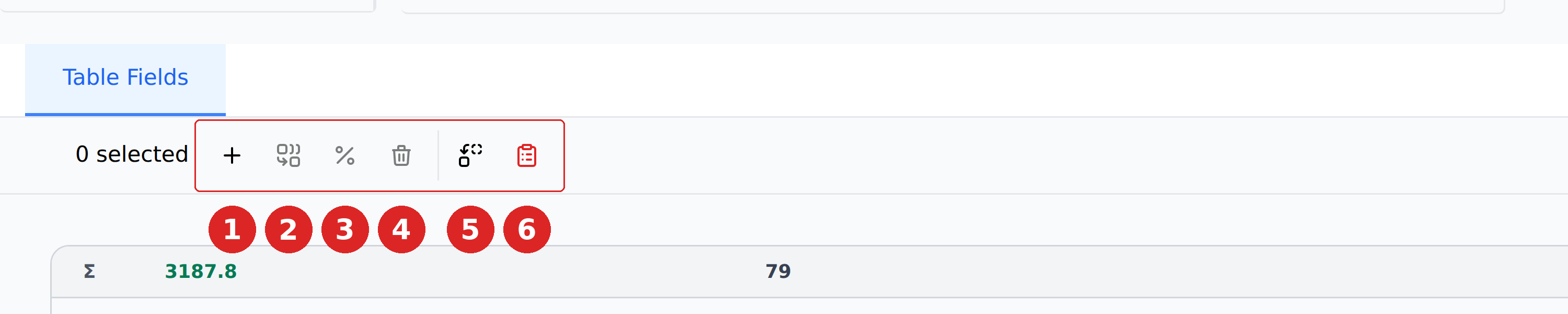
- Add new item — an empty row at the bottom of the table.
- Aggregate selected rows — combine rows into one, summing the numeric columns.
- Adjust proportions of selected rows — split values across rows while holding the total.
- Delete selected rows.
- Find and replace — a bulk edit across line-item cells.
- Enable line items for export — include the table in what leaves the system.
Tick the checkbox at the left of a row to select it; the "0 selected" counter tracks how many rows the toolbar will act on.
Edit cell
Click any cell in the table to edit it inline. Quantity and UnitPrice are the fields the engine most often misreads — scan the table for these first.
When you change Quantity or UnitPrice, the Total column usually recomputes automatically. The Total column is derived, not extracted, so it stays in sync with the multiplications.
Split
Divide one line item into two with proportional values. Useful when the document shows one line that actually represents two items, or when you need to split the cost across two GL codes.
The split keeps the total amount of the original line item the same — the two new lines sum to the original.
Aggregate
Combine two or more line items into one, summing the numeric columns. Useful when the engine over-split a single logical item across multiple rows.
Duplicate
Clone a line item. Useful when one row's values are nearly right and you need a second row with mostly the same data.
Find and replace
A button in the line-items table toolbar that does a bulk find-and-replace across line-item rows. Useful when the engine systematically misreads a column — every row has 1Z where it should have 12, for example.
Wrong data / Wrong type buttons
The other two buttons at the foot of each field group are Wrong data and Wrong type. Today, clicking either sends a note to Recognito's team — they don't trigger automatic retraining or any visible product behavior.
These exist so you can flag misreads for the team to investigate. Don't rely on them to fix things automatically; if a value is wrong, edit it directly.
Don't use Wrong data / Wrong type as your fix
These buttons send feedback. They don't change the document. To fix a wrong value, edit the field directly. If you want to flag the misread for the team in addition, use the button after editing.
Saving your edits
Studio does not auto-save. When you've finished editing, click Update (top-right of Studio) to persist your changes. An Unsaved changes indicator appears while you have uncommitted edits — reloading the page before clicking Update reverts them.
After saving, the next step is to click Validate (moves Approval Status to Validated) or Approve (moves it to Approved). Both are covered on the next page.
What's next
- Approving / rejecting — the sign-off step after you're done editing.
- Reviewing extracted fields — back to the read-only orientation.
- Comments & history — the audit trail of every edit.