
Appearance
The Initial_Workflow
Every project has a bootstrap workflow named
Initial_Workflowby default. It fires on the Document Analysed event — once per document, immediately after extraction, before the reviewer first opens the document.
This page covers what makes Initial_Workflow special, how to design its step list, and the design patterns customers use.
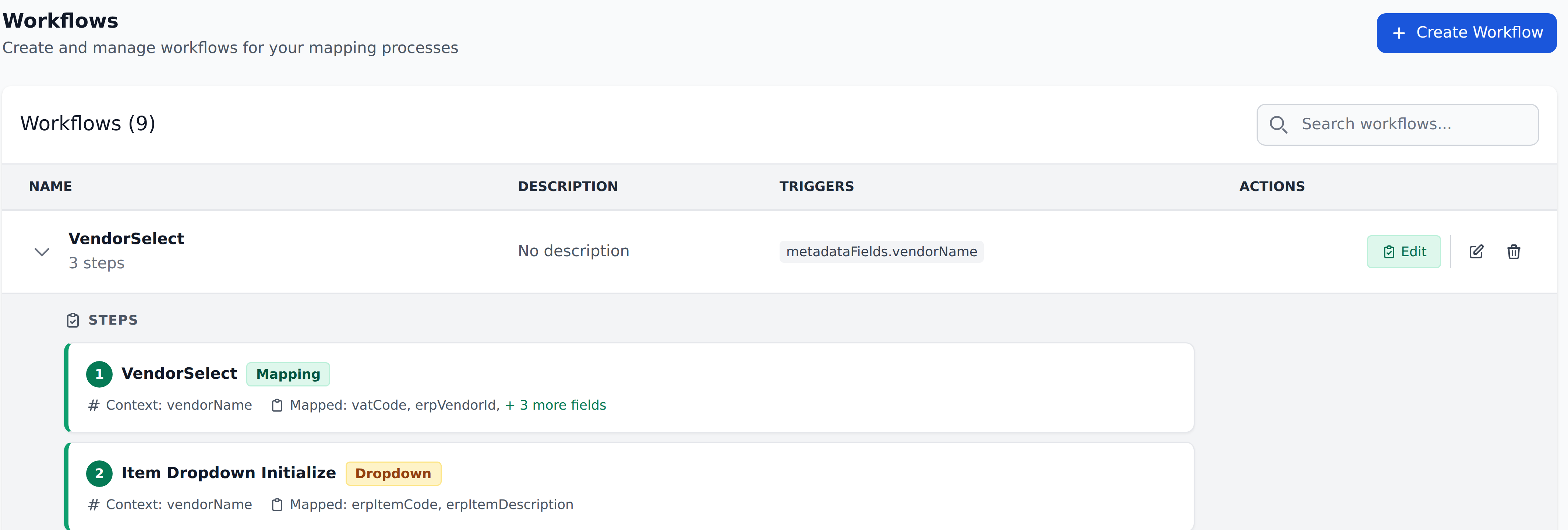
In the workflow list, Initial_Workflow is the one whose Triggers column reads No triggers — the binding is invisible because it lives in the Internal Mapping integration rather than on the workflow.
The contract
The Initial_Workflow is the only workflow in your project with these properties:
- Bound to the Document Analysed trigger. Fires once per document after extraction.
- Trigger isn't customer-editable. The binding lives in Recognito's Internal Mapping integration. You can edit the workflow's steps but not its trigger.
- Runs before the document is "ready." The document's Document Status flips from
ProcessingtoDoneonly after Initial_Workflow finishes. - Shows
No triggersin the Workflows page. The implicit binding doesn't display.
Every project gets one Initial_Workflow created automatically on project creation. You can't create a second one, and you can't delete the existing one.
What it does
Initial_Workflow establishes the post-extraction initial state of the document. Typical responsibilities:
- Vendor lookup. Match extracted vendor identifiers against the Vendors entity; populate
vendorName,vendorAccount,currency, etc. - GL lookup. Pull GL codes based on vendor or department.
- Approver routing. Compute which approver groups need to sign off based on total amount, vendor, department, or whatever your business rules are.
- Dropdown initialization. Pre-populate dropdown options so the reviewer doesn't see empty dropdowns.
- Discriminator setting. In discriminator-pattern projects, set the discriminator value from extracted data.
- Any other first-pass enrichment the project needs.
By the time the document appears in the queue, all of this has run. The reviewer opens it and sees vendor metadata filled in, dropdowns ready, approver routing computed.
The shape of a typical Initial_Workflow
For a simple Invoice project:
| # | Step | Purpose |
|---|---|---|
| 1 | Initialize Vendors | Look up vendor metadata from extracted VendorId |
| 2 | GL Suggestion | Pull default GL from vendor record |
| 3 | Department Lookup | Map department from cost center |
| 4 | Approver Routing | Set approver list based on total amount |
For a discriminator-pattern project (multi-tenant):
| # | Step | Purpose |
|---|---|---|
| 1 | Initialize Customer Initials | Set the discriminator from extracted CustomerId |
| 2 | Setup Dropdowns | Static dropdown options |
| 3 | Initialize Vendors | Vendor metadata, narrowed by discriminator |
| 4 | Add Accountant and Warehouse | Per-vendor-per-customer routing |
| 5 | Vendor to Assignee | Pick assignee based on vendor |
| 6 | Approvers | Approver routing |
| 7+ | Product mapping | Per-line-item lookups |
The exact step list varies by project. Common patterns explored below.
Designing Initial_Workflow
Three principles:
Establish the discriminator first
For discriminator-pattern projects, the discriminator (customerInitials, tenantId, whatever you call it) needs to be set early so subsequent steps can use it as Context.
Place "Initialize Customer Initials" or equivalent as step 1. Every downstream step uses it as the first Context column.
If you forget this — or place it later — downstream steps run with customerInitials=(empty) and silently no-op.
Establish facts before deriving from them
A step that uses field X as Context must run after the step that establishes X.
Example: Approver Routing typically uses (customer, vendor, total) as Context. It must run after:
- The discriminator step (sets
customer). - The vendor lookup step (sets
vendor).
If Approver Routing runs first, its Context lookup will fail.
Initialize dropdowns before user interaction
If a Select field's dropdown options depend on Mapping (a Dropdown Definition narrows by context), the dropdown init step must run during Initial_Workflow. Otherwise the reviewer opens the document, sees an empty dropdown, and can't pick anything.
The pattern: in Initial_Workflow, run the Dropdown Definition that should populate each Select field. The reviewer arrives with the dropdowns ready.
What about user-driven workflows?
User-driven workflows (On field select) handle the changes to the document after Initial_Workflow established the initial state.
A common pattern: a user-driven workflow on vendorName re-runs a subset of Initial_Workflow's steps when the reviewer picks a new vendor. The customer essentially says "re-run the chunks of Initial_Workflow that depend on vendorName."
The trade-off: any step in Initial_Workflow that the customer forgets to mirror in the user-driven workflow goes stale when the reviewer changes the trigger field. Plan accordingly.
See Cascade rules for the design pattern.
Editing Initial_Workflow
Open Settings → Mapping → Workflows, find Initial_Workflow, click Edit. The editor lets you:
- Add, remove, reorder, enable/disable steps — full control over the chain.
- Cannot change the trigger. It's permanently bound to Document Analysed via the Internal Mapping integration.
Changes take effect on newly-uploaded documents. Existing documents have whatever Mapping ran at the time of their extraction.
Re-running Initial_Workflow for existing documents
There's no project-wide "re-run Initial_Workflow on every document" affordance. For existing documents, the reviewer can use Reset data on a specific field to re-run Initial_Workflow for that one field.
If you need to re-run for many fields across many documents (because you significantly changed Initial_Workflow or the underlying entities), the practical workarounds:
- Reset data on individual fields per document. Tedious for many documents.
- Re-upload documents. Creates fresh documents that run through the current Initial_Workflow.
- Contact Recognito support. For large-scale re-extraction, they may be able to help.
Initial_Workflow changes don't backfill
A change to Initial_Workflow's steps affects only future documents. Existing documents in the queue won't suddenly have new fields populated.
This catches admins who edit Initial_Workflow expecting the change to apply universally. Plan changes around new document batches, or accept that backfilling existing documents requires per-document action.
The Internal Mapping integration
The Document Analysed binding lives in Settings → Integrations → Internal Mapping. This integration is somewhat hidden in the UI — it's not as prominent as Webhooks or other outbound integrations.
The Internal Mapping card has an Initial Workflow Name field that references the bootstrap workflow by name. The default value is Initial_Workflow, which is how the project knows which workflow to run after extraction. The name is a convention, not a hard lock — but if you rename the workflow, you'd also need to update the Initial Workflow Name field here to keep the binding intact.
Most customers never touch this integration. If you ever find yourself in Settings → Integrations and see an "Internal Mapping" card without context — that's what it does.
What's next
- Triggers — the trigger types, including Document Analysed.
- Steps and ordering — the sequential feed-through that Initial_Workflow relies on.
- Cascade rules — how Initial_Workflow relates to user-driven workflows.
- Recipes → Adding a new vendor mid-review — a worked example involving Initial_Workflow re-runs via Reset data.