
Appearance
Definitions overview
A definition is a lookup specification — "given these document field values, find a matching row in this entity, then do X." Definitions live inside the entity they read from; each entity can host multiple definitions.
This page is the orientation. The sub-pages below cover each piece of a definition's anatomy.
What a definition does
In plain terms, a definition says:
- Look in this entity.
- Match by these columns (the Context columns, each with its own Matching Type).
- If a row matches, write these columns' values to these document fields (the Mapped columns), and/or populate these dropdowns (the Dropdown columns).
- If no row matches, either fall back to a chosen row or do nothing.
That four-step shape is every definition. The shape is fixed; what changes is the Context, the Mapped columns, the Dropdown columns, and the fallbacks.
Where definitions live
Definitions live inside their target entity. To create or edit one:
- Settings → Mapping → Entities & Definitions.
- Find the entity that will hold the definition.
- Click + Definition on its row to add one, or expand the row with the chevron at its left to see and edit the definitions already there.
Expanding a row shows the definitions that entity already hosts, each with its Context columns, its Mapped fields, and the workflows using it.
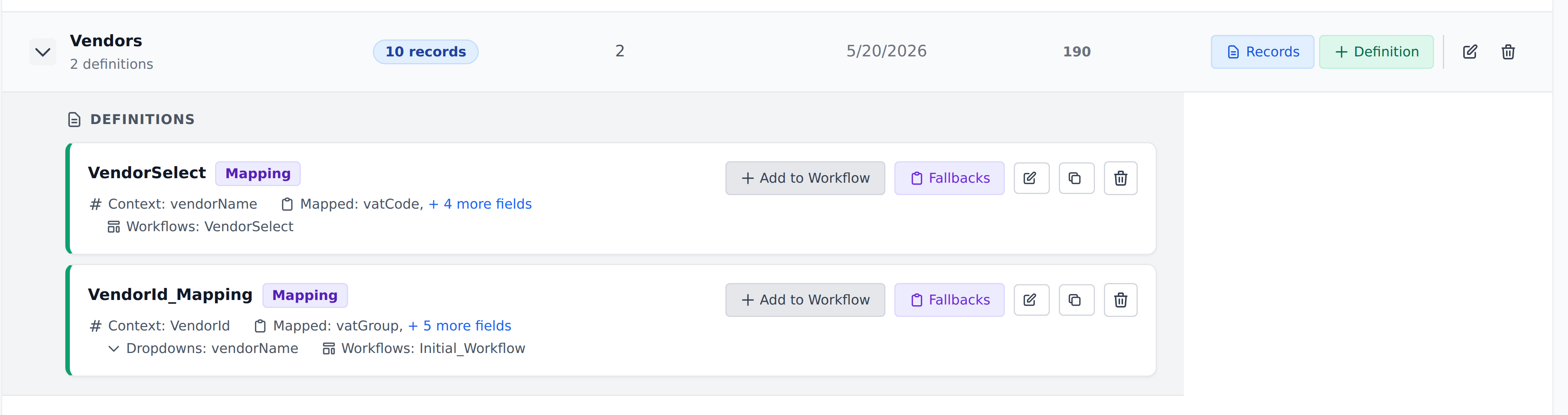
That view answers the question you'll ask most often when debugging: which lookup wrote this field, and what fires it?
Each entity can host multiple definitions. The Vendors entity might host:
Initialize Vendors— used by the project'sInitial_Workflow.Vendor Select— used by the user-drivenVendor Selectworkflow.
Both definitions live inside Vendors. They use the same columns to do different things — one targets extraction-time lookup, the other targets user-driven lookup.
The definition builder
Opening a definition gives you the entity on the left and the lookup spec on the right.
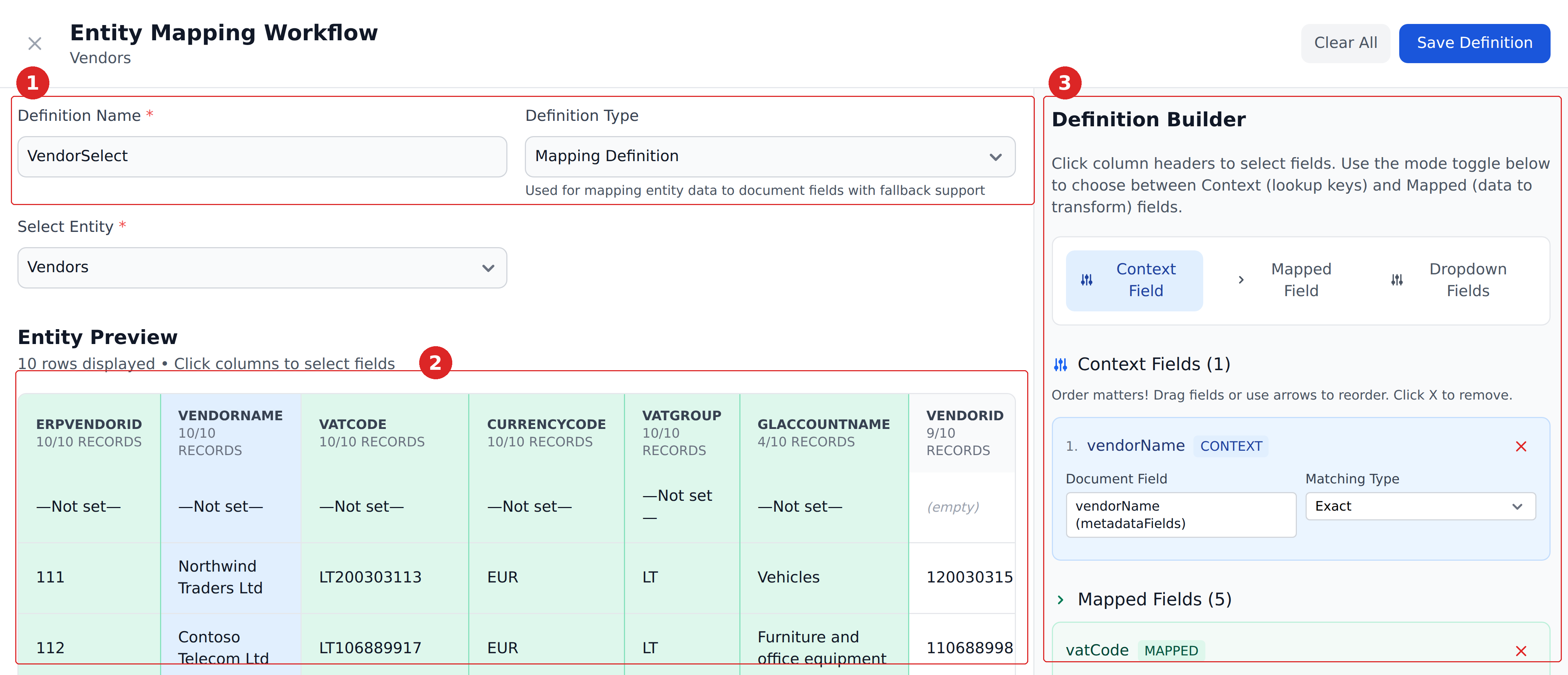
- Name and type, plus the entity the definition reads from.
- Entity preview — the actual rows. Each column header shows how many of the rows have a value in that column, which is the quickest way to spot a column that's too sparse to match on. Clicking a header adds that column to the definition.
- Definition Builder — what the definition does with the columns you picked.
The mode toggle decides which role a clicked column takes.

Set it to Context Field and the next column you click becomes part of the lookup key. Set it to Mapped Field and the column becomes something the definition writes. Dropdown Fields builds the option list for a Select field.
Each entry you add gets its own settings — a Matching Type for Context columns, a Transform for Mapped ones.
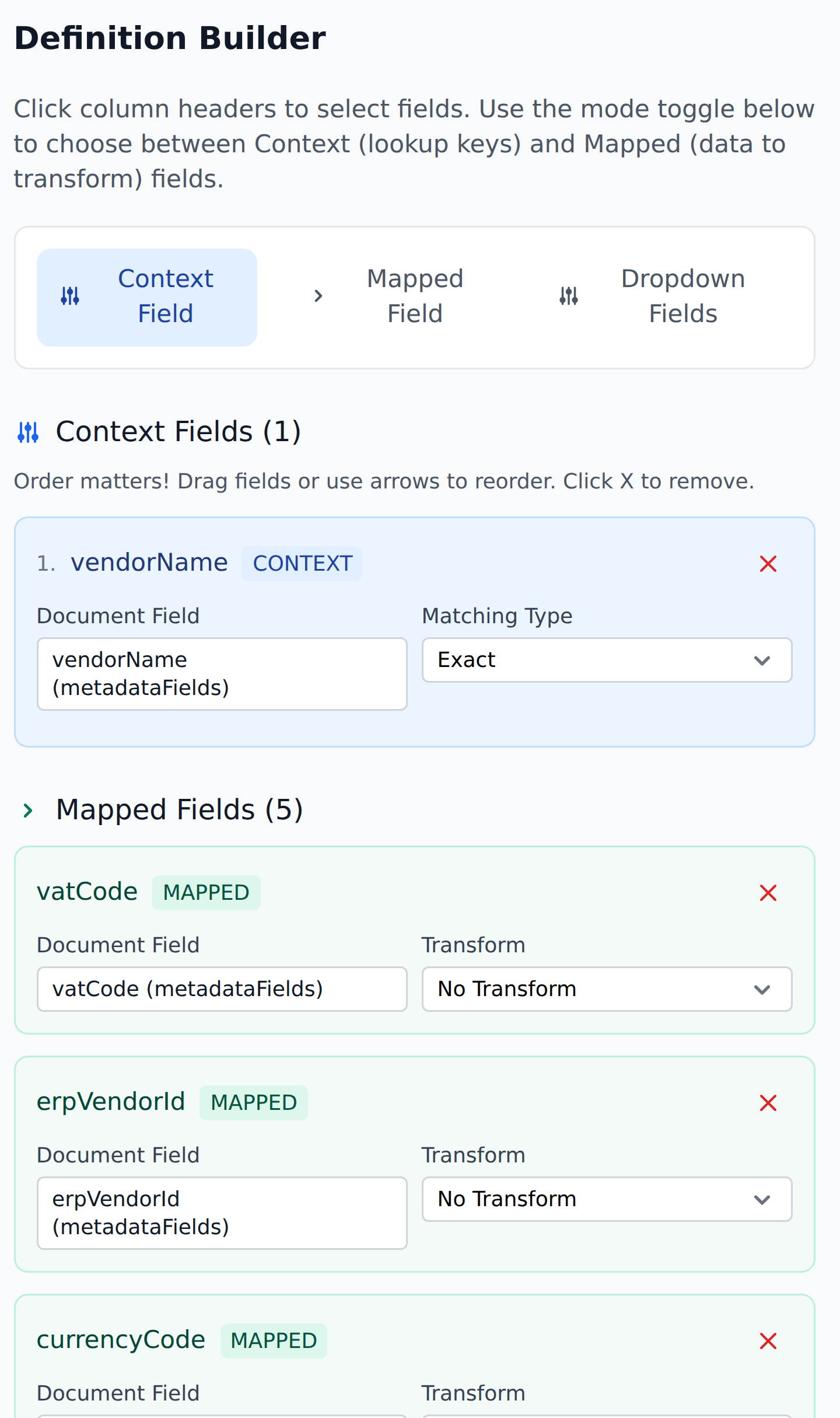
Context field order matters, and the pane says so — the numbering is the order the composite key is evaluated in.
The four pieces of a definition
Each definition has four configurable areas plus its identity:
Definition Name           (free text)
Type                      Mapping | Dropdown
Target entity             (locked — the entity the definition lives in)
─────
Context columns           (1–N — the lookup key)
Mapped columns            (0–M — Mapping Definition only; what gets written)
Dropdown columns          (0–K — what populates the dropdown)
Fallback Records          (Level 0 and Level 1 — substitutes for Mapping lookups)
Each piece is its own page in this sub-section.
Mapping vs Dropdown definitions
Two types exist:
- Mapping Definition — when a row matches, writes the row's column values to document fields (the Mapped columns). Can also expose unfiltered dropdowns.
- Dropdown Definition — when a row matches, rebuilds a document field's dropdown options from the matching rows' Dropdown columns. Also writes the top row's value.
Both types can write to document fields. The real difference is in how dropdowns get populated — unfiltered in Mapping Definitions, context-filtered in Dropdown Definitions.
See Mapping vs Dropdown definitions for the full distinction.
What's in this section
- Mapping vs Dropdown definitions — the two types and when to use each.
- Context columns — the lookup key. Combined with Matching Types from the Concepts section.
- Mapped columns — what gets written when a row matches.
- Dropdown columns — what populates the dropdown.
- Fallback records — substitute rows when nothing matches.
A walking example
Imagine a Vendors entity in the Acme Invoices project:
Definition Name:   Initialize Vendors
Type:              Mapping Definition
Target entity:     Vendors (200 records)

Context columns:
  1. VendorId         Matching Type: Exact

Mapped columns:
  - vendorName (Metadata)        Transform: No Transform
  - vendorAccount (Metadata)     Transform: No Transform
  - currency (Metadata)          Transform: No Transform

Dropdown columns:  (none)

Fallback Records:  (none configured)
When invoked (typically by Initial_Workflow after extraction):
- Read the document's current
VendorId(set by extraction). - Look up the Vendors entity for a row where
VendorIdexactly equals that value. - If a row matches: write
vendorName,vendorAccount,currencyfrom that row to the document fields. The empty-cell rule applies — empty entity cells don't overwrite. - If no row matches: silent no-op (no Fallback configured).
This is the simplest definition shape. More complex definitions add more Context columns, switch to Dropdown type for dropdown-driving behavior, or add Fallback Records for graceful degradation.
What's next
- Mapping vs Dropdown definitions — the type choice. Read first.
- Context columns — the lookup key.
- Mapped columns — what gets written.
- Entities overview — the data layer that definitions read from.