
Appearance
Managing records
For one-off changes — adding a vendor someone forgot, fixing a typo in a GL code, removing a deprecated row — the entity's record view supports manual edits. For high-volume changes, bulk upload via .xlsx is the standard path.
This page covers the manual operations and when they're the right choice.
The record view
Open Settings → Mapping → Entities & Definitions and click Records on the entity.
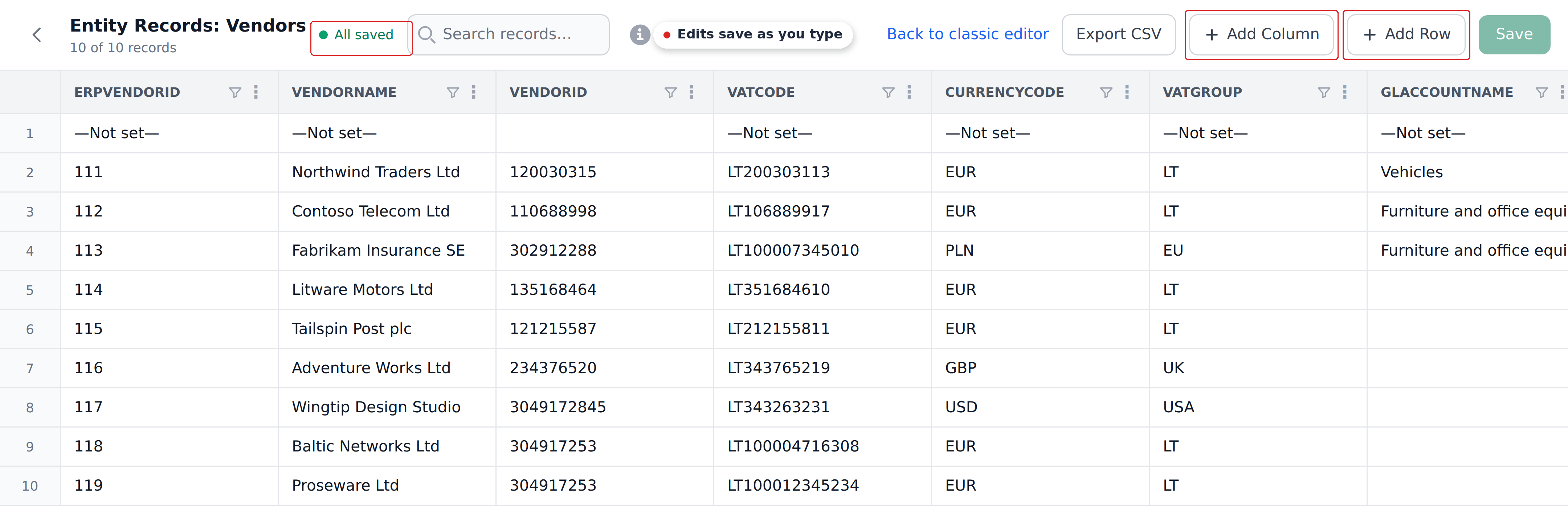
The record view shows every row as a table:
- Each row is one entity record.
- Each column is one entity column.
- Cells are directly editable inline.
The toolbar above the table has at minimum:
- Add Row — append a new record.
- Add Column — add a new column to the entity schema.
Adding a single record
Click Add row. A new empty row appears. Click into each cell and type the value. Click elsewhere to commit.
For a Vendors entity with columns vendorId, vendorName, vendorAccount, taxId, adding a new vendor looks like:
| vendorId | vendorName | vendorAccount | taxId |
|---|---|---|---|
| V-205 | Acme Supplies UK | 30-9876543 | GB123456789 |
Leave cells empty when you don't have the value. Empty cells follow the empty-cell rule — no overwrites on document fields.
One-off vendor adds during review
The most common manual add is during document review. A reviewer notices a vendor isn't in the Vendors entity. They (or an admin) opens the entity, adds the row, then goes back to the document and clicks Reset data on the vendor field. The Initial Workflow re-runs and finds the new vendor.
This is the canonical pattern for catching missing entity data during day-to-day operation.
Editing an existing record
Click any cell in the record view. The cell becomes editable. Type the new value and click elsewhere to commit. The change persists immediately.
Two cases where editing matters:
- Fixing a typo. A vendor name has a misspelling; correct it in the entity. Future documents matching this vendor get the corrected name.
- Updating a stale value. A vendor's bank account changed; update the row.
Edits don't propagate backward to documents already processed. Documents whose Mapping ran before the edit have whatever value was at the time. To re-populate them with the new value, the assignee uses Reset data on the relevant field.
Removing a record
Each row has a delete affordance (typically a trash icon in the row's actions column). Click it to remove the row.
Removing a row doesn't affect documents already populated from it. If a document's vendorName was set from the removed row, the document keeps its current vendorName — the empty-cell rule would prevent any subsequent re-run from clearing it back, but neither would a re-run repopulate.
To "blank out" a value populated from a now-removed row, the manual path is for the reviewer to clear the field in Studio.
Reordering rows
When multiple rows match a definition's Context AND, the top row wins. You can reorder rows to control which one is the top match.
The record view's UI for reordering varies — common patterns include drag-and-drop on row handles or up/down arrows in the actions column. Check your project's specific UI.
Do not rely on a bulk import to reorder existing records. An import can retain their previous order or recreate records depending on its options. Test lookup order after any bulk update.
Adding a new column
Click Add column (or the equivalent affordance). Name the column. The column appears in every row with an empty cell.
After adding the column, you populate it either:
- Per-row in the UI for a small entity.
- Via .xlsx import — fill the new column in your source spreadsheet and re-import.
Prepare a complete worksheet before re-importing: an import can remove existing records missing from the file, even with overwrite off. See Bulk uploading records for update behavior and backup checks.
Renames break definitions
Renaming an existing column doesn't update definitions that reference the old name. The definition's reference becomes broken.
Before renaming, search your definitions for references to the column. The safer path: add the new column, copy data over, update definitions to use the new column, then remove the old column.
When to use manual vs bulk
| Operation | Manual | Bulk (.xlsx) |
|---|---|---|
| Adding 1–5 rows | ✓ | overkill |
| Adding dozens of rows | tedious | ✓ |
| Updating a single value | ✓ | overkill |
| Updating dozens of values | tedious | ✓ |
| Loading a large dataset | tedious | ✓ |
| Schema changes (add/remove columns) | ✓ (UI is fast) | depends on whether data is changing too |
The rule of thumb: anything you'd be tempted to script, do via .xlsx instead. Anything you'd do once and forget, do manually.
Filtering records
For large entities, each column header has a filter icon you can use to narrow rows by that column's value. Per-column filtering is the way to find specific rows in a large entity.
For very high-volume work, preparing the data in Excel and importing it is often the most ergonomic path.
What's next
- Bulk uploading records (xlsx) — the standard path for non-trivial volumes.
- Creating entities — the schema side.
- Definitions overview — the lookup rules that read from records.