
Appearance
Table fields
Table fields make up the line items table at the bottom of Studio. Each table field is a column in that table.
Table fields work like Main fields with two differences: they're rendered as columns in a table rather than a single value, and they support per-row editing including the line-item tools (Split, Aggregate, Duplicate, Find-and-replace).
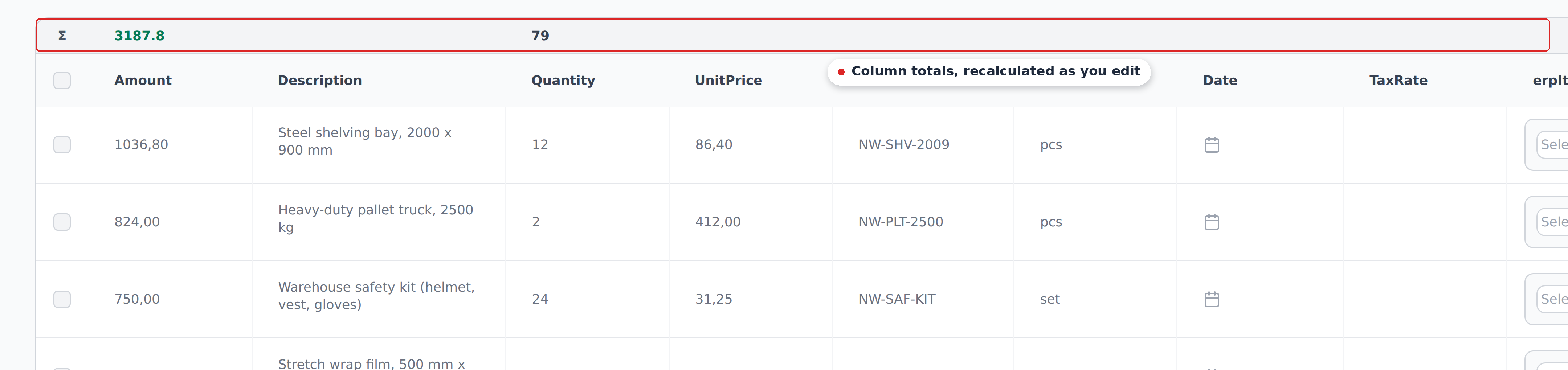
Each table field is one column above. Reviewers get the toolbar and the totals row for free.
What lives in Table by default
For Invoice projects, the default table columns include:
- Description — the line item name or text description.
- Quantity — count.
- UnitPrice — price per unit.
- Amount — line total, usually
Quantity * UnitPrice(derived). - TaxRate / TaxAmount — per-line tax columns where applicable.
The exact default columns vary by project type. Open Settings → Document fields and filter to the Table category to see your project's set.
Adding a custom Table field
The path for additional per-line columns. Common cases: an ERP item code that gets looked up via Mapping, a cost center per line, a custom tax code.
- Settings → Document fields.
- Click Add field.
- Pick Table as the category.
- Name it (e.g.,
erpItemCode). - Set the type (Text for codes, Number for quantities, Date for per-line dates).
- Decide on extraction:
- Extracted — leave AI Post Processing off if the value is on the document already, or turn it on for fields needing a second-pass LLM read.
- Mapping-fed — leave the field as plain Text; populate it via Mapping definitions targeting
tableFields.<fieldName>.
- Save.
The new column appears in the line items table for all subsequent uploads.
How Mapping populates Table fields
Table fields work in Mapping just like other fields, with one key behavior: a Mapping step that writes to a Table field writes the value to every row in the table, not just one row.
Example: a Dropdown Definition that rebuilds Item_erpItemDescription options for the current (customer, vendor) pair writes the top matching value to every line item. Each line item starts with the same default value; the reviewer adjusts per-row.
For per-row Mapping lookups, the Context columns need to include a row-distinguishing value. The classic pattern is (customerInitials, vendorAccount, ProductCode) — ProductCode differs per row, so each row gets its own lookup result.
Table writes are bulk by default
A Mapping step without a row-distinguishing Context column writes the same value to every row. This is useful for defaults but rarely what you want for the final per-row data. Plan Context columns to include something that varies per row.
Line-item editing tools (reviewer-facing)
Invoice projects expose four bulk-edit tools to reviewers in Studio:
- Split — divide one line item into two with proportional values. Useful for splitting a cost across GL codes.
- Aggregate — combine multiple line items into one.
- Duplicate — clone a line item.
- Find and replace — bulk-edit a value across rows.
These tools work on the table itself; they're not configurable per project. They're available in any Invoice project that has table fields. See Correcting values & line items for the reviewer-side guide.
What Table fields drive
A few behaviors specific to Table fields:
- Per-row workflows. Workflows watching
tableFields.<fieldName>fire when a reviewer edits that field in a row. Each row fires independently. - Line-item totals. Derived fields like Amount compute from other line-item columns automatically.
- Bulk operations. The Split / Aggregate / Find-and-replace tools operate on the table, not on individual fields.
What's next
- Main fields — the primary field configuration.
- Payment, Tax, Metadata — the other three categories.
- Mapping & Workflows — using Table fields in lookups.
- Correcting values & line items — the reviewer-side of table editing.