
Appearance
Projects & organizations
Recognito scopes configuration at two levels: the organization (your account, your billing, your members) and projects inside it (your fields, your rules, your integrations). Almost everything you configure lives at the project level.
This page covers what goes where and why the boundary matters when you're planning a multi-project setup.
The organization
An organization is your account. One organization holds:
- Members — every user across every project. Members are invited at the org level; what they can see and do is scoped per-project.
- API keys — created at the org level and scoped to specific actions. Org-owner role is required to create them.
- Billing — invoices and payments are org-level.
- Plan — your subscription (Starter or Pro) and any additional features you've arranged with your account manager apply at the org level.
You typically have one organization for your company. Some larger groups maintain separate orgs for separate legal entities — each with its own billing, members, and projects.
Switching organizations
If you have access to more than one organization (your employer's plus a partner's, for example), the org switcher at the bottom-left of the sidebar lets you move between them. The Dashboard shows projects scoped to whichever org is currently active.
The project
A project is the working unit. Every project pins down:
- Document type — Invoice, Receipt, Handover & Acceptance Certificate, or a custom model.
- Field schema — what fields the engine extracts and how they're categorized.
- Mapping rules — entities, definitions, workflows.
- Users and their per-project roles — who's an assignee, who's an approver, who's an admin.
- Capture channels — the project mailbox, accepted upload formats, API endpoints.
- Integrations — webhooks, the Custom Response Schema, ERP connectors.
- General settings — auto-scan thresholds, duplicate detection, document lock.
Every project is self-contained. Two projects in the same org don't share fields, don't share entities, don't share workflows. If you need the same logic in two projects, you configure it in both.
Why separate projects
Spinning up a project per logical document stream is cheap and pays back fast. Common reasons to separate:
- Different document types. Invoice and Purchase Order each get their own project — different fields, different extraction model.
- Different legal entities. A subsidiary in another country usually wants a separate project: different VAT rules, different GL chart, different approvers, different ERP target.
- Different business processes. A team that handles vendor invoices manually and a team that handles them through an ERP push can keep separate projects so their flows don't mix.
- Pilot vs production. Many orgs run a pilot project for testing new rules, separate from the production project where the real work happens.
You don't need a project for every niche case — splitting too aggressively makes maintenance harder. The rule of thumb: if two streams need different fields, different rules, or different ERP targets, they're separate projects.
What lives at the org level
The handful of things that aren't per-project:
| Setting | Where to find |
|---|---|
| Members (the user list) | Settings → Organization → Members |
| API keys | Settings → Organization → API Keys |
| Billing and payments | Settings → Organization → Payments |
| Plan and feature access | Implicit from your account; talk to your account manager to change |
| The organization name | Settings → Organization |
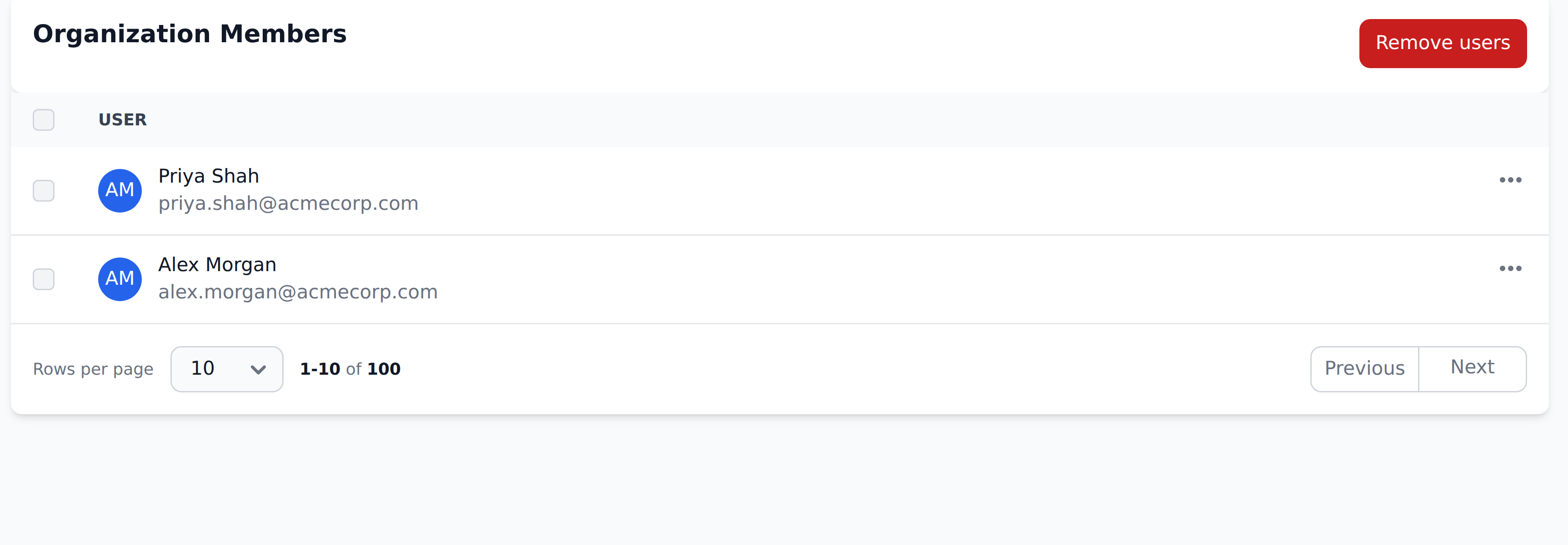
The Organization settings block is org-owner-only. If you don't see it in the settings menu, you don't have the org-owner role on the current organization.
What lives at the project level
Almost everything else:
| Setting | Where to find |
|---|---|
| Project name and mailbox | Settings → General |
| Auto-scan threshold and duplicate detection | Settings → General |
| Field schema | Settings → Document fields |
| Which fields the custom-filter builder offers | Settings → Field Usage Settings |
| Mapping (entities, definitions, workflows) | Settings → Mapping |
| Users and per-project permissions | Settings → Users |
| Notifications | Settings → Notifications |
| Outbound integrations (webhooks, Internal Mapping) | Settings → Integrations |
| Custom Response Schema | Settings → Developers |
When you switch projects (using the project picker on the Dashboard), the entire Settings tree refreshes to show that project's configuration.
Creating a project
From the Dashboard, click Create project. You'll be asked for:
- A project type — Invoice, Receipt, Handover & Acceptance Certificate, or one of your org's custom models if any exist.
- A project name — free text. Renameable later in Settings → General.
When you save, Recognito provisions:
- A new project mailbox (
invoice-randomstring@mail.recognito.iofor Invoice projects, with corresponding prefixes for other types). - The default field schema for the chosen project type.
- An empty
Initial_Workflowready for you to add steps to. - An empty Users list — you'll need to invite assignees and approvers separately.
The project shows up on the Dashboard and in the project picker.
Project type is permanent
You pick the project type at creation and can't change it later. If you create an Invoice project and decide you actually need a Receipt project, you create a new one and abandon (or delete) the first.
Renaming a project
Settings → General → Project name. Change it and click Update project. The new name shows everywhere the old one did — Dashboard, sidebar, breadcrumbs.
The project mailbox address doesn't change when you rename the project. The random suffix in the email stays stable so existing email-forwarding rules keep working.
Deleting a project
Settings → General has a Delete project button. Deletion is permanent — there is no undo and no document recovery after the fact.
If you're not ready to delete permanently, the practical alternative is to pause uploads, disable integrations, and leave the project as a read-only archive. The documents remain queryable; nothing new flows in.
What's next
- Document types — pick the right project type for what you're processing.
- General settings — auto-scan, duplicates, document lock.
- Users & permissions — invite the people who'll use the project.
- Mapping & Workflows — the rule engine, configured per project.