
Appearance
Field categories
Every Invoice project ships with five field categories. The categories are conventions — the system doesn't enforce them as boundaries. Any field in any category can be either extracted from the document or filled in by Mapping.
This is the most misunderstood part of Recognito's data model. Understanding it well saves you from over-thinking field placement when you set up a project.
The five categories
| Category | Convention | Where you see it in Studio |
|---|---|---|
| Main | Primary fields — invoice number, total, dates, vendor identifier | The top of the right pane |
| Table | Line items | The bottom pane |
| Payment | Bank account, IBAN, due date, payment method | The right pane, below Main |
| Tax | Tax rate, tax amount, VAT codes | The right pane, below Payment |
| Metadata | Anything Mapping populates (vendor name from a lookup, GL codes, departments) | The right pane, below Tax |
The categories are the visual organization in Studio. Reviewers see one category per group as they scroll the right pane.
The convention
The shared assumption that drives field placement:
- Main / Table / Payment / Tax — data the engine extracts from the document.
- Metadata — "Bring Your Own Data" — values populated via Mapping lookups against your reference tables.
Following the convention makes documents easier to read. A reviewer scanning a project they've never seen before knows that fields at the top come from the document and fields at the bottom come from your business logic.
The reality
Architecturally, there are no rules. The system doesn't check which category a field is in when deciding what to do with it. Every field in every category can be either extracted or Mapping-fed.
Real projects often deviate from the convention:
- A Main field that's Mapping-fed — your vendor master has the canonical spelling, so even though
vendorNameis a Main field, you populate it from the Vendors entity rather than trusting extraction. - A Metadata field that's extracted — you've added a custom field with AI Post Processing that pulls a Polish NIP off the document. It's in Metadata because that's where you grouped your custom fields, but it's extraction-fed.
- Table fields mixing both — extracted Quantity and UnitPrice alongside Mapping-fed
erpItemCodeandglAccountName. The line items table holds both kinds of column.
The convention is a starting point. Deviate when it serves your use case.
Why this matters
If you assume the categories are strict ("Metadata fields only come from Mapping"), you'll over-restrict yourself. A reviewer will ask "can we have this extracted field show up next to the GL code in Metadata?" and you'll say no when the answer is yes — just put the field in Metadata and turn on AI Post Processing.
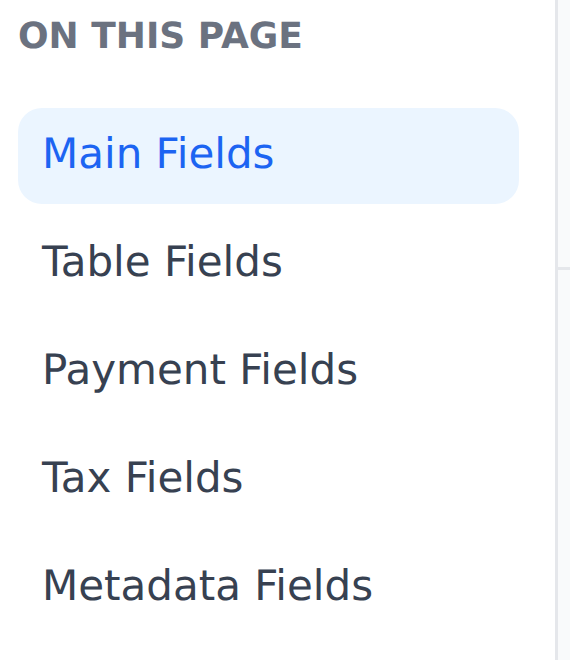
The field editor uses the same five groups, each with a count of how many fields it holds.
Per-field behavior is configured separately
What a field does — extracted vs Mapping-fed, mandatory or not, locked at which status — is set on the field itself, not on its category. The per-field controls are in:
- Settings → Document fields — the schema editor. Add, remove, rearrange fields. Toggle AI Post Processing per field.
- Settings → Field Usage Settings — which fields the custom-filter builder offers.
- Settings → Integrations — which fields each export carries. The Clipboard / CSV, Excel and Print cards each hold their own field list.
- Settings → Mapping — definitions decide which fields they populate via lookups, regardless of category.
What the categories actually control
Two things:
- Visual grouping in Studio. Fields render under their category heading.
- Document lock targets. Document lock settings (Settings → General → Document lock settings) lock by category — "lock Main when Approved, lock Payment when Validated, leave Metadata editable." Each category gets its own lock toggle.
The lock-by-category behavior is the main reason categories aren't pure visual sugar. If you lock Main when Approved, every field in the Main category locks. Fields in other categories stay editable.
A note on the Automatic / Manual toggle
If you look at Settings → Document fields, each field has an Automatic / Manual toggle. This toggle is legacy — it doesn't actually control behavior in the current product and is slated for removal.
Don't rely on it. Whether a field is extracted or Mapping-fed is determined by your Mapping configuration and AI Post Processing settings, not by this toggle.
What's next
- Main fields — configuring primary fields.
- Table fields — line items and the line-item tooling.
- Payment, Tax, Metadata — the other three categories.
- Validation rules — making fields mandatory and what
—Not set—blocks.