
Appearance
Users & permissions
Recognito's permission model has two axes that drive behavior today (Document visibility and Document actions) plus a Role axis that's mostly placeholder. Knowing which is which saves a lot of confusion.
This page covers what each permission controls, how to combine them, and which role labels actually do something.
Settings → Users lists everyone on the project with their settings inline — change any of the four dropdowns and it applies immediately.
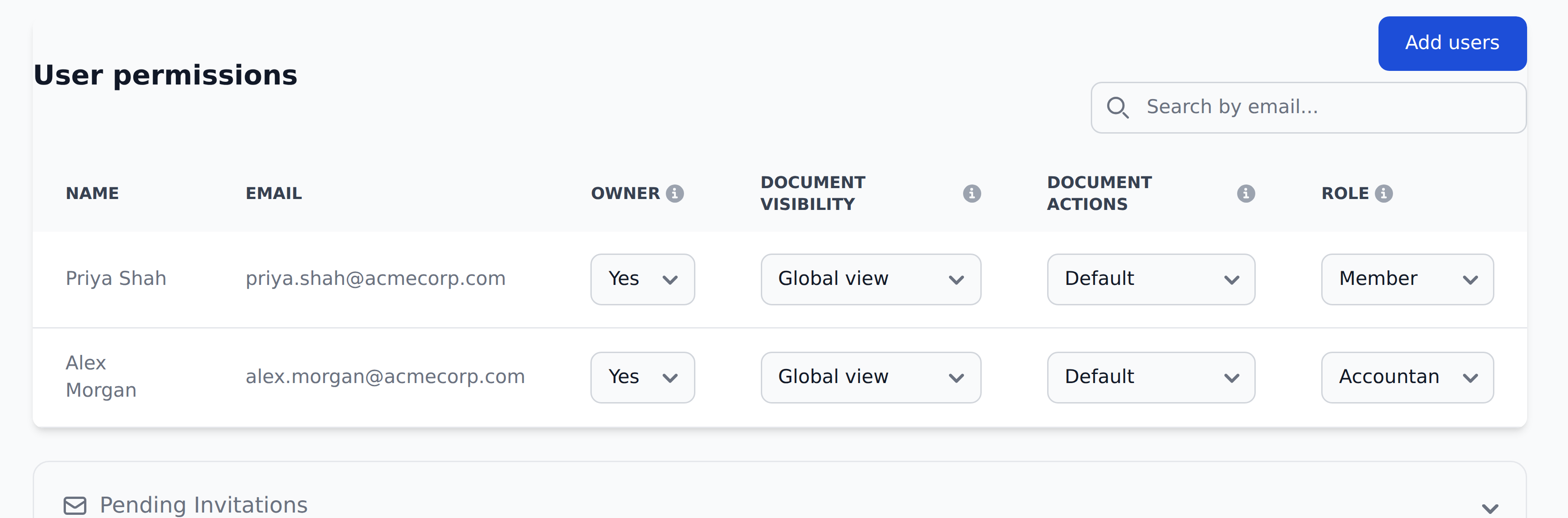
Beneath the table sits a collapsible Pending Invitations panel for people who've been invited but haven't signed up yet.
The two axes that matter
Document visibility
Decides which documents a user sees in the Documents view.
| Visibility | What the user sees |
|---|---|
| Personal Visibility | Only documents they're directly involved in — they uploaded it, they're the assignee, or they're one of the approvers. Default for most users. |
| Global Visibility | Every document in the project, regardless of involvement. Typically goes to accountants, finance ops leads, or C-level — maybe 1–2 people per org. |
The two are mutually exclusive. Each user has one or the other on each project.
Document actions
Decides what the user can do to documents they can see.
| Actions | What the user can do |
|---|---|
| Default | Validate / Approve / Reject documents they're assigned to. Edit fields. Delete documents in Pending or Duplicate status. |
| Override | Everything Default can do, plus: bypass document locks, edit Rejected documents, delete any document at any status. Used to fix user errors after the fact. |
| View Only | Read-only. Can see documents (per the Visibility scope) but can't act on them. |
The three are mutually exclusive. Default is what most users get. Override is admin-tier — sparingly granted.
The combinations in practice
The two axes combine. Common patterns:
| Pattern | Visibility | Actions | Used for |
|---|---|---|---|
| Standard reviewer | Personal | Default | The bulk of AP clerks and accountants doing daily review |
| Standard approver | Personal | Default | Department heads and finance leads who approve invoices in their scope |
| All-seeing finance lead | Global | Default | Senior staff who want full visibility but normal action gating |
| Project admin | Global | Override | One or two people per project who can edit anything and fix mistakes |
| External auditor | Global | View Only | Read-only access for audit teams |
You don't have to use these specific labels — they're just shorthand for the visibility/actions combos.
The Role axis (mostly placeholder today)
Owner is its own Yes/No column, separate from Role. It controls org-admin-level features.
The Role column offers Member, Accountant and Director. Only one of the three drives behavior today:
- Accountant — surfaces an Export button in the Documents view's bulk-action toolbar. Useful for orgs doing manual export to an ERP — gives accountants a clear path for tracking which documents they've exported.
Member and Director are currently placeholders. They show in the UI but don't gate any product behavior.
Role is being expanded
The Role axis is the area where Recognito's permission model is most likely to grow. If you're planning a complex permission setup for a large team, talk to your account manager — there may be additional access-control options that match what you need. See Enterprise & admin → RBAC.
Inviting users
Settings → Users in the relevant project. Click Add users.
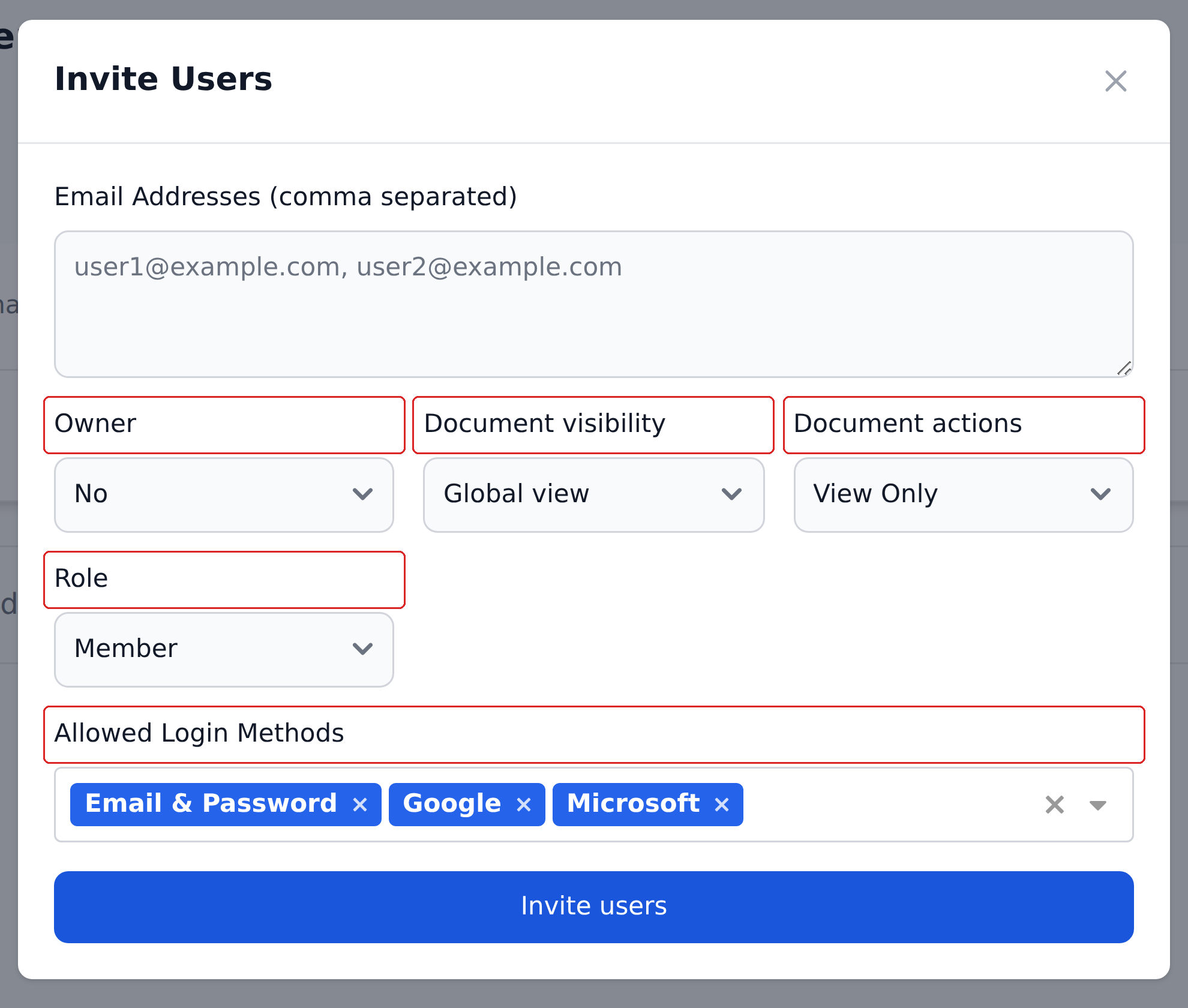
You can paste several comma-separated addresses at once — everyone in the batch gets the same permissions, so send one batch per permission profile.
Allowed Login Methods is set at invite time and restricts which of the three sign-in paths that person may use. Trim it to just Google, for instance, and password sign-in isn't available to them.
What happens next depends on whether the email already belongs to a Recognito user:
- Existing Recognito user — they're added to the project silently. The project appears in their workspace next time they sign in. No email is sent.
- New to Recognito — they get a sign-up email with a link. They set a password (or link a Google/Microsoft account) and land in your project.
Silent invite for existing users
The silent invite for existing users surprises some admins — they expect every invite to send an email. If the invitee already has a Recognito account in your org or another org, they won't get notified by Recognito. Tell them yourself ("you've been added to the PL Invoices project").
Removing users
Settings → Users → find the user → remove. The user loses access to the project but keeps their Recognito account.
If the user was the assignee on documents in progress, those documents need reassignment. The system doesn't automatically reassign — you'll need to manually pick a new assignee for each affected document, or write a Mapping rule that reroutes.
Org-level vs project-level membership
Members are added at the org level (Settings → Organization → Members), but their per-project permissions are set inside each project (Settings → Users).
The implication: you can have a user who's a member of your org with no access to any specific project. Inversely, you can grant project-level access to a user who's already in the org without re-inviting them.
For ad-hoc external access (consultants, auditors, temporary contractors), this two-level structure helps you grant tight project-only access without giving them broader org visibility.
Approver assignment is per-document
A user's permission settings don't make them an approver. Approvership is per-document, decided by your Mapping rules. The same user can be an approver on one document and not another, depending on what the workflow populated in approvers_N_M.
What permission settings control is whether a user can act as an approver when they are one. To approve, a user needs:
- The Default Actions or Override permission.
- Their email present in the document's
approvers_N_Mfields.
If both conditions are met, the user sees the document in their queue when it's their turn.
The visibility-and-filter trap
One nuance worth knowing: a user with Personal Visibility doesn't see documents they have no involvement with. But the Custom Filters feature can show all distinct values for filterable fields across the project — including values from documents the user can't see.
The implication: if you have sensitive field values (supplier names, internal codes) that you don't want a reviewer to even know exist, don't enable them as Custom Filter Fields. The dropdown will leak the values.
Field Usage isn't role-locked
The Custom Filter dropdown shows distinct values across the whole project, regardless of the user's document visibility. If certain values are sensitive, keep the fields off the Custom Filter Fields list in Settings → Field Usage Settings.
What's next
- Projects & organizations — the scoping basics that frame permissions.
- Enterprise & admin → RBAC — the broader role-based access story for larger orgs.
- General settings — auto-scan, duplicate detection, document lock.