
Appearance
Access control
Recognito controls who sees and does what through four per-project settings in Settings → Users: Owner, Document visibility, Document actions, and Role. Each user gets a row, and you mix these axes to scope access precisely.
This page describes each axis and the combinations that cover most teams.
The four axes
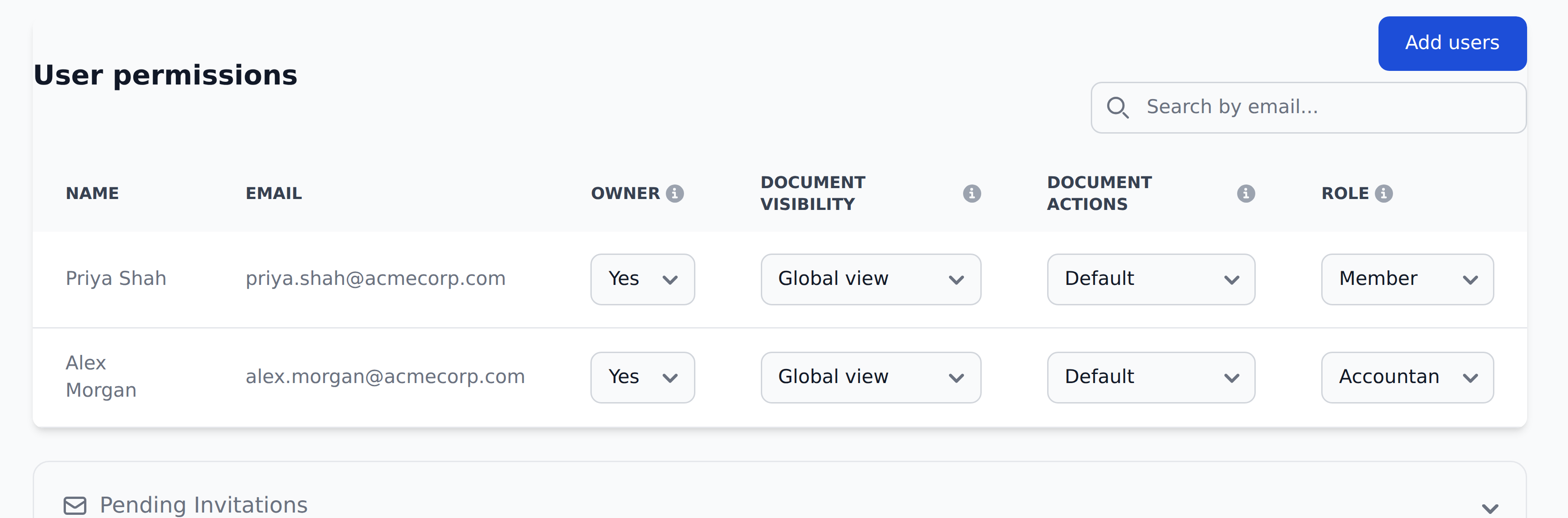
Each user in a project has a row in Settings → Users with four columns:
| Column | Values | What it gates |
|---|---|---|
| Owner | Yes / No | Access to the project's Settings area. Owners view and edit project settings; non-owners are blocked from it. |
| Document visibility | Global / Personal / No access | Which documents the user sees. Global = every document in the project (accountants, finance leads, C-level). Personal = only documents the user uploaded, is assignee on, or is an approver on. No access = the user doesn't see the project. |
| Document actions | View Only / Default / Override | What the user can do. Default = validate / approve / edit their own (most users). Override = admin-tier; bypasses Document lock, can edit Rejected documents, can delete at any status. View Only = read-only. |
| Role | Member / Accountant / Director | Of the three, only Accountant gates behavior today — it surfaces an Export button in the Documents view. Member and Director are labels. |
For invite behavior and the everyday walkthrough, see Users & permissions.
The Role column
The Role column has three values: Member, Accountant, and Director. (Owner is a separate column, not a Role.)
- Accountant — surfaces the Export button in the Documents view. Useful for orgs doing manual export to an ERP (the copy-to-clipboard pattern), giving accountants a way to track what they've already exported.
- Member and Director — labels today; the product doesn't read them when deciding what to show or do.
If you assign someone the Director role expecting specific behavior, check what you actually need — it most likely maps to Document visibility and Document actions, not the Role column.
Combinations that cover most teams
For organizations with relatively flat structures, mixing the axes covers everyone:
| Combination | Visibility | Actions | Role | Used for |
|---|---|---|---|---|
| Standard reviewer | Personal | Default | (any) | AP clerks, accountants doing daily review |
| Standard approver | Personal | Default | (any) | Department heads, finance leads |
| All-seeing finance lead | Global | Default | (any) | Senior staff who want full visibility |
| Project admin | Global | Override | (any) | One or two people per project who can fix mistakes |
| External auditor | Global | View Only | (any) | Read-only access for audit |
| Accountant with Export | Global | Default | Accountant | Manual export workflows |
What access control doesn't decide
A few things that look like permission questions but aren't:
- Approver assignment is per-document. Whether a user approves a specific document is decided by Mapping workflows populating
approvers_N_M, not by their role. - Project membership. Being in the org doesn't put a user in every project — each project has its own Users list.
- Documents-view filtering. Personal visibility hides documents the user isn't involved in, regardless of role.
What's next
- Users & permissions — the everyday admin reference for inviting and configuring users.
- Single sign-on — the sign-in methods that pair with access control.
- Enterprise & admin — the rest of the admin-focused pages.