
Appearance
Email inbox
Every project has its own email inbox. Send documents to that address directly or through a forwarding rule. Recognito uses your project settings to turn attachments into documents and group supporting files.
This page covers how the email path works, what gets classified vs attached, and the limits and edge cases.
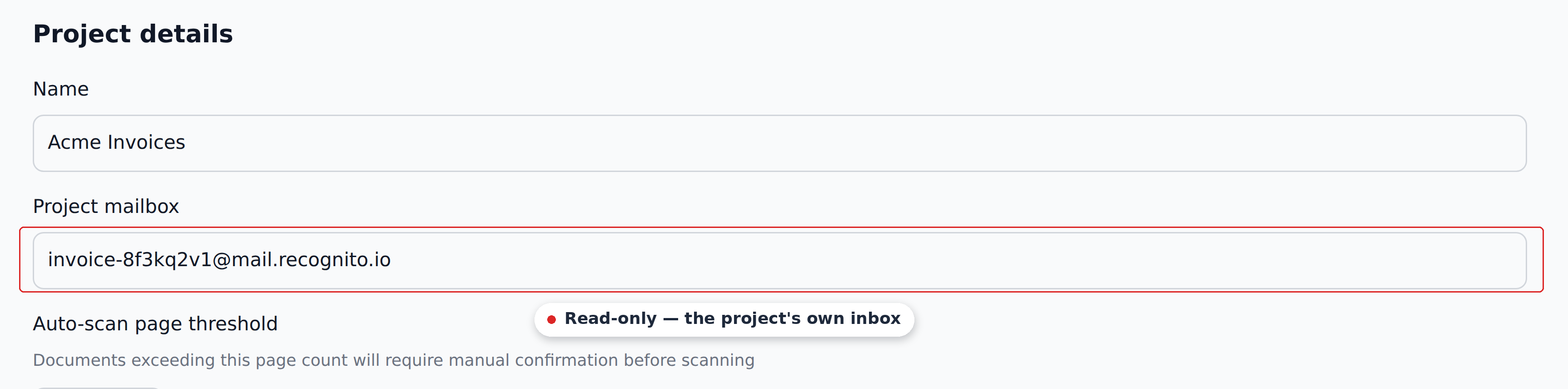
The project mailbox address
Every project has an inbox of the form {project-type}-{random}@mail.recognito.io:
invoice-randomstring@mail.recognito.iofor Invoice projects.receipt-randomstring@mail.recognito.iofor Receipt projects.handover-randomstring@mail.recognito.iofor Handover projects.
The random suffix stays stable across project renames. You can rename the project freely and the mailbox keeps working.
Find your project's address in Settings → General, or click Upload new files in the Documents view — the modal shows the address alongside the drag-and-drop area.
What happens when an email arrives
The system processes the email roughly like this:
- Attachment extraction. Recognito takes supported files from the email. Small images such as email signatures may be ignored.
- Optional classification. If Classify uploaded files is on in Settings → General, Recognito identifies document types. This applies even to an email with one attachment.
- Document creation. Accepted types become documents; supporting files are attached to the main documents. Files that need review appear in Needs action.
The email body is available in Studio's Mail tab for documents created from that email. Send the document itself as an attachment: body-only emails do not create documents.
The classifier
The classifier solves a real problem: an email arrives with an invoice PDF, a delivery note PDF, and the supplier's body-text message. You want one document (the invoice) with the delivery note as an attachment, not two unrelated documents.
When Classify uploaded files is on:
- The system looks at each attachment and tries to identify its document type.
- Files that match one of the project's Accepted document types become standalone documents.
- Other files (non-matching types, supporting documents) become attachments on the accepted documents from that email.
The Accepted document types list is configured in Settings → General. By default it includes the project's primary type. You can add more — say a project that processes both Invoices and Purchase Orders.
When Classify uploaded files is off, files are handled individually with no grouping or splitting. Use PDF or supported image files for documents that need extraction.
If classification finds no accepted main document, the files are held in Needs action for review.
With classification on, a PDF containing several documents follows Document splitting in General settings. Off keeps it whole, Always ask me holds it for review, and Automatic when confident splits it when every part meets the threshold and at least one part has an accepted type. Otherwise, it waits for review. Open a held file and click Review split; see Splitting, combining and trimming documents.
Manual uploads can also request classification. The email behavior described here follows the project's Classify uploaded files setting.
Accepted file formats
Send documents for extraction as:
- PNG, JPEG, GIF, BMP, TIFF, WEBP, SVG (image formats)
Email intake also accepts Word, Excel, and PowerPoint files. With classification enabled and a matching main document in the same email, these become supporting attachments. For example, an invoice PDF can carry an Excel price list as supporting material.
Recognito does not convert Office files to PDF for extraction. If the actual invoice is a Word or Excel file, convert it to PDF before sending. Plain-text and HTML attachments are not supported.
Images less than 1000 pixels high are ignored on email intake, so send a full-resolution scan or PDF.
Hash-duplicate rejection from email
If Reject duplicate files is on in Settings → General, an emailed file matching an existing, non-rejected document's file hash is rejected. No new document is created and the rejected duplicate does not consume page quota.
When sender receipts are enabled for the project, the receipt lists the file as Duplicate — not added. This also applies when every attachment is a duplicate. Receipt delivery has exceptions; see What the sender sees.
The duplicate has no new row in the Documents view. Check the existing document and the sender's receipt; Recognito support can also inspect intake logs.
Setting up forwarding
The two common patterns:
- Direct forwarding from suppliers. Give the project mailbox to suppliers as the address they should send invoices to. They send directly; the document appears in your queue.
- Mail rule from a shared inbox. Most AP teams have a
invoices@yourcompany.comshared inbox. Set up a rule that forwards every invoice from there to Recognito's project mailbox. Suppliers keep using your normal address; Recognito gets a copy.
The forwarding approach is more common because it preserves your existing supplier contacts. The rule needs to forward attachments — some mail clients strip attachments on forward, which breaks the flow.
Test forwarding before pointing suppliers at it
Send a test invoice through your forwarding setup before changing supplier instructions. Some mail systems mangle attachments, drop attachments above a size threshold, or strip metadata that Recognito needs. Catching this early saves a lot of "where did my invoice go" support.
Attachment size limits
The per-email attachment size limit is not published. If you're sending large PDFs, splitting multi-document emails into several smaller emails is the safest approach. For high-volume or large-file cases, the API upload path is the more reliable route.
What the sender sees
When sender receipts are enabled for the project, Recognito emails the sender a summary of the files received. Receipts are enabled for new projects by default. They distinguish:
- Document created — the file became a document.
- Received — pending review — the file is waiting for review.
- Supporting file — the file accompanies a main document.
- Duplicate — not added — the file was already received and was rejected by the hash check.
A receipt confirms intake, not completed extraction or approval. Several emails sent close together can appear in one combined receipt. Senders can use the receipt's mute link to stop these confirmations for that project.
A missing receipt does not establish whether the email succeeded or failed. Receipts can be disabled or muted, and no-reply addresses and automatic replies are excluded. Emails without usable attachments and quota failures do not produce a failure notice. Test the complete forwarding setup before relying on sender receipts.
What's next
- Upload — the drag-and-drop manual path.
- API ingest — programmatic uploads for high-volume or integration cases.
- General settings — where you configure Accepted document types, classify-on/off, and duplicate rejection.