
Appearance
Main fields
Main fields are the primary identifiers and totals on a document — what most reviewers look at first. The default set comes from the project type's model. You can add custom Main fields with AI Post Processing.
This page covers configuring Main fields specifically. For the shared concepts (what categories are, how the convention works), see Field categories.
What lives in Main by default
For Invoice projects, the default Main schema includes:
- Invoice identifiers —
InvoiceId,VendorId,CustomerId,PurchaseOrder. - Dates —
InvoiceDate,DueDate, period start/end. - Totals —
SubTotal,TaxTotal,Total. - Other primary fields —
currency, references that vary by project type.
For Receipt projects, Main holds merchant identifier, transaction date, totals. For Handover & Acceptance Certificate projects, Main holds project ID, parties, signature dates.
The exact list depends on which extraction model your project type uses. Look at Settings → Document fields to see what your project shipped with.
Where to configure
Settings → Document fields. The page lists every field, grouped by category, with a count on each group heading.
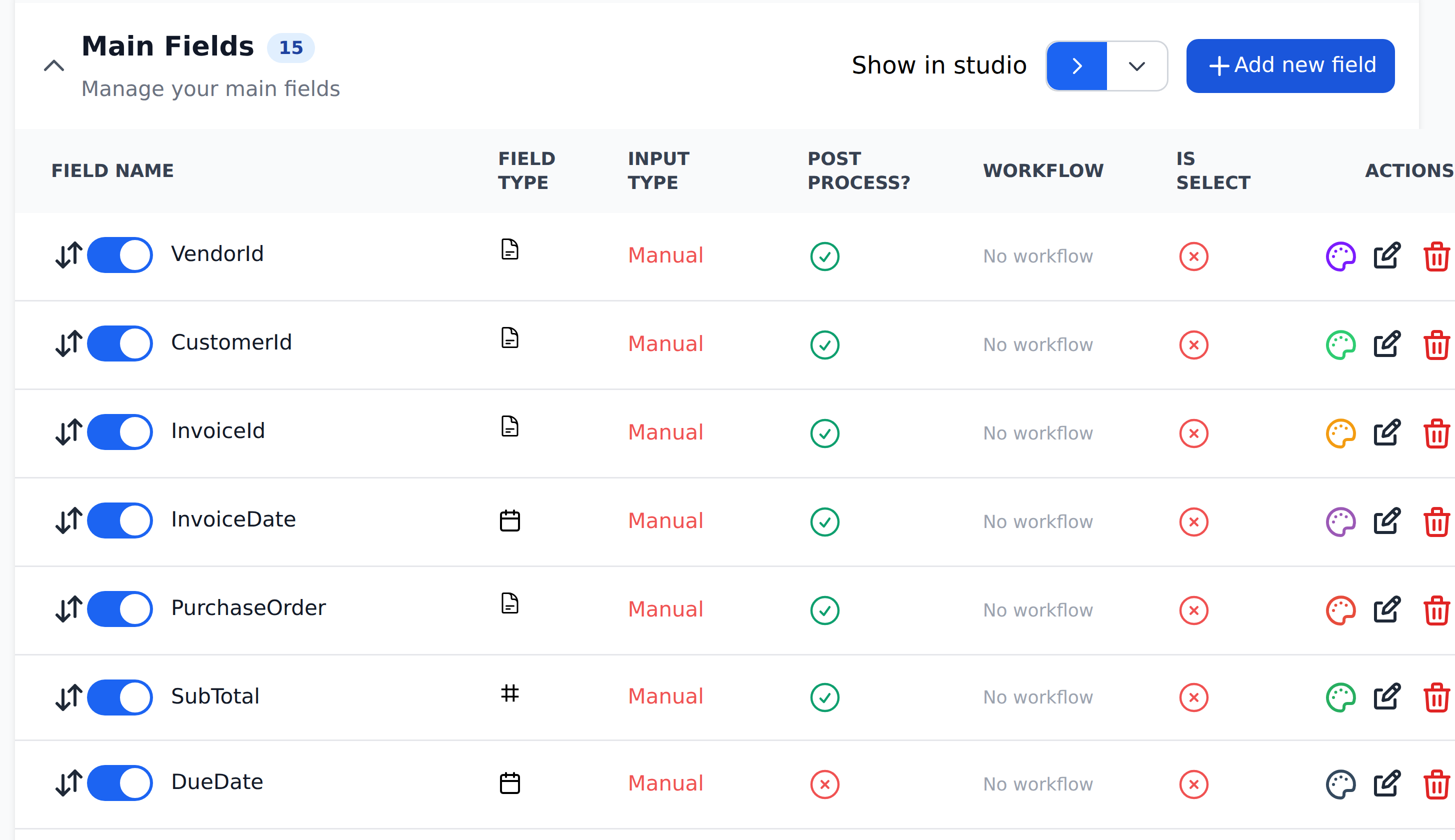
Per field, the row gives you:
- Field name — the system identifier (e.g.,
InvoiceId). Used in API responses and Mapping definitions. Non-editable after creation. - User Friendly name — the human-readable label shown in Studio. Changeable at any time without breaking integrations.
- Category — Main / Table / Payment / Tax / Metadata.
- Field type — Text, Number, or Date. Number has format sub-options (
1000.99/1000,99); Date hasYYYY-MM-DD/DD/MM/YYYY/MM/DD/YYYY. - AI Post Processing — toggle that runs a second-pass LLM call on the field after primary extraction.
- AI Post Processing instructions — when AI Post Processing is enabled, the prompt Recognito uses for the second pass.
Adding a custom Main field
The path for fields the base model doesn't cover. Example: a Polish VAT number (NIP) that the standard Invoice model doesn't pull.
- Open Settings → Document fields.
- Click + Add new field.
- Pick Main as the category.
- Enter a Field name (e.g.,
polishVAT). This identifier is non-editable after creation — your Mapping definitions and integrations will reference it. - Enter a User Friendly name — the label reviewers see in Studio.
- Set the Field type (typically Text for identifiers, Number for amounts, Date for dates).
- Enable AI Post Processing.
- Add a clear instruction. For the NIP example: "Find the Polish VAT number on the invoice. Usually labeled NIP or VAT, 10 digits, sometimes with a PL prefix or dashes."
- Save.
The new field becomes available on the next document uploaded. Existing documents aren't retroactively populated — they'd need a re-upload or a Reset data on the field.
AI Post Processing is best-effort
The LLM running the second pass tries to find the value based on your instructions. It works well for clearly-labeled fields with reasonable formatting variations. It struggles with fields that have ambiguous labeling or wildly varying placement.
For high-accuracy custom fields on large document volumes, a custom extraction model (rather than AI Post Processing) is the better path. Talk to Recognito support if AI Post Processing accuracy isn't good enough.
Writing good AI Post Processing instructions
The instruction is a prompt to an LLM. Specific instructions produce better results than vague ones:
| Vague | Specific |
|---|---|
| "Find the tax number" | "Find the Polish VAT number on the invoice. Usually labeled 'NIP' or 'VAT', exactly 10 digits, sometimes with a 'PL' prefix or dashes." |
| "Get the project reference" | "Find the internal project reference. Format: PRJ-NNNN-NN (a 4-digit project number and a 2-digit sub-number). Usually in the top-right of the document near the date." |
| "Extract the cost center" | "Find the cost center code. Format: 4 digits, sometimes prefixed with 'CC'. Often labeled 'Cost Center', 'Kostenstelle', or 'Centro de costo'." |
Mention:
- What the field is called on the document. Label variants help — "VAT", "tax ID", "NIP", "Steuernummer".
- The format. Number of digits, prefix patterns, dashes, spaces.
- Where it tends to appear. Top-right, footer, near another field, in the address block.
Making a Main field Mapping-fed
A Main field doesn't have to be extracted. You can populate it via Mapping instead — useful when the document has the value but your reference table has the canonical version.
The pattern:
- Leave the field as a standard Main field (no AI Post Processing).
- Create a Mapping definition with the field as a Mapped column.
- Add a workflow step that runs the definition on the right trigger (typically
Initial_Workflowfor extraction-time population).
The field's category stays Main, but the value comes from Mapping. The convention is that Main is extracted, but the architecture supports either.
Removing a default Main field
Not every project needs every default field. To hide a field you don't use:
- Settings → Document fields.
- Find the field in the list.
- Either delete it (if you're sure you don't want it anywhere) or leave it but disable it from showing in views.
Deleted fields don't come back unless you re-add them. If you're not sure, hide rather than delete.
What Main fields drive
A few systemic behaviors hinge on Main fields:
- Documents view columns — most default columns are Main fields.
- Custom filters — Main fields are the typical filter targets.
- Duplicate Checker — duplicate detection usually uses Main fields like
InvoiceIdandVendorIdas the key. - Document lock — locking the Main category locks every Main field.
If you change a Main field's name or remove it, check those four places for downstream impact.
What's next
- Table fields — the line-item table for Invoice projects.
- Payment, Tax, Metadata — the other three categories.
- Validation rules — making Main fields mandatory.
- Mapping & Workflows — using Main fields in lookups.