
Appearance
General settings
Settings → General is the home for project-wide controls — auto-scan threshold, classifier behavior, duplicate detection, document lock, project name and mailbox. Most setup decisions happen here on day one.
This page walks through each control, what it does, and when to change it.
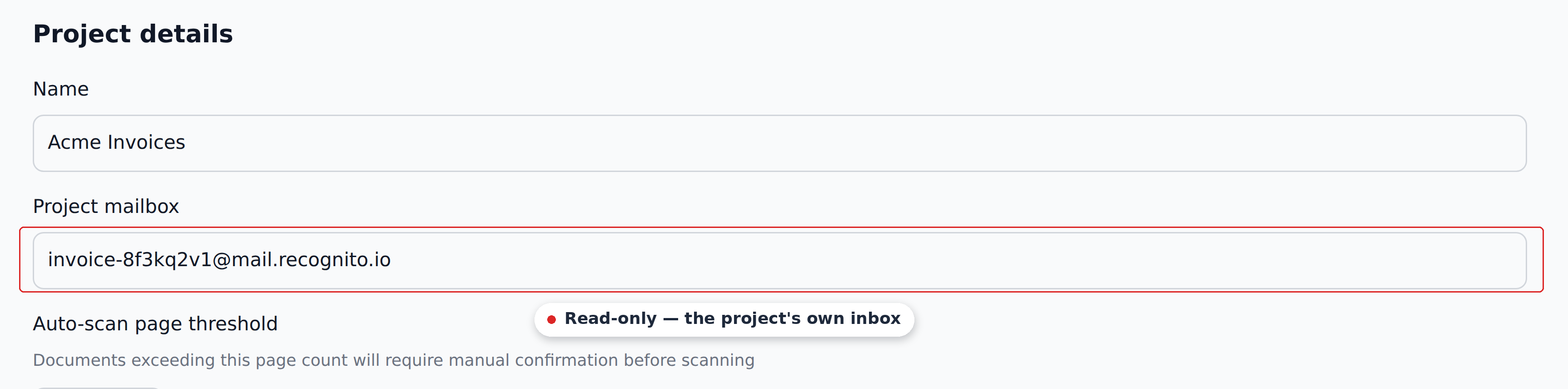
Project name
Free text. Renameable anytime. The new name shows everywhere the old one did — Dashboard, sidebar, breadcrumbs, search.
Renaming doesn't change the project's email mailbox or affect any integrations.
Project mailbox
Read-only. Shown so you can copy it for supplier instructions, mail forwarding rules, etc. The format is {project-type}-{random}@mail.recognito.io.
The random suffix stays stable across renames. Once you point suppliers at this address, you can keep using it indefinitely.
For the full email-path behavior, see Email inbox.
Auto-scan page threshold
The page count above which Recognito holds off on extraction until the user picks pages.
Documents above the threshold land in Needs action first. Open the document, click Select pages, and choose the pages to scan. Files below the threshold can still be held for split review.
Options:
- 5 pages is the minimum you can select.
- Unlimited turns the page threshold off. Classification can still hold a file for split review.
How you might set it, depending on your documents:
| Setting | When it fits |
|---|---|
| 5 pages | The minimum. Catches accidentally-large uploads. |
| Higher (10–20) | Suppliers who routinely send longer invoices, so reviewers aren't sent to Needs action on every document. |
| Unlimited | You trust uploaders not to send 200-page PDFs by mistake. |
Raise the threshold for known-long document streams
If your suppliers routinely send 10-page invoices, leaving the threshold at 5 means every document hits Needs action — annoying for reviewers. Raising it to 15 saves the clicks without losing the safety rail.
Classify uploaded files
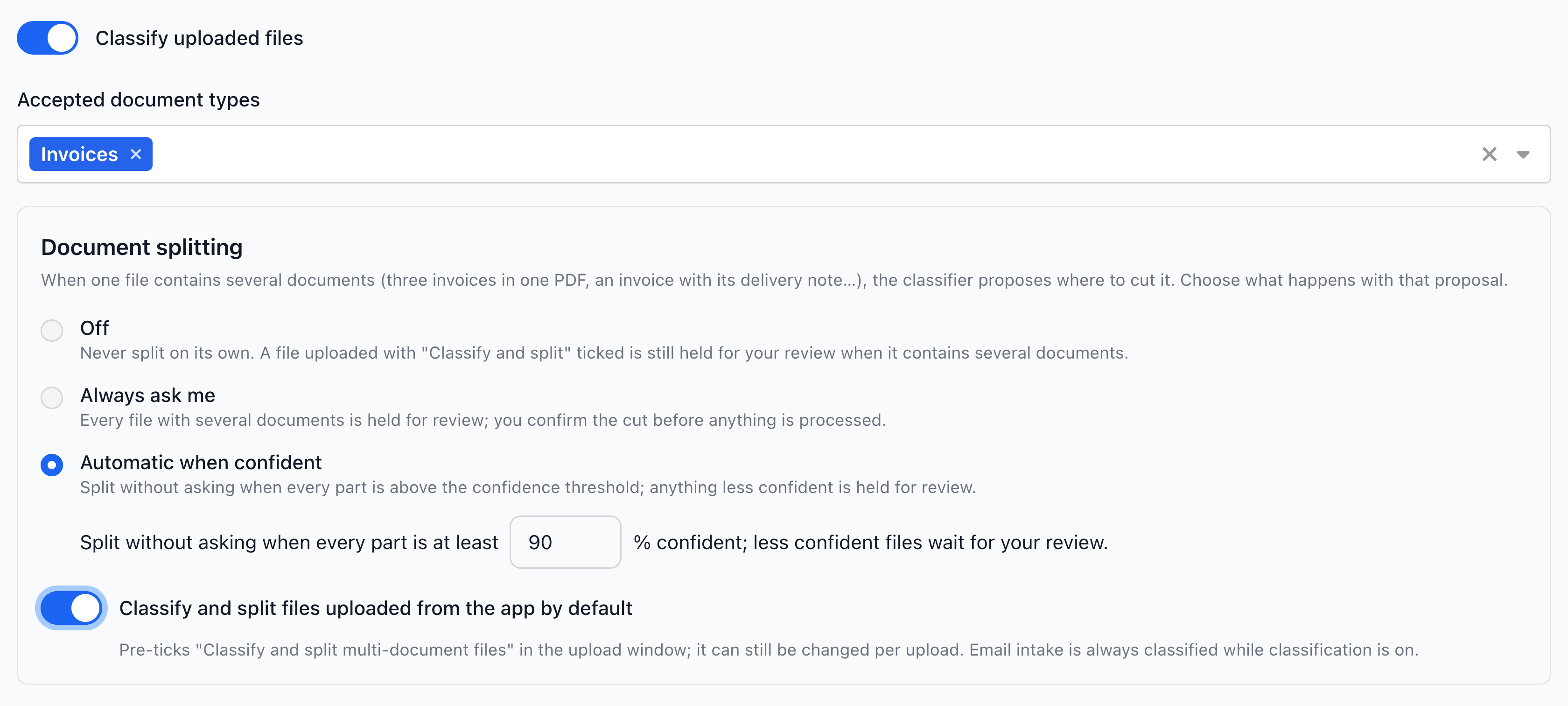
Toggle that controls whether the classifier runs on email uploads, including emails with a single attachment.
When on: emailed files are classified by document type. Files matching the project's Accepted document types become documents; supporting files attach to those documents. If no main document matches, the files wait in Needs action for review.
When off: emailed files are handled individually, without classification, grouping or splitting. Send PDF or supported image files for extraction.
In the app, the Classify and split multi-document files checkbox controls classification per upload. API uploads use the classify parameter; when omitted, it follows the app-upload default below. These choices apply even when Classify uploaded files is off.
See Email inbox for the full classifier behavior.
Document splitting
Choose what happens when classification finds several documents in one file:
- Off, the default: keep emailed files whole. App or API uploads that request classification still wait for split review when several documents are detected.
- Always ask me: hold the file until a reviewer confirms the parts.
- Automatic when confident: split when every part meets the confidence threshold and at least one part has an accepted type; otherwise hold for review. The threshold defaults to 90% and accepts values from 0 to 100%.
Classify and split files uploaded from the app by default pre-ticks the upload checkbox. It is off by default; uploaders can change it for each upload. Click Update project to save these per-project settings.
See Splitting, combining and trimming documents for review steps and how page changes affect extracted values.
Accepted document types
The document types that should become documents when classified. By default, this is just the project's primary type (e.g., Invoice). You can add more if your project handles multiple types — invoices and purchase orders, say.
When a file is split, parts of other types become supporting attachments. If none of the proposed parts has an accepted type, the file waits for review.
A project's Accepted document types affect both the classifier and any per-type extraction logic. If you change this list, test on representative emails before pointing real volume at the project.
Reject duplicate files
File-hash duplicate detection. When on, Recognito computes a hash of every incoming file and rejects uploads whose hash matches an existing document.
- The file is not saved.
- No
DuplicateApproval Status is set (because no document gets created). - No charge to the page quota.
The toggle is off by default. Leave it off and re-uploading the same file produces a second document that costs another page — worth knowing before you tell a supplier "just send it again."
This is one of two duplicate-detection layers. The other works on extracted field values rather than file bytes, and surfaces its matches as the Duplicate approval status.
| Layer | Trigger | Document saved? | Page quota? |
|---|---|---|---|
| File hash (this setting) | Upload | No | No |
| Field value | After extraction | Yes, with Duplicate approval status | Yes |
Most projects benefit from turning file-hash rejection on — it's cheap and definitive. Field-value detection is the more nuanced layer, useful for catching the same logical document re-sent with different file bytes.
Check the sender's receipt
A rejected hash duplicate has no new row in Documents. When sender receipts are enabled, the emailed summary labels it Duplicate — not added. Ask the sender to check that receipt and look for the existing document. Support can inspect intake logs if the file is still unaccounted for.
Document lock settings
Per-category controls for read-only behavior at specific statuses. There's one toggle per field category.
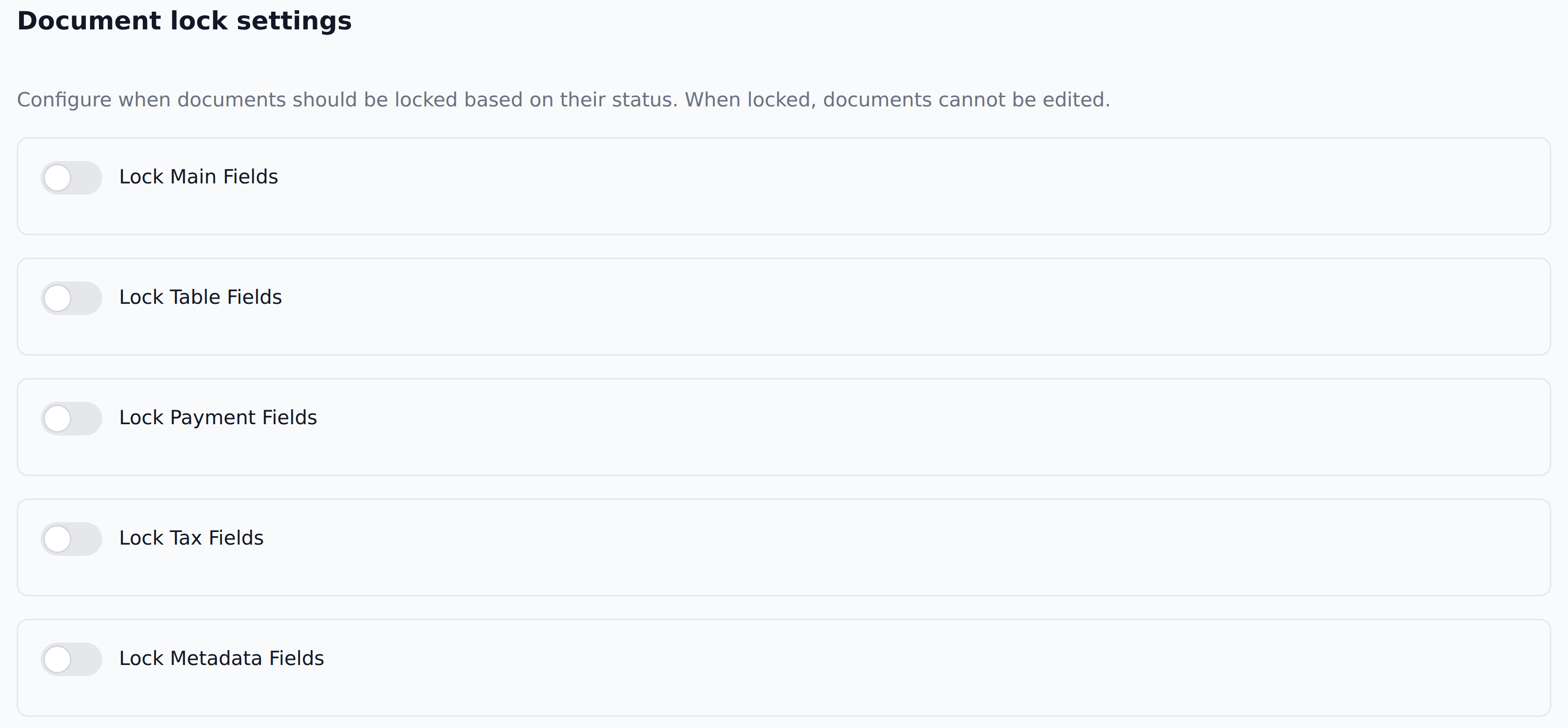
For each of the five field categories (Main, Table, Payment, Tax, Metadata), you can configure:
- Lock when Approved — fields become read-only once the document reaches
ApprovedApproval Status. - Lock when Validated — fields become read-only at
Validated. - Lock when Rejected — fields become read-only at
Rejected. - Lock when Exported — fields become read-only at
ExportedDocument Status.
The four toggles are multi-select — you can lock a category at multiple statuses if the document might pass through them.
Override-permission users bypass locks. Default users see them as a hard stop.
What lives elsewhere (not in General)
A few things admins look for in General that actually live in other sub-sections:
- Field schema — Settings → Document fields.
- Which fields the custom-filter builder offers — Settings → Field Usage Settings.
- Which fields clipboard, CSV, Excel and print output carry — Settings → Integrations, on each export integration's own card.
- Mapping rules — Settings → Mapping.
- Users and permissions — Settings → Users.
- Webhooks and integrations — Settings → Integrations.
- Custom Response Schema — Settings → Developers.
- Notifications — Settings → Notifications.
If you can't find a setting in General, it's almost certainly in one of the others above.
What's next
- Projects & organizations — the scoping that frames every General setting.
- Email inbox — the classifier and email path in depth.
- Document types — what each project type provides out of the box.
- Audit & history — how to see who changed what.