
Appearance
API ingest
Push documents into Recognito programmatically. Use this when an upstream system (your ERP, a supplier portal, a scheduled job) has the documents and can call an HTTPS endpoint to deliver them. The drag-and-drop and email paths still work; the API is the most flexible.
This page is an admin's orientation. For full endpoint details, request/response examples, and code samples, see the API Reference.
When to use the API path
The API is the right path when:
- An upstream system already has the documents. Your ERP, a supplier portal, or a scheduled scanner — anything that produces documents on its own and can call a webhook to deliver them.
- You need scale. High-volume document streams (hundreds per day) push the limits of email forwarding and become tedious for drag-and-drop.
- You're building a custom workflow. Recognito-as-a-pipeline-step in your own automation, rather than Recognito-as-a-destination for emails.
If none of those apply, email forwarding is simpler. Save the API path for cases where it earns its complexity.
Authentication
API access uses bearer-token auth. You create API keys at:
Settings → Organization → API Keys (org-owner role required)
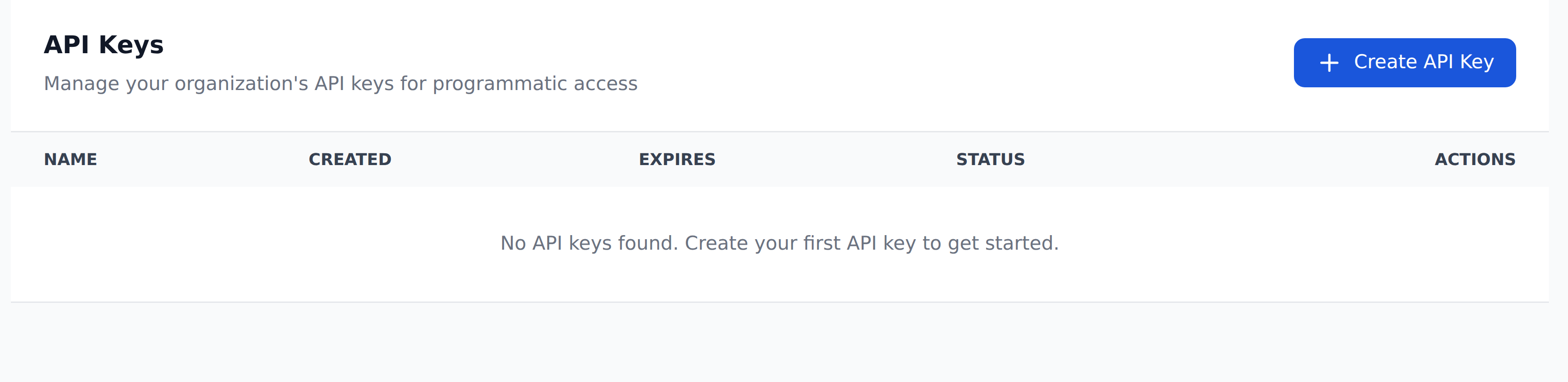
The list shows every key with its expiry and status, so you can see at a glance what's live and what's about to lapse. Click Create API Key to add one.
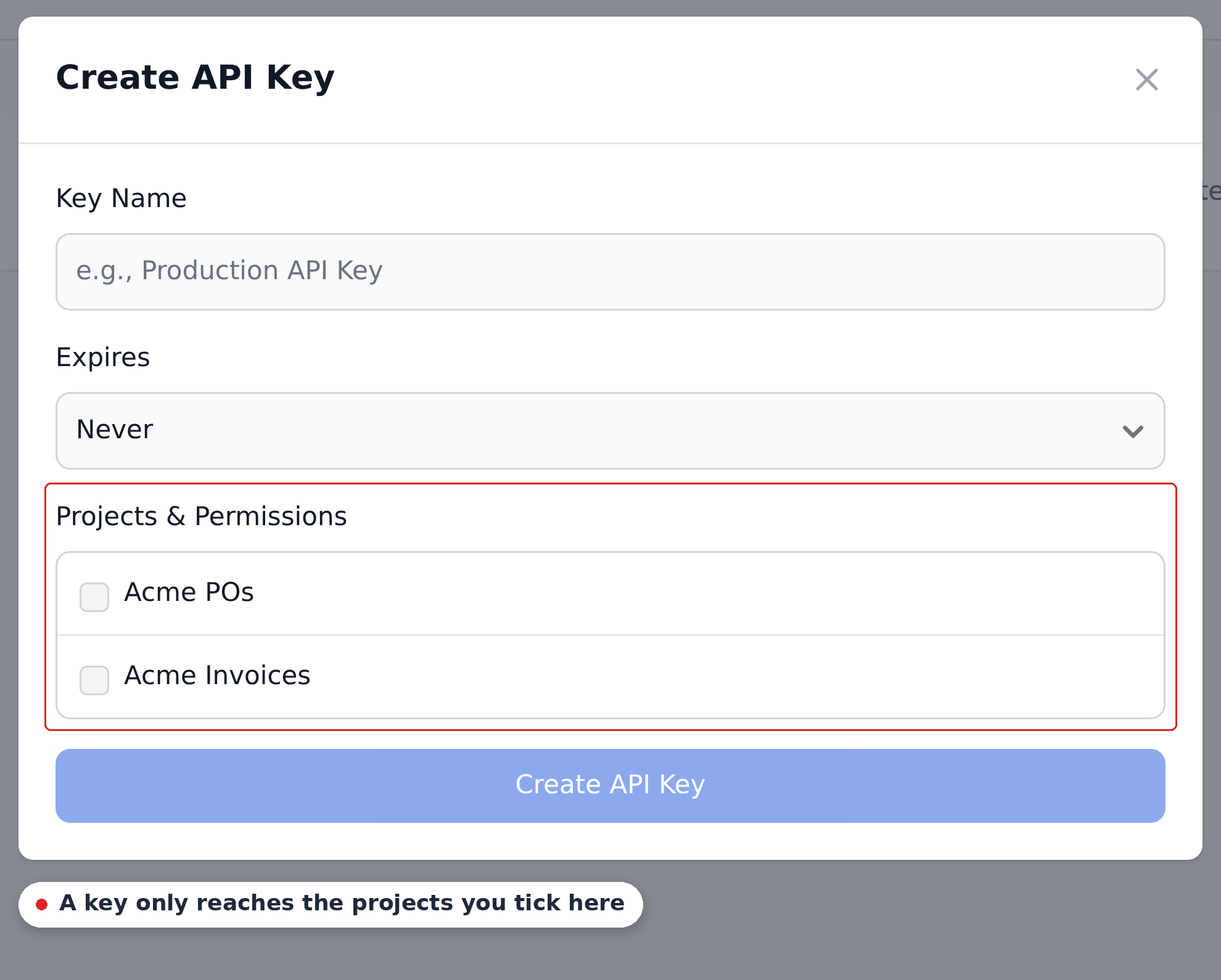
Each key has:
- A name — free text; describe what it's for.
- An expiry —
Never, or a fixed lifetime. - Projects & permissions — tick the projects the key may reach. A key that isn't ticked for a project can't touch it, which is what lets you issue one key per integration rather than one key for everything.
Keys are created at the organization level but scoped to projects by that list.
Generate a key with the scopes you need, copy the token, and use it as a Bearer header on API calls:
http
Authorization: Bearer YOUR_API_KEYKeys are shown once
The full token value is shown only at creation time. After you close the dialog the list shows the key's name, creation date, expiry and status — but not the token. Store it in your secrets manager before navigating away.
Endpoint overview
The upload endpoint takes a document file as multipart form data. The base URL is:
https://apiv2.recognito.ioThe v2 lives in the domain, not the path — point your client at apiv2.recognito.io, not api.recognito.io. A successful upload returns { "status": "success" }. It does not return a document ID. Use unique filenames to help correlate later webhook callbacks. A classified upload can produce several documents, so do not assume one filename will produce one result.
Full request and response shape and the accepted file formats live in the API Reference → Documents → Upload Document page. The endpoint accepts the same file formats as the other capture paths (PDF and the supported image formats).
What happens after upload
After a successful upload via API, the document flows through the same pipeline as email and drag-and-drop:
- Hash check if duplicate rejection is enabled.
- Classification and splitting, when requested (see below). A file may wait for split review before extraction.
- Page count check — exceed the threshold and Document Status starts at
Needs action. - Extraction.
Initial_Workflowruns.- Document is
DoneandPending.
The API doesn't bypass any of the project's configuration. A document uploaded via API goes through the same Mapping, the same field validation, and the same approval flow as a document uploaded any other way.
Classification and splitting
Send classify=true with the upload to detect document types and possible cuts, or classify=false to bypass classification. If omitted, it follows Classify and split files uploaded from the app by default in General settings (off when unset). Classify uploaded files controls email intake separately.
The project's Document splitting mode determines whether the file splits automatically or waits for review. An upload that requests classification can wait for split review even when the mode is Off.
The Document splitting API documents review-pages, upload-status, attach, classifier-categories and document metadata. These application endpoints require authenticated user access; an organization API key does not grant access. External uploads return no request ID for upload-status.
Webhook payloads and events are unchanged. Each resulting document follows the usual events; there is no document-replaced event.
Project selection
API uploads target a specific project. The project's UUID is a path parameter in the request URL. See the API Reference for the exact shape.
If you're routing documents across multiple projects, your client code decides which project each document goes to. Common patterns:
- One project per document type — sender code picks based on what it's sending.
- One project per legal entity — sender code picks based on which entity the document belongs to.
- A central project that classifies and routes downstream — uses Mapping or a webhook to push documents to the right place.
Rate limits
Recognito doesn't publish API rate limits today, and the API Reference doesn't document a limit or a 429 response shape. Don't assume there's a generous ceiling. If you're planning a high-volume pipeline — thousands of documents per hour — talk to Recognito support before going live, so you're not surprised by throttling that isn't written down.
Idempotency
The API has no idempotency-key mechanism today. If a request times out and you retry, you can end up with a second copy of the document.
The project's Reject duplicate files setting (Settings → General) blocks byte-identical re-uploads, which catches the simplest retry case. But the API response for a rejected duplicate isn't documented, so don't build exactly-once delivery on top of it. If your pipeline must not double-submit, dedupe on your side before calling Recognito — track what you've sent and don't resend.
Error handling
A successful upload returns { "status": "success" } — with no document ID in the response (see Endpoint overview).
For failures, the API Reference documents a 400 with an { "error": "...", "message": "..." } body. Other status codes — 401/403 for auth problems, 5xx for server errors — aren't documented today. Handle them defensively: treat any non-2xx as "not delivered," log the response body, and retry server-side failures with backoff rather than assuming a particular code or shape.
Webhooks for status updates
Once a document is in Recognito, you can subscribe to status events via webhooks. The webhook fires when the document's status changes — Document Analysed, Document Validated, Document Approved, depending on which events you've configured.
This is the typical pattern for round-trip integrations: push documents via API, listen for approvals via webhook, pull final data via API or receive it in the webhook payload.
See Webhooks for the configuration and payload shape.
What's next
- Email inbox — the lower-effort path for human-driven document delivery.
- Upload — drag-and-drop for one-off cases.
- API Reference — the full endpoint documentation.
- Webhooks — the natural pair with API uploads.