
Appearance
Notifications
Recognito notifies you about pending work through scheduled email digests. Each project has its own notification rules — you pick which days and what time the reminder email goes out.
Recognito's notifications are scheduled reminders, not real-time alerts. A notification rule emails the project's team on a schedule you set — say, every weekday at 9:00 — with a summary of the tasks waiting for them. The point is to nudge a team to clear its queue, not to ping you the instant a single document changes.
For event-driven delivery — push something to another system the moment a document is approved — use a webhook instead. The two are separate: notifications remind people, webhooks notify systems.
Where notification rules live
Open the project, then go to Settings → Notifications. The page lists your Active Notification Rules and gives you a button to add more.
Notifications are per-project. A rule you create in one project doesn't carry over to another — set them up in each project that needs them.
Creating a notification rule
Click Add Rule to open the rule editor.
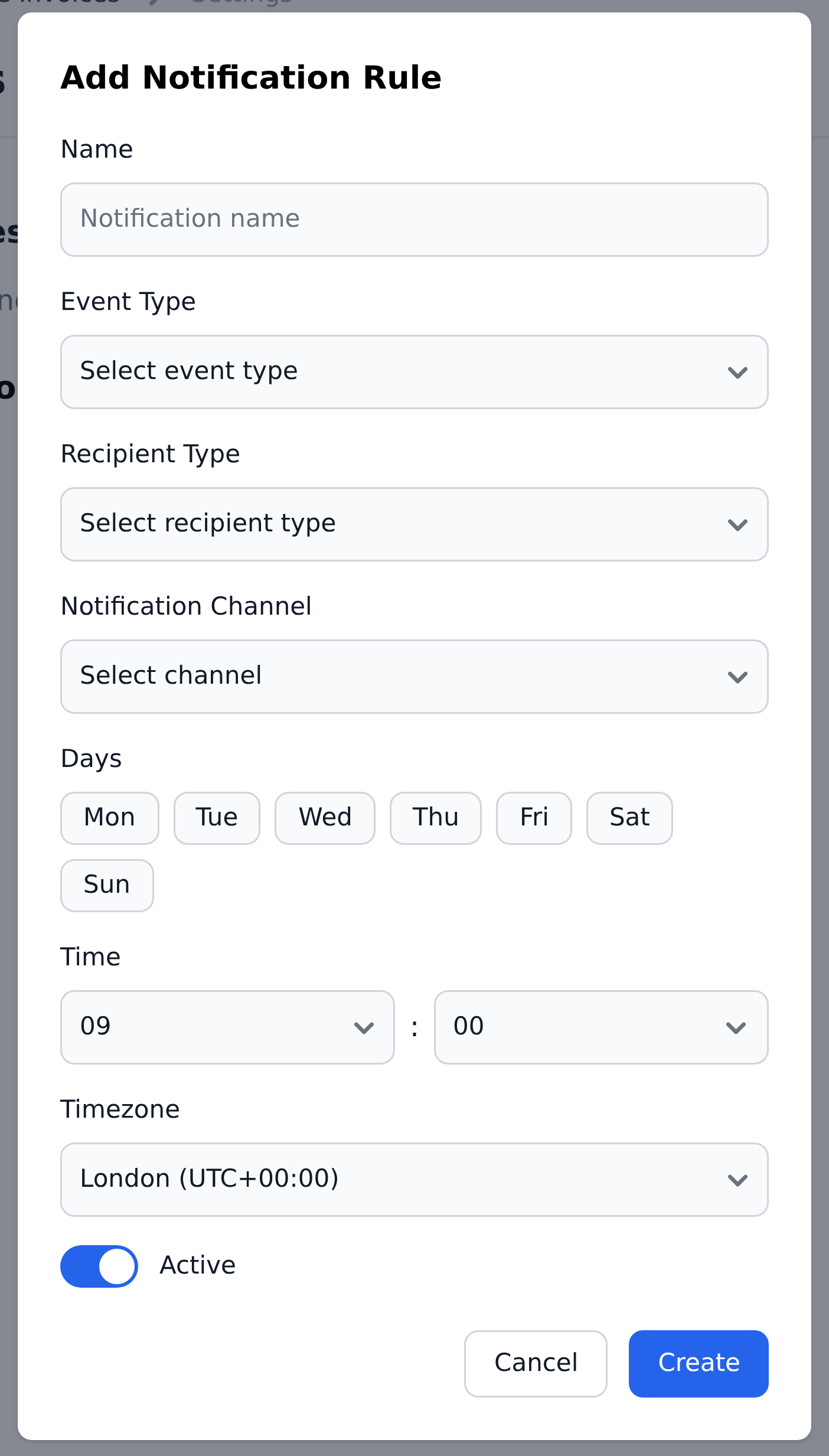
A rule has:
- Name — a label so you can recognise the rule in the list.
- Event type — what the rule reports on. Today the available event is Tasks Pending: the documents waiting for someone to act.
- Recipient type — who receives the email. Today that's Team Members, the project's users.
- Notification channel — how it's delivered. Today that's Email.
- Days — which days the email goes out (Monday through Sunday, any combination).
- Time — the hour and minute the email is sent.
- Timezone — the timezone that send time is measured in.
The Active toggle at the bottom lets you keep a rule but stop it sending — useful for a seasonal reminder you don't want to rebuild each time.
Set the schedule, click Create, and the rule appears under Active Notification Rules.
Match it to your team's rhythm
A 9:00 reminder on weekdays suits most AP teams — reviewers get one morning email listing their backlog instead of a stream of interruptions. Pick the cadence that matches how often your team actually works the queue.
What the email covers
The Tasks Pending email summarises the work waiting in the project — the same "you have documents to handle" nudge whether you're an assignee with documents to validate or an approver with documents to sign off.
What notifications don't do
Recognito's notifications are deliberately narrow today:
- No per-event alerts. There's no email the moment a specific document is assigned, rejected, or exported. A rule reports pending work on a schedule, not individual events.
- No in-app notification centre. There's no bell icon or unread-count list inside the app — email is the channel.
- No notifications for field edits or configuration changes. If a colleague changes a value, or an admin edits Mapping, no notification fires. Check the document's History instead.
If you need an immediate, per-document signal — "tell my ERP the moment this invoice is approved" — that's a webhook, not a notification.
What's next
- Finding & filtering documents — the My tasks filter is your live queue between reminder emails.
- Webhooks — event-driven delivery to other systems, the counterpart to scheduled notifications.
- Comments & history — where a document's own events are recorded.