
Appearance
Saved views
A Saved View captures the current filter selections, search text, visible columns, and column widths. One click switches between views — useful when you wear multiple hats or hand the same project to different colleagues.
Saved views sit as tabs at the top of the Documents view. Every project starts with one called Default; the + beside it creates another.
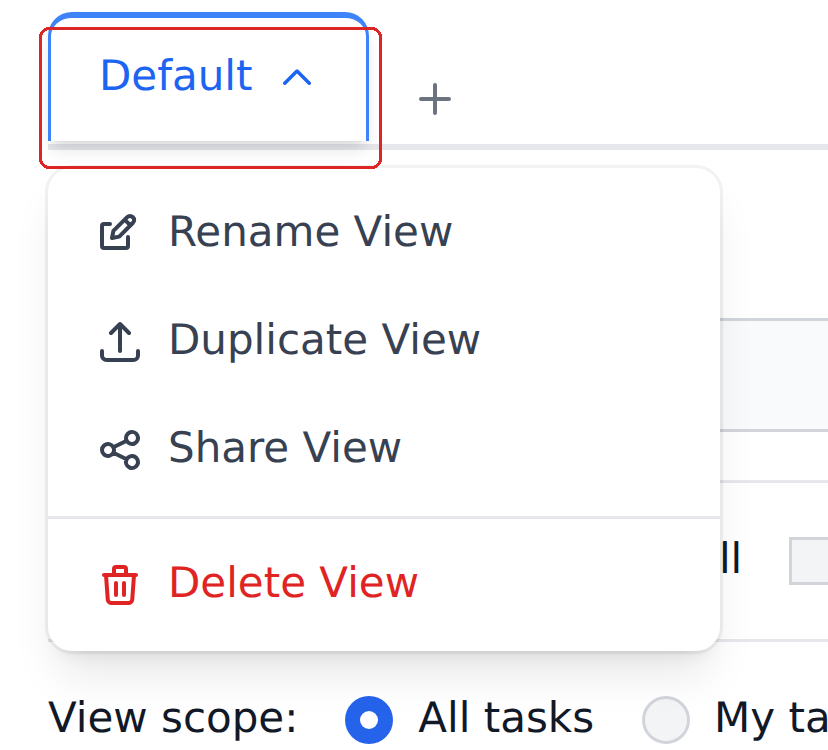
Clicking the name of the view you're on opens its menu: Rename View, Duplicate View, Share View, Delete View.
When saved views help
Saved views earn their place when you're switching between contexts more than once a day:
- A reviewer who handles two vendor groups can save one view per group, with vendor-name filters pre-applied.
- An accountant who runs end-of-month reconciliation can save a view for "Approved this month, not yet exported."
- A team lead can save a view for "Pending more than two days" to spot stalled documents.
If you only ever look at My tasks with the default columns, you don't need saved views. The product works fine without them.
Creating a view
- Set up the Documents view exactly how you want it: pick the status filters, build any custom filter rules, choose visible columns, resize columns if you need to.
- Click the + beside the view tabs.
- Name the view and save.
The view appears as a tab alongside Default. Switching to it restores the saved filter, search, and column state.
Duplicate View is the quicker path when a new view is a variation on one you already have — copy it, then adjust the copy.
What a saved view captures
Every saved view stores:
- Filter selections — the approval-status strip checkboxes, the All tasks / My tasks toggle, any custom filter rules.
- Search text — whatever was in the search box.
- Visible columns — which columns you'd ticked in Manage Columns.
- Column widths — manual resizes persist.
What's not captured: the documents themselves (the view stores the configuration, not a snapshot of rows).
Editing or deleting a view
Open the view, change whatever you want — filters, columns, search — and save. The view updates with the new configuration.
To rename or remove one, click the view's tab and choose Rename View or Delete View from the menu.
Sharing with colleagues
Share View hands the configuration to other members of the project. Each recipient gets their own independent copy — not a live-shared link.
The implication matters: if you tweak your view after sharing, your colleagues' copies don't change. To distribute an update, share again.
Sharing is "fork", not "subscribe"
Saved views aren't a real-time-shared dashboard. They're a way to hand someone the configuration you found useful. After that, your view and theirs evolve independently.
My tasks is not a saved view
The My tasks scope toggle in the toolbar is a separate built-in filter. It works for every user with no setup, and you don't need to save anything to use it. Saved views can include or exclude My tasks scoping, but My tasks itself isn't something you "create" — it's always there.
What's next
- Finding & filtering documents — the underlying filters that views capture.
- Statuses & what they mean — understand what each filter actually narrows to.
- Bulk actions — once a view surfaces the right documents, what you can do to them.