
Appearance
Troubleshooting
The most common stuck states and how to resolve them. If you don't find your situation here, ask your admin or contact Recognito support.
This page is organized by symptom. Find what matches what you're seeing and read the matching section.
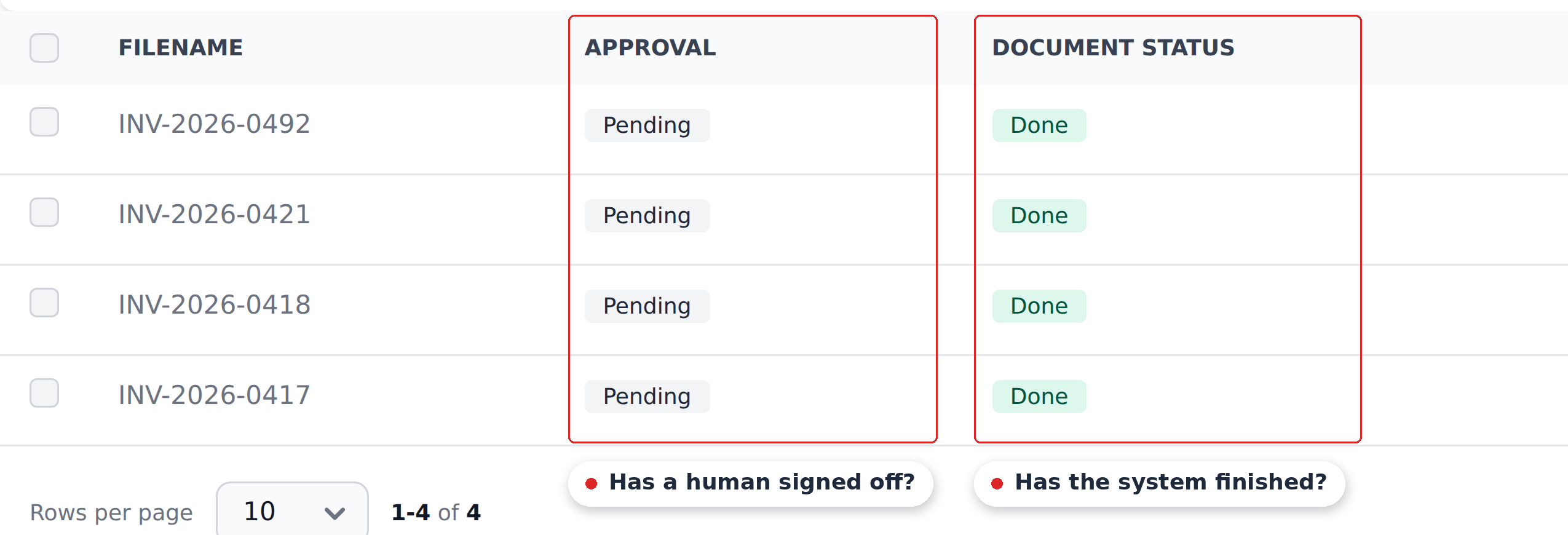
Most of them start with the same check: the two status columns in the Documents view, which say whether the system is finished and whether a human has signed off.
The Validate button is greyed out
You've reviewed every field but Validate won't click.
Most likely cause: at least one mandatory field still shows —Not set—. The button stays disabled until every mandatory field has a real value.
Fix: scroll through the right pane looking for —Not set—. The fields will typically be in Metadata — department, GL code, cost center, things that need manual selection. Pick a value for each.
If you can't find any —Not set— fields, the issue might be a field that looks set but failed validation (TBD — confirm exact UX). Ask your admin to check the project's field config.
A field won't let me edit it
You click a field and nothing happens — no input cursor, no dropdown.
Likely causes:
- The document is locked. Once a document reaches a status the project's lock settings cover (typically
Validated,Approved, orExported), the relevant field categories become read-only. The lock is by category — Main Fields might be locked while Metadata Fields stay editable. - You have View Only permission. Some users can see documents but not edit them.
Fix: if you need to edit a locked field, ask an admin to grant Override permission, or to unlock the relevant category in Settings → General → Document lock settings. If your permission is View Only, ask the admin to upgrade it.
A document is stuck in Processing
A document has been in Processing status for a while without flipping to Done.
Likely causes:
- Long document. A very long PDF can take minutes to OCR.
- Engine queue is backed up. Heavy upload volumes can produce minutes-long extraction times.
- Genuine engine error. Rare but possible.
Fix: wait a few more minutes. If the status hasn't changed after 10–15 minutes, refresh the Documents view. If still stuck, contact Recognito support — they can check the engine queue from their side.
A document is stuck in Needs action
Open the document's Needs action badge in Studio to read why it is held. The file may exceed the page threshold, have an unaccepted type, or contain a proposed split that needs review.
Click Select pages to choose pages for a threshold hold, or Review split to check proposed parts. For a whole file with an unaccepted type, choose a type and use its processing button. See Splitting, combining and trimming documents.
Pick fewer pages when you can
Each page costs against your project's page quota. If a 50-page PDF only has the invoice on pages 1 and 2, pick just those two. The other 48 pages stay un-scanned and un-billed.
The page-change button says values will be lost
The change requires a fresh scan, replacing extracted and manually edited values. Changing only a type or name saves in place; attaching a whole document does not reprocess it. Check the planned result before confirming.
I cannot edit or combine pages
Approved, validated, exported and still-processing documents cannot enter the page grid. Wait for processing to finish before trying again. Only PDFs can be cut; image documents can be kept, attached whole or deleted. The separate Merge modal allows approved or exported documents to receive attachments.
Page changes are taking a long time
The app checks queued changes for up to five minutes. If it asks you to refresh, wait and check the list before resubmitting. A 60-second server timeout does not necessarily mean failure: Studio checks for completion for up to two more minutes after that timeout. A Last change failed badge contains the failure message.
Mapping fields didn't populate
A document is Done but the Metadata fields you expected to be filled in are still —Not set—.
Most likely cause: the entity used by your Mapping definitions doesn't have a row matching the document's extracted values. The lookup ran, found no match, and silently wrote nothing.
Example: the document's vendorTaxId is LT123456789, but the Vendors entity has no row with taxId = LT123456789. The vendor lookup fired but had nothing to match.
Fix:
- Check the entity for a row matching what's on the document. Settings → Mapping → Entities & Definitions, then Records on that entity.
- If the row is missing, add it (or ask your admin to add it).
- Come back to the document, click Reset data on the field that should have populated. The Initial Workflow re-runs and finds the new row.
A workflow didn't fire when I expected it to
You changed a field and expected several other fields to update automatically — they didn't.
Most likely causes:
- No workflow watches that field. Workflows fire on configured triggers. If no workflow has the field you changed as a trigger, nothing happens.
- The workflow fired but didn't write anything. The lookup ran but found no matching entity row. See the previous section.
- You expected a workflow chain across two separate workflows. Workflows don't trigger other workflows — only their own trigger fires them. If Workflow A writes to a field that Workflow B watches, Workflow B doesn't fire from A's write.
Fix: check Settings → Mapping → Workflows for a workflow with the field you changed as a trigger. If there isn't one, that's why nothing happened. Ask your admin to add one. If there is one but it didn't write the expected values, the entity is probably missing the matching row.
My queue is empty but I'm sure there's work
You filter to My tasks and see nothing, but you know documents need attention.
Likely causes:
- The documents aren't assigned to you yet. My tasks only shows documents where you're the assignee or you're an approver and it's your turn. Documents assigned to colleagues don't appear.
- The status filter is hiding them. If you've ticked specific status checkboxes, documents in other statuses are hidden. Switch to All in the status strip.
- A custom filter is still active. The toolbar's filter badge shows the active rule count. Click Custom filters, then Clear all to remove them.
Fix: clear all filters, switch to All tasks, and the table shows everything in the project. Drill back in from there.
I rejected a document by accident
You clicked Reject but the document is real and should move forward.
The reverse action requires Override permission. Default users can reject but can't un-reject — the safety rail prevents accidental approvals after a hasty rejection.
Fix: ask an admin (or anyone with Override permission) to edit the rejected document and re-approve it. Don't re-upload — re-uploading creates a fresh document with no history of the original.
I can't find a document I uploaded
A document went somewhere unexpected, or didn't show up at all.
Most likely causes:
- File-hash duplicate rejection. If your project has Reject duplicate files turned on, an upload matching an existing document may be rejected without a new Documents row. For email uploads, ask the sender to check for a receipt marked Duplicate — not added. Receipts depend on the project setting and sender preferences; their absence does not prove the email failed.
- Wrong project. You uploaded to a different project's mailbox or modal.
- Filtered out. A filter is hiding it from your view.
Fix: clear all filters in the Documents view and search by filename. If still nothing, check whether duplicate rejection is on — if so, the file might have been rejected as a hash duplicate. Re-uploading the exact same file won't help; if you genuinely need a re-extraction, the existing document is somewhere in the project.
The line-item table looks wrong
Misread quantities, missing rows, extra rows.
Fix: the table is editable. Click any cell to fix a value, or use the bulk-edit tools (Split, Aggregate, Duplicate, Find and replace) for systematic misreads. See Correcting values & line items.
If the engine is systematically misreading the same column across many documents, ask your admin — they can flag it to Recognito's team for model improvements.
When to ask for help
Some issues fall outside what you can fix yourself:
- Engine errors — contact Recognito support.
- Permission upgrades — ask your admin.
- Project configuration changes (lock settings, field schema, Mapping rules) — admin work.
- Outbound integration failures — admin or developer work.
Recognito support is your final escalation for anything that looks like a product bug.
What's next
- Statuses & what they mean — the status reference; many troubleshooting questions reduce to "what does this status mean."
- Reviewing extracted fields — the orientation page if you're still finding your way around Studio.
- Notifications — tune the volume so you hear what matters.