
Appearance
Approving / rejecting documents
Three buttons in the top-right of Studio drive the human-review track: Validate, Approve, Reject. Which ones appear depends on your role on the document and how the project is configured.
The buttons sit in the action area at the top-right of Studio.

Which of them you see changes with the document's status and your permissions — after you validate a document, the buttons that were yours to press are no longer shown to you.

The two-step model
For projects with Approver Groups configured, sign-off happens in two steps:
- The assignee validates the document — confirms the data is right.
- The approvers sign off — they take responsibility for the data.
For projects without Approver Groups, the assignee does both steps in one click. There's nobody else in the loop.
Knowing which model your project uses determines which buttons you'll see and use.
Who's on the hook right now
The small person-plus icon next to the avatar in the top bar opens the approvers panel for this document.
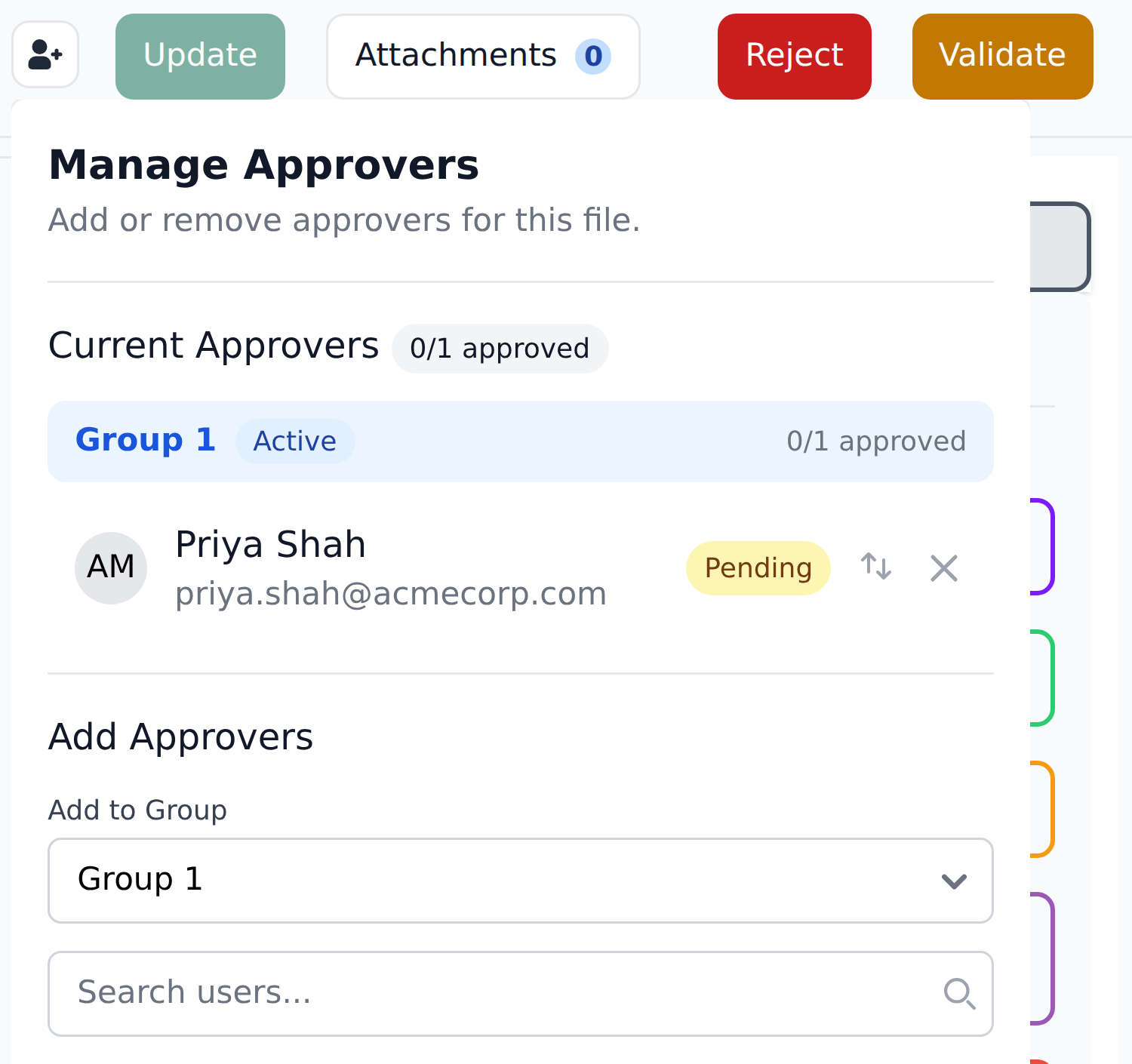
It answers the questions that come up when a document seems stuck:
- Which group is live — the one marked
Active. Groups gate in sequence; later ones don't see the document until the active one clears. - How far through that group is — the
0/1 approvedcounter. Within a group, every approver has to approve. - Who specifically — each approver, with their own
Pendingor approved state.
You can add someone to a group from the same panel, or remove them with the ×. Most of the time the list is populated by a Mapping workflow rather than by hand — see Routing approvals by total.
Validate
Available to assignees on documents currently in Pending status.
Click Validate to confirm the data is right. Approval Status flips from Pending to Validated. The document leaves your My tasks queue (assuming you were filtering by it) and either:
- Routes to the configured approvers, if Approver Groups exist.
- Becomes ready for you to approve directly, if no groups exist and you have approval permission.
When Validate is disabled
The button stays disabled when any mandatory field shows —Not set—. Fill in every required field and the button enables.
This is the system's built-in safety rail. Incomplete documents shouldn't move to Validated, so the button refuses to fire until they're complete.
Approve
Available to approvers on documents currently in Validated status (or Pending, via Skip to Approve — see below).
Click Approve to sign off. Approval Status flips to Approved. The document is now eligible for export — any configured outbound integrations (webhooks, ERP push) fire automatically.
If the project has multiple Approver Groups, the document routes through each group in sequence. Your click moves it past your group; later groups still need to act before the document is fully Approved.
Skip to Approve
When you're an approver but not the assignee on a Pending document, you'll see Skip to Approve instead of (or in addition to) the regular Approve button.
Clicking it lets you approve the document without waiting for the assignee to validate it first. Useful when the assignee is unavailable but you trust the extraction quality and want the document to move forward.
Skip to Approve bypasses validation
Use this when you've verified the document yourself. The assignee's normal verification step is skipped; whatever data is currently on the document is what gets approved.
Reject
Available to assignees on Pending or Validated documents, and to approvers on Validated documents.
Click Reject to mark the document as rejected. Approval Status flips to Rejected. The document stays in the project for audit purposes but doesn't export.
Common reasons to reject:
- Wrong document type (a delivery note got uploaded to the Invoice project).
- Data fundamentally wrong (vendor not recognized, amount doesn't match the PO).
- Duplicate that wasn't caught by the duplicate checker.
- Business reasons (vendor on hold, invoice not authorized).
You can optionally add a comment when rejecting.
Reversing a rejection
A rejected document can't be moved back to Pending by default users. The reverse action requires the Override permission — typically held by admins or finance leads.
If you rejected a document by mistake, ask an admin to re-validate it. Don't re-upload — re-uploading creates a fresh document with no history of the original.
What happens after Approve
Once a document reaches Approved:
- Outbound webhooks fire if configured for the Document Approved trigger.
- Make.com and n8n integrations pick up the approved document via their scheduled pulls.
- The Custom Get API returns the document on the next poll, shaped by whatever Custom Response Schema your project has.
- Document Status eventually flips to
Exportedonce delivery happens (or staysDoneif you export out-of-band).
The work — from your side — is done. The document moves through the export pipeline on its own.
Per-role button matrix
What you see in the action area depends on your relationship to the document:
| Your role on this document | Document is Pending | Document is Validated | Document is Approved |
|---|---|---|---|
| Assignee | Validate, Reject | (depends — approve if no groups configured) | — |
| Approver only | Skip to Approve, Reject | Approve, Reject | — |
| Both assignee and approver | Validate, Skip to Approve, Reject | Approve, Reject | — |
| Override (admin) | Any action, can edit Rejected docs | Any action | Any action, can delete any status |
For Rejected and Duplicate states, the action area shifts — see the Statuses & what they mean page for the full reference.
After you click — what to expect
After Validate or Approve, the document leaves your My tasks queue (assuming you were filtering by it).
If you were the last approver needed, the document becomes eligible for export. When your project has an integration on the Document Approved trigger, delivery happens in the background — you don't drive it from here.
What's next
- Comments & history — what gets recorded each time you act.
- Statuses & what they mean — the full status reference.
- Reviewing extracted fields — back to the start of the review flow.