
Appearance
Reviewing extracted fields
Studio is the screen where field validation happens. Three panes — document preview on the left, fields panel on the right, line items below — give you everything in one view.
You arrive in Studio by clicking any row in the Documents view. This page covers the read-only part of the work: knowing what you're looking at. The next page covers the editing.
The layout
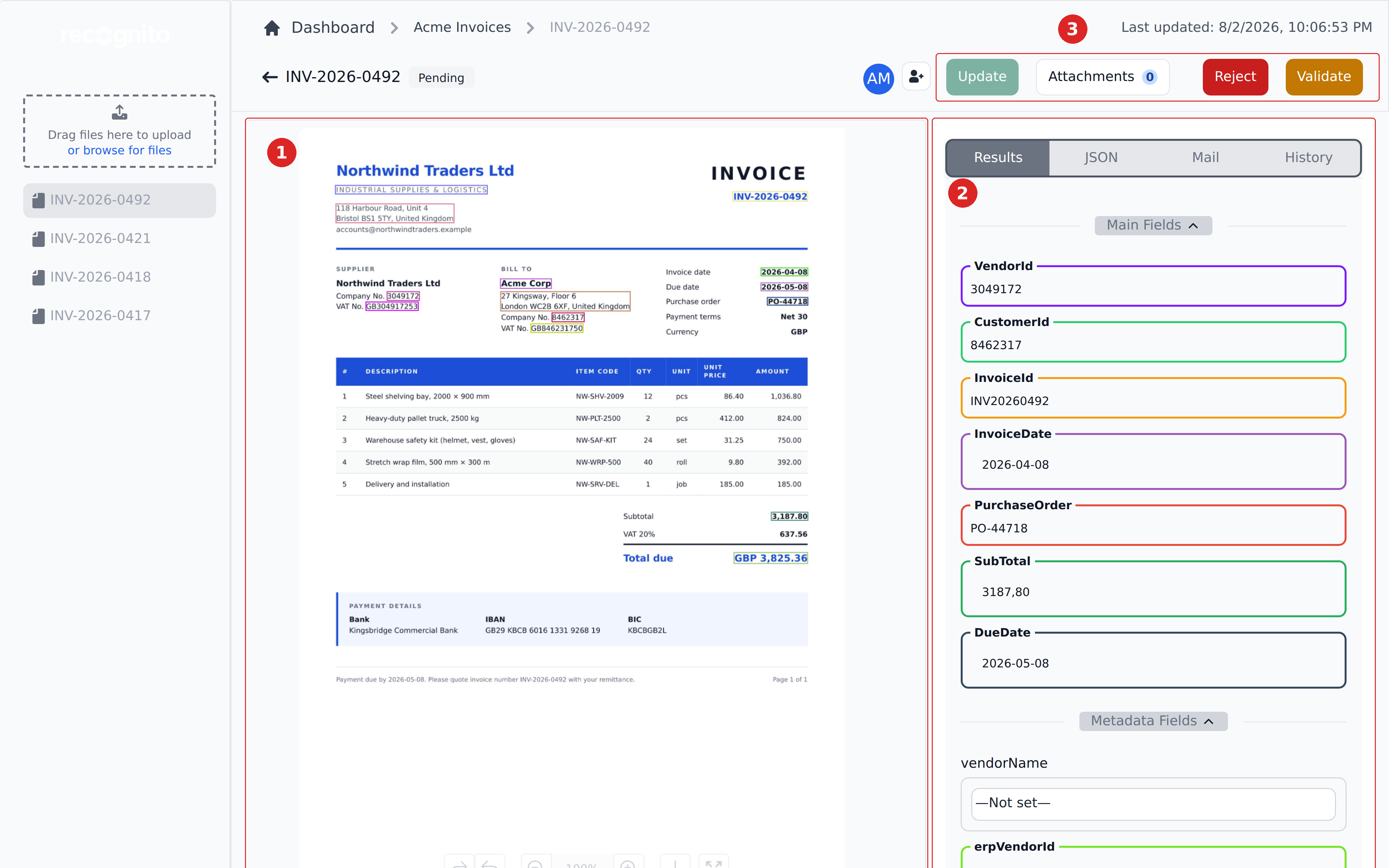
- The document preview — your original file, with a coloured rectangle over every value the engine read.
- The fields panel — the extracted values, grouped by category. Scroll past the categories and you reach the line-items table.
- The actions — Update saves edits; Reject and Validate hand the document on.
A rail on the far left lists the other documents in the project, so you can move to the next one without going back to the queue.
The fields panel scrolls independently of the preview. Click a field and the preview jumps to that field's place on the document — the fastest way to check where a value came from.
Above the fields sit four tabs. Results is the one you work in; the other three are reference.

- JSON — the structured payload as an integration would receive it.
- Mail — the email the document arrived on, if it came in through the project mailbox.
- History — the audit trail. See Comments & history.
The JSON tab is worth a look even if you never touch an integration: it's the only place the engine shows its own confidence in a value, alongside the page number and the coordinates it read from.
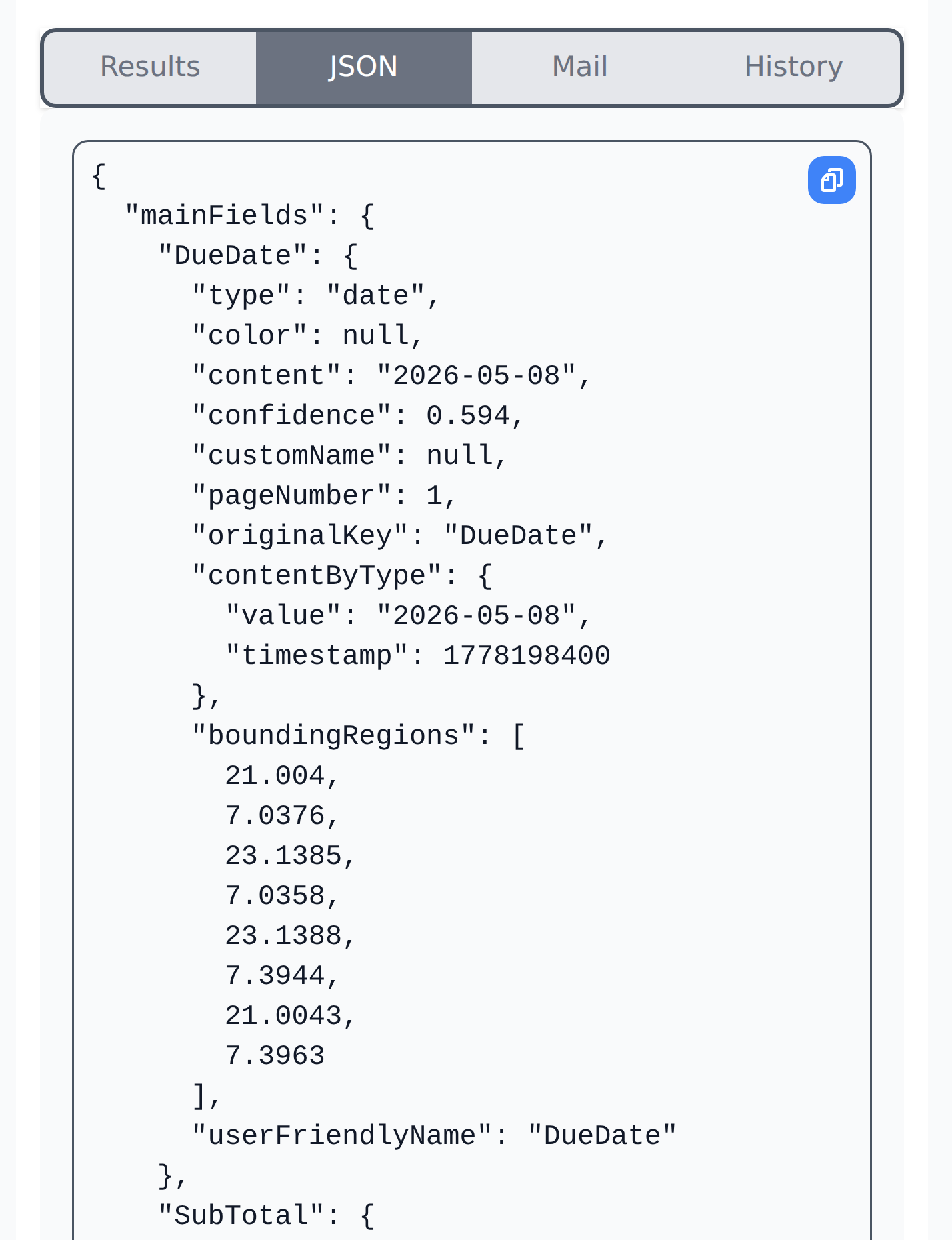
A low confidence isn't proof a value is wrong, and a high one isn't proof it's right — treat it as a hint about which fields deserve a second look.
Document badges and page review
The header's type badge identifies the document's detected or selected type; its tooltip shows where it came from. N of M pages scanned means other pages remain in the file without extracted values. Open Needs action to read why a file is held. Hover over Last change failed to read a page-change failure message.
Held files offer Review split, Select pages or Review pages, depending on the reason. For a processed document, the scissors button opens Edit pages when it has multiple or unscanned pages and is not approved, validated, exported or processing. See Splitting, combining and trimming documents before applying changes that scan a document again.
Field categories
Fields organize into five categories by convention. The categories show as headings inside the right pane:
- Main — primary fields. Invoice number, total amount, dates, vendor identifier.
- Table — represented as columns in the bottom pane (line items).
- Payment — bank account, IBAN, due date, payment method.
- Tax — tax rate, tax amount, VAT codes.
- Metadata — vendor name, project name, GL accounts, departments, anything your admin set up as a Mapping target.
The convention is that Main / Payment / Tax / Table come from the document (extraction-fed), and Metadata comes from your reference tables (Mapping-fed). In practice, projects often mix the two. Either way, you read every category the same way — look at the value, decide if it's right.
Bounding boxes
Each extracted value has a coloured rectangle drawn over the document showing where it came from. Colours match field categories, so the overlay doubles as a category map.
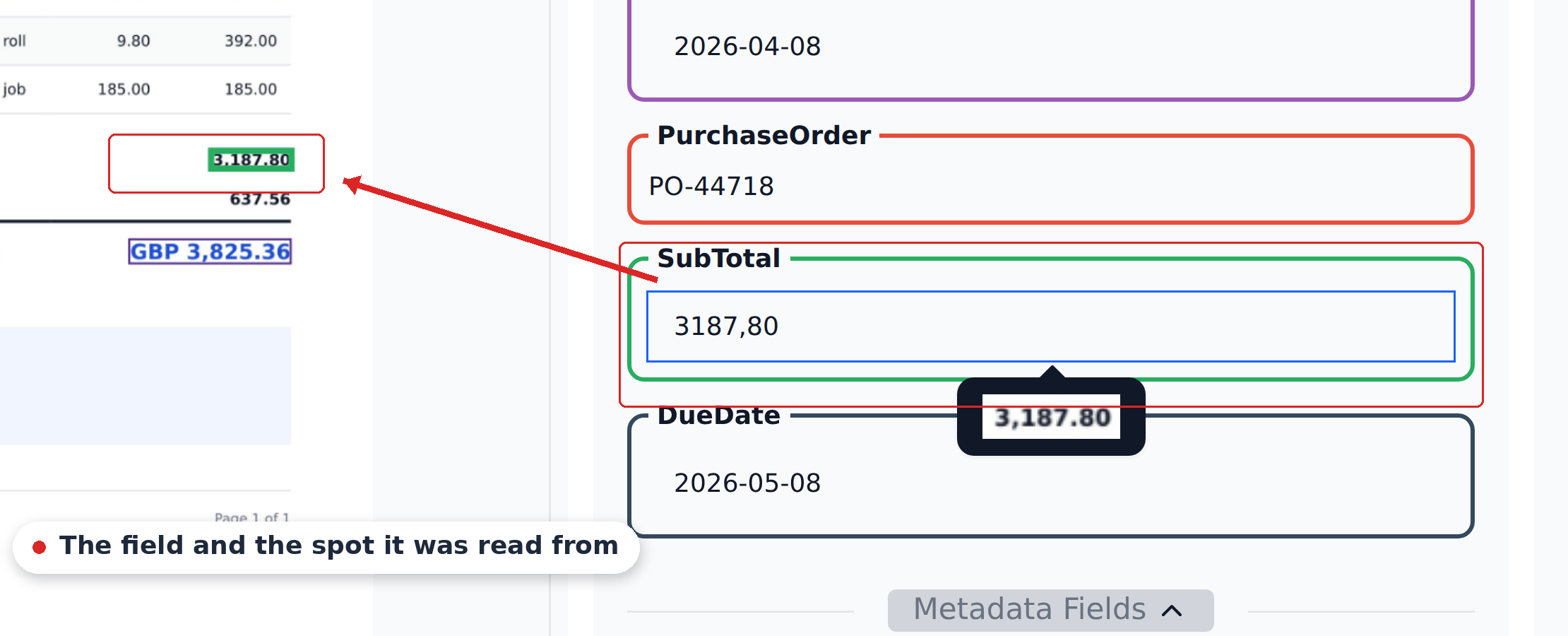
Click a field and the preview scrolls to its box, with the raw text the engine read shown alongside. Reading down the fields and watching the highlight move is the fastest check there is: if the highlight lands somewhere sensible, the value is almost certainly right.
Bounding boxes don't appear for Mapping-fed fields
Only fields the engine read from the document have bounding boxes. Metadata fields filled in by Mapping (like a GL code looked up from your chart of accounts) have no rectangle to draw — they don't come from a region of the document.
Reading values
For most fields, the value the engine produced is what you see. There's no per-field confidence meter or colour-coded certainty marker in this panel — the engine does score its own confidence, but Studio doesn't surface that as a visual cue here. So read the values themselves rather than waiting for the screen to flag the shaky ones.
Run your eye down the right pane top to bottom. Most fields will look right. Anything that looks off — a misread digit, a wrong category, a date in the wrong format — is what you'll fix on the next page.
What —Not set— means
When a field's value is —Not set—, the field has no value yet. There are two common reasons:
- Extraction didn't find anything. The field's value isn't on the document, or the engine couldn't read it confidently. Common for fields that aren't always present (e.g., a discount line on invoices that don't have one).
- Mapping hasn't filled it in yet. Metadata fields often start
—Not set—and wait for either a workflow to populate them or the assignee to pick a value manually.
Mandatory —Not set— blocks Validate
If a mandatory field shows —Not set—, you can't click Validate. The button stays disabled until every mandatory field has a real value. This is intentional — the system prevents incomplete documents from moving forward.
To fill in a —Not set— field, click it and pick a value (for Select fields) or type one (for text / numeric fields). The next page covers this in depth.
Line items
Below the fields sits the line-items table — one row per item, with columns mirroring the table-category fields.
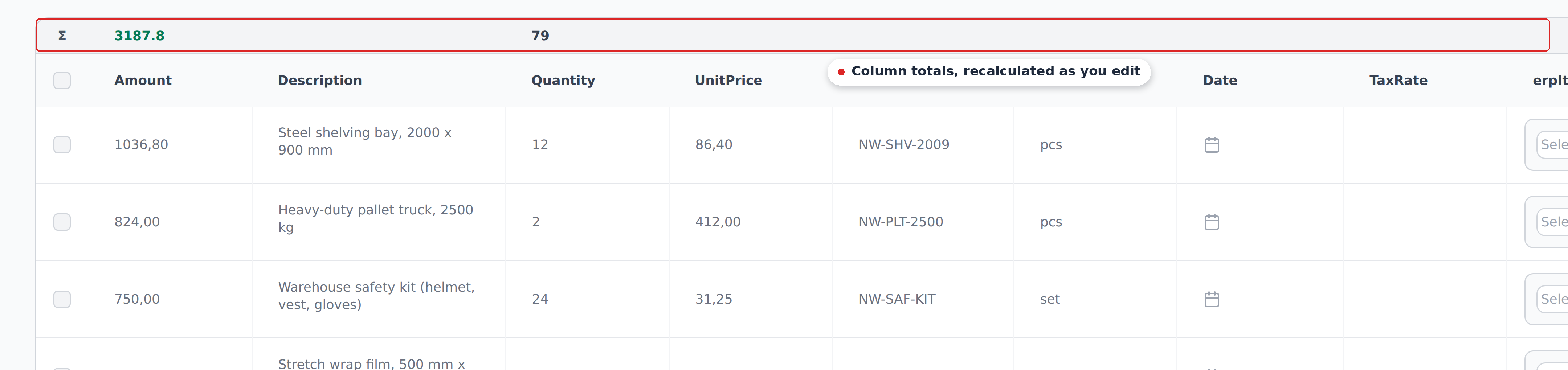
The grey row above the headers carries per-column totals, recalculated as you edit. Checking that the amount total matches the document's subtotal is the quickest way to spot a misread quantity or price.
Each row is editable independently, and Studio adds tools to split, aggregate and bulk-edit rows — covered on the next page.
When the document is locked
Depending on your project's configuration, fields may become read-only when the document reaches certain statuses (Validated, Approved, Rejected, Exported). The fields appear greyed out and the cursor doesn't focus when you click them.
If you need to edit a locked field, ask an admin — users with the Override permission can bypass the lock.
When fields update on their own
When you change a field that has a workflow watching it (a vendor name, a department code, a total amount), the related lookups re-run in the background. You'll see other fields update a second or two after your edit. This is the Mapping engine doing vendor lookups, GL coding, and approver routing in response to your change.
You don't need to refresh, save, or click anything to trigger it. The cascade runs automatically; the fields settle in 1–2 seconds.
What's next
- Correcting values & line items — how to edit values, line items, and use the bulk-edit tools.
- Approving / rejecting — the sign-off step.
- Comments & history — the per-document audit trail.