
Appearance
Bulk actions
Select rows in the Documents view to show the action toolbar. Alongside export, merge, mark as exported and delete, you can edit one document's pages or combine several documents.
Selecting documents
Each row has a checkbox in its first cell. Tick one and the toolbar appears above the table; tick the header checkbox to select every row on the current page.
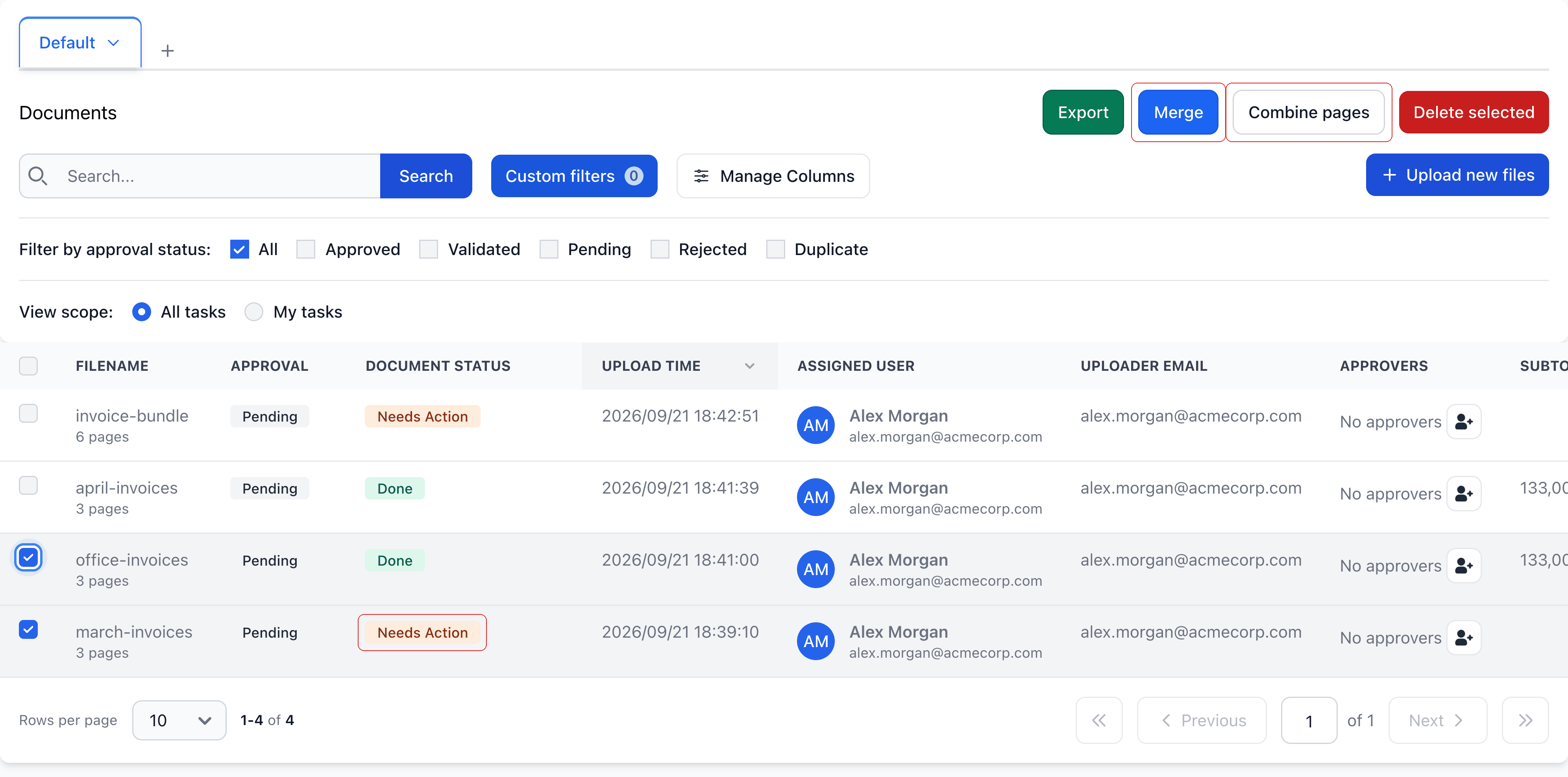
Most actions need at least one document. Merge and Combine pages need at least two; with one selected, the page-editing button reads Edit pages.
Export
Opens the Multiple file export dialog with two paths:
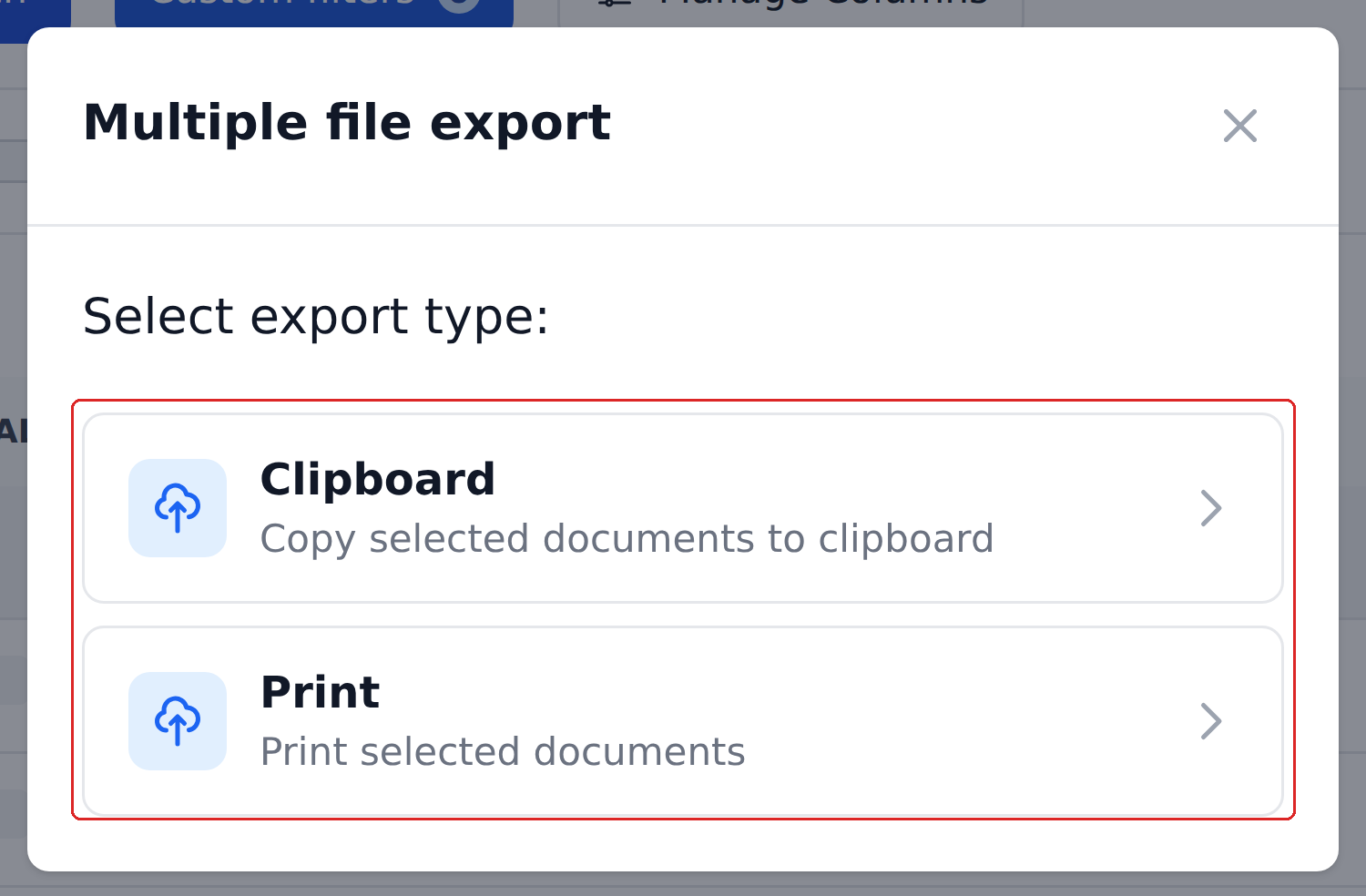
- Clipboard — copies a structured representation of the selected documents to your clipboard. Paste into Excel, your accounting software, or anywhere that accepts tab-separated values.
- Print — opens the print dialog with a formatted view of the selected documents.
What each path includes is controlled by your admin on the matching card in Settings → Integrations — Clipboard / CSV Export and Print Configuration. If a field is missing from the output, that's where to look.
Clipboard shortcut
Cmd+C (Mac) or Ctrl+C (Windows / Linux) copies the selected rows to clipboard without opening the modal. Faster when you do this a lot.
Edit pages and Combine pages
Click Edit pages for one selected document or Combine pages for several. The page grid lets you cut PDFs, join parts, skip pages, change type or name, and attach or delete parts. Approved, validated, exported and still-processing documents cannot enter the grid.
Read the primary button before applying changes. Values will be lost means the affected document will be scanned again, replacing extracted and manually edited values. See Splitting, combining and trimming documents for the controls and outcomes.
Merge
Makes some selected documents attachments of others without reprocessing them.
The typical reason: the auto-classifier (which sorts emailed files into separate documents) grouped them wrong, and you want to fix the grouping after the fact.
In Merge documents, move files to the Attachments column by dragging them or clicking Make attachment. Each document left in Documents receives its own copy of every attachment. The primary button states how many documents will be attached to how many receivers.
Attached documents disappear as standalone rows and appear in the receivers' Attachments panels in Studio. Approved and exported documents can receive attachments, but cannot become attachments; processing documents are locked. To join pages into a newly scanned document instead, use Combine pages.
Merge is hard to undo
There's no direct un-merge action. The closest thing is opening the main document in Studio, finding the attachment you want back, and using the per-attachment Convert to main document affordance — one by one. Plan merges before clicking.
Mark as Exported
Sets the Document Status of the selected documents to Exported without actually pushing them anywhere.
The use case: orgs that export out-of-band — pasting data into accounting software, printing for a paper archive, anything that doesn't go through a configured integration. Mark as Exported is the manual reconciliation flag — it records that you've handled the document, not that anything was delivered.
This is independent of the Approval Status. A document can be Validated + Exported (you exported the data before final approval) or Approved + Exported (the normal case).
Delete selected
Removes the selected documents from the project. Permission-gated:
| Your permission | What you can delete |
|---|---|
| Override | Any document, any status |
| Default Actions | Only documents with status Pending or Duplicate |
| View Only | Nothing — the delete action is hidden |
The Default Actions limit is a safety rail. Once a document is Validated, Approved, or Rejected, only an Override-permission user can delete it. This prevents reviewers from accidentally deleting things that already moved downstream.
If you try anyway, nothing is deleted and Recognito tells you so — "No documents were deleted. You do not have necessary permission." The rest of the selection is unaffected.
No in-product restore
There's no restore affordance in the product today. Whether a delete is recoverable at the infrastructure level isn't documented — don't rely on recovery being possible. If you're unsure, contact support before deleting in bulk.
Atomicity — what happens if one fails
For each bulk action, the question is: if some documents succeed and some don't, what's the resulting state?
- Export (clipboard / print) — atomic: produces one output covering everything selected. Doesn't typically fail per-document.
- Merge — atomic: either the merge happens or it doesn't.
- Mark as Exported — per-document. If one document is in a state that doesn't allow the change (rare), the others still get marked.
- Delete — per-document with permission checks. If your permission allows you to delete some but not others in the selection, the allowed deletes happen and the others stay.
Re-filter after running a bulk action to confirm what actually changed.
What's next
- Finding & filtering documents — narrow the table before selecting.
- Statuses & what they mean — understand which documents are safe to delete.
- Exporting & sharing — the broader story on getting data out of Recognito.