
Appearance
Finding & filtering documents
The Documents view holds every document in the project. Four filtering layers narrow it down: search, the status strip, custom filter rules, and the My tasks scope. Mix them however helps you focus.
Most reviewers settle on one or two filter combinations and stick with them. This page walks through every option so you know what's available.
The shape of the toolbar
Everything above the table narrows what's in it.

- Search — matches filenames and extracted field values.
- Custom filters — a rule builder for field-based filters. The badge shows how many rules are active.
- Manage Columns — pick which columns the table shows.
- The approval-status strip — checkboxes for
All,Approved,Validated,Pending,Rejected,Duplicate. - The view-scope toggle —
All tasksorMy tasks.
The four filtering layers compose — narrow by status, by My tasks, by a custom rule, and search, all at once. What you get is the intersection.
Search
Search matches on both the filename and the document's extracted field values. Typing an invoice number finds the document even when the file it arrived as was called something unhelpful — which, for anything that came in by email, it usually was.
Search by what's on the document, not what the file was called
Suppliers name their PDFs whatever they like. Searching for the invoice number or the purchase order — values the engine extracted — is more reliable than trying to remember the filename.
Filter by approval status
The horizontal checkbox strip beneath the toolbar is the fastest filter — one click toggles each status.

- All — clears the strip; the table shows every status.
- Approved — documents that have cleared every approver.
- Validated — documents the assignee has signed off, waiting for approver action.
- Pending — documents that have been extracted but no human has touched yet.
- Rejected — documents an assignee or approver rejected.
- Duplicate — documents flagged by the field-value duplicate checker (different from file-hash duplicates, which are rejected at upload and never reach this list).
Multiple checkboxes combine with OR. Tick Pending and Validated to see everything currently in human-review limbo.
For what each status actually means and when it changes, see Statuses & what they mean.
My tasks — the queue scope
Beneath the status strip, the All tasks / My tasks toggle decides whose documents to show.
- All tasks — every document in the project, no scoping.
- My tasks — only documents that need you right now:
- Documents where you're the assignee and the document is
Pending. - Documents where you're an approver and the document is
Validatedand it's your group's turn.
- Documents where you're the assignee and the document is
My tasks is the default filter most reviewers run in. It works out of the box for every user — no setup, no configuration. Switch to All tasks when you need broader visibility (looking for a specific document, helping a colleague, hunting down something stuck).
Why My tasks does what it does
My tasks is built around the idea that a reviewer's queue is "things that won't move forward until I act." Documents already approved, exported, or rejected don't need you, so they don't appear. Documents assigned to someone else don't appear either. Switch to All tasks to see them.
Custom filters
For anything the status strip can't express, open Custom filters. The modal builds rules of the form where field, operator, value.
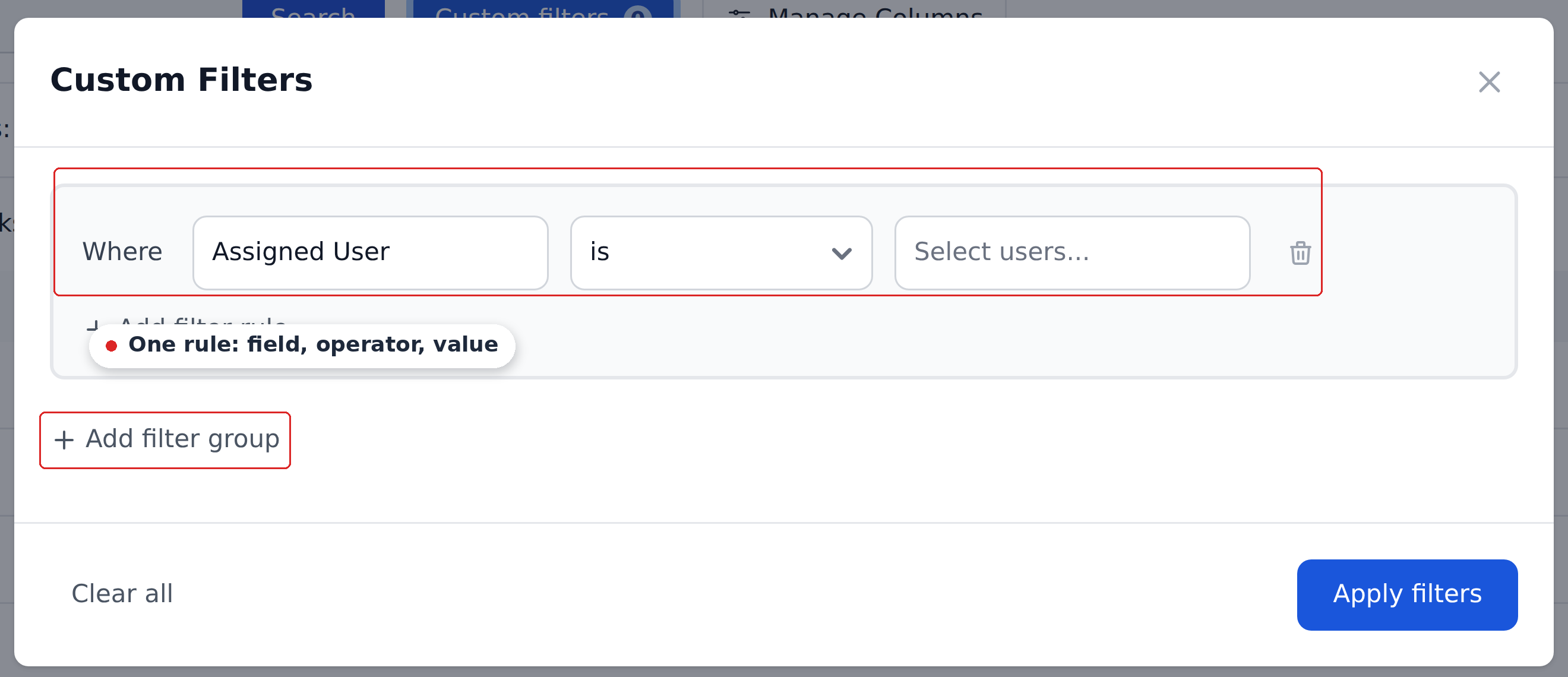
Operators include is, is not, contains, does not contain.
The field dropdown doesn't offer every field in the project — only the ones your admin ticked under Settings → Field Usage Settings → Custom Filter Fields. If a field you want to filter on isn't in the list, that's why, and an admin can add it.

Filter rules and groups
Rules organize into groups with explicit AND / OR links:
- Inside one group, rules combine.
- Between groups, you pick AND or OR.
For example, two groups linked with OR — (InvoiceId is REC-123) OR (InvoiceId is REC-345) — surfaces documents matching either invoice. The same shape composes arbitrarily complex queries: route approvers in a department AND amount over €50k, or vendor in a specific list OR matching a tax-ID pattern.
When you're done, click Apply filters. The Custom filters badge in the toolbar shows the active rule count so you remember it's on.
Clearing filters
Click Clear all inside the modal to reset every rule. The badge disappears and the table un-narrows.
Combining filters
The four layers compose — they don't override each other:
- Search narrows by filename and extracted field values.
- The approval-status strip narrows by status.
- The My tasks toggle narrows to documents that need you.
- Custom filters narrow by field values.
Apply all four and you get the intersection. Drop layers when you need more results.
Save what you find useful
If you find yourself building the same filter combination every morning, save it as a Saved View. Saved views capture filter selections, search text, visible columns, and column widths — one click switches between them.
See Saved views for the full guide.
What's next
- Statuses & what they mean — the full status reference; understand what each value tells you about the document.
- Saved views — persist your favorite filter combinations.
- Bulk actions — once you've found a set of documents, what you can do to them in batch.