
Appearance
Exporting & sharing
Most of the time, data leaves Recognito automatically — your project's webhooks, Make.com, n8n, or ERP connectors handle delivery without you doing anything. This page covers the manual paths for when you need to grab data yourself.
Manual export is your fallback when the automation isn't set up, when you need a one-off snapshot, or when your downstream process needs a paste rather than a push.
When automation has already handled it
Before exporting manually, check whether automation has already done the work. If your project has a webhook configured for Document Approved, the data went out the moment the document was approved — you don't need to do anything.
You don't need to manually export documents that already flowed through automation. Manual export exists for the cases where automation isn't running.
Manual export channels
Select documents in the Documents view and click Export in the bulk toolbar.
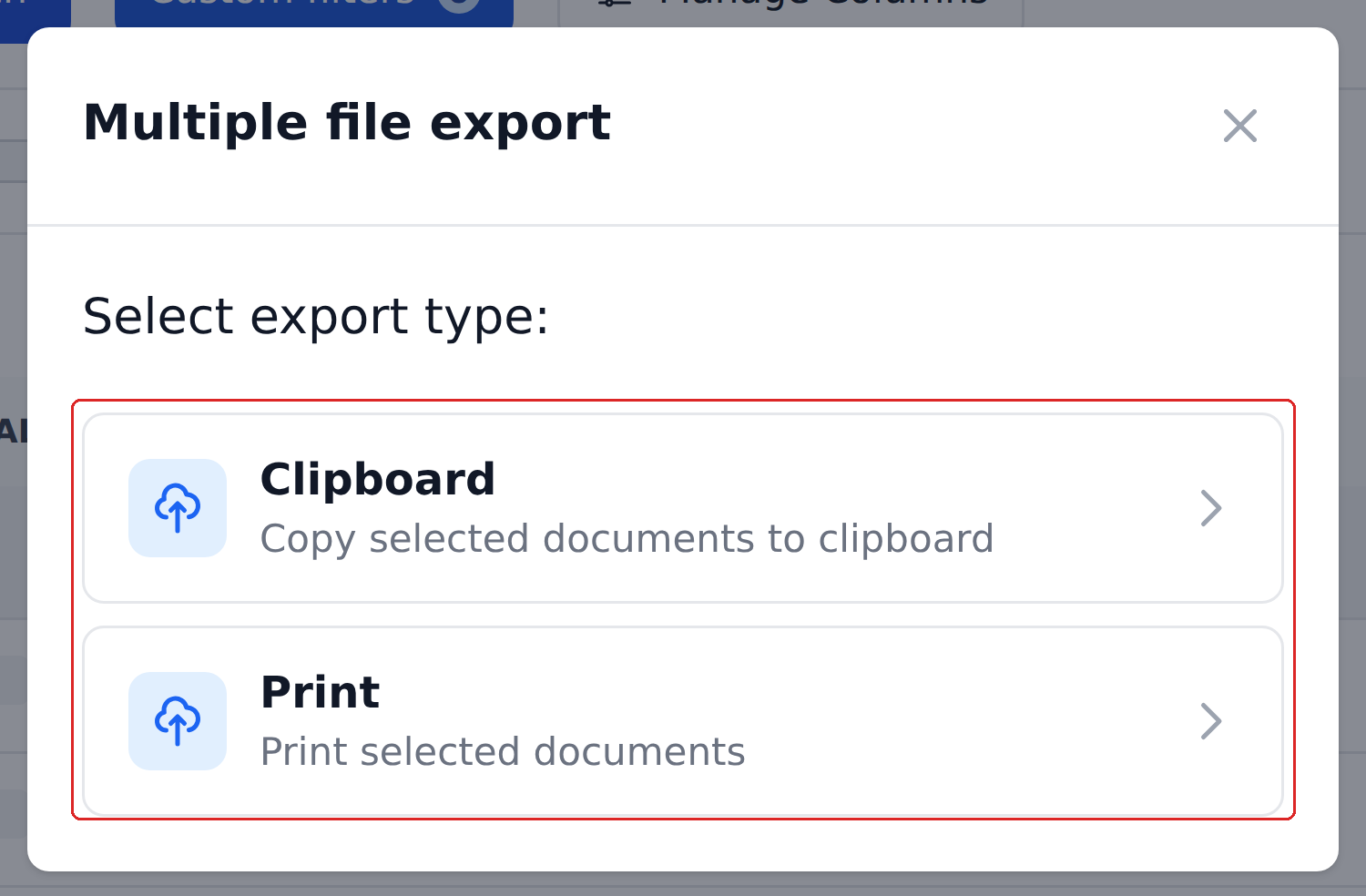
Clipboard
Select one or more documents in the Documents view, then either:
- Click Export in the bulk-action toolbar and pick Clipboard.
- Press
Cmd+C(Mac) orCtrl+C(Windows / Linux) — the keyboard shortcut.
A structured representation copies to your clipboard. Which fields it carries is configured by your admin on the Clipboard / CSV Export card under Settings → Integrations. Paste into Excel, your accounting software, or anywhere that accepts tabular data.
Print
Same path as Clipboard — select documents, click Export, pick Print. The system opens the print dialog with a formatted view of the selected documents.
Fields included come from the Print Configuration card under Settings → Integrations. Useful for paper archives, accountant handoffs, and signature-required workflows that still rely on physical paper.
Automated channels (briefly)
These are admin-configured and run without your involvement, but worth knowing they exist:
- Webhook — HTTPS POST to a configured endpoint. Fires on Document Analysed / Validated / Approved (any combination).
- Make.com node — pulls approved documents into Make.com scenarios. Configured inside Make, not in Recognito.
- n8n node — same idea for n8n.
- REST API pull — custom integrations polling for approved documents.
If you're a reviewer and need data delivered somewhere it isn't yet, the path is to ask your admin to configure one of these. See Integrations for the admin-side setup.
Mark as Exported — manual reconciliation
For orgs that export out-of-band (paste-into-ERP, paper archive, anything that doesn't flow through an automated channel), Recognito provides a Mark as Exported bulk action.
Select the documents you've already handled outside Recognito, click Mark as Exported in the bulk toolbar, and Document Status flips to Exported. The data isn't actually sent anywhere by this action — it's a reconciliation flag.
Use this to keep the Documents view honest. Without it, documents you've already pasted into your ERP still show as Done and clutter your view.
Mark as Exported doesn't fire webhooks
The Mark as Exported action only sets the status. It doesn't trigger outbound webhooks, doesn't push to Make.com, doesn't call the API. Use it specifically for documents you've already exported manually.
Sharing with colleagues
Recognito doesn't have a built-in "share this document via link" feature for external recipients. Two paths cover most cases:
- Add the recipient as a project member — if they have a Recognito account or your admin can invite them. They get full access; if you only want to share one document, this might be overkill.
- Export and send the data — clipboard or print, then email / Slack / whatever channel you use. Faster for one-off shares.
What's next
- Bulk actions — the toolbar that drives most manual exports.
- Integrations — the admin-side configuration for automated channels.
- API Reference — for developers building custom pulls.