
Appearance
Account setup
Sign in, get oriented in the interface, and set up your profile. Five minutes, and you'll know where everything lives.
How you get an account
Most people join through an invite from their team's admin. The admin adds you to their organization, and you get an email with a sign-up link. Open it, set a password or link a Google or Microsoft account, and you're in.
You can also sign up yourself from the login page — click Sign up under the heading.
Sign in
Open app.recognito.io and enter your email and password.
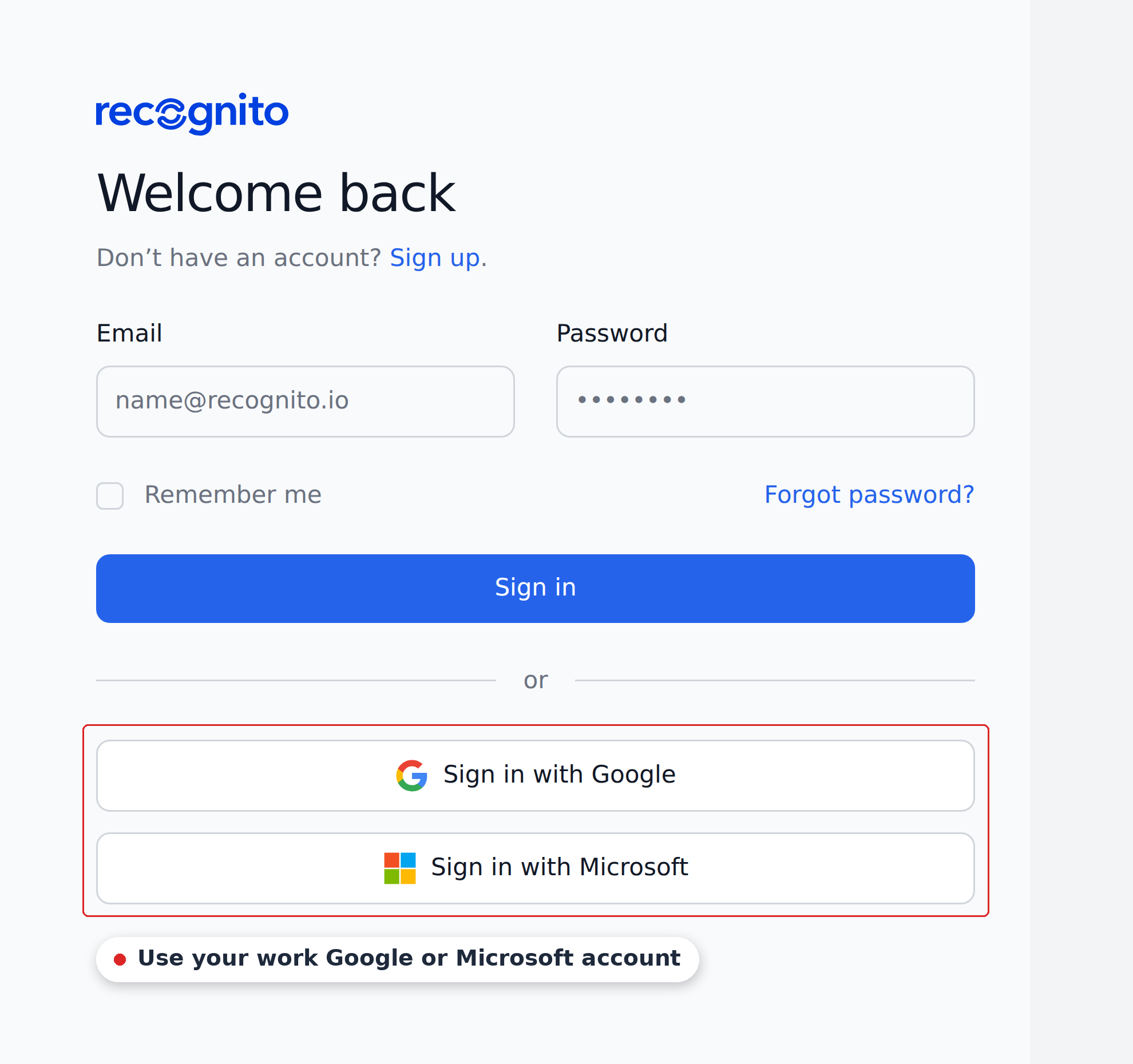
If your company runs on Google Workspace or Microsoft 365, use Sign in with Google or Sign in with Microsoft instead — same account your colleagues use, one less password.
Your admin can restrict which of the three methods you're allowed to use. If one is unavailable to you, that's why.
Where things are
After signing in you land on the Dashboard. Almost every screen in Recognito hangs off three things on this page.
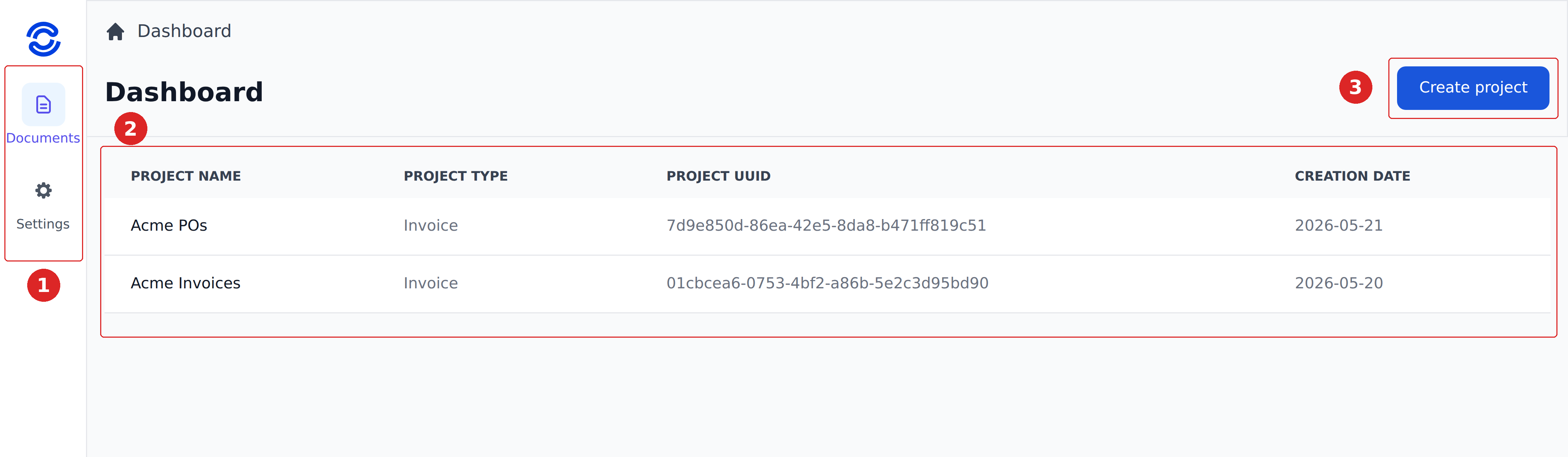
- The navigation rail — Documents takes you to whichever project you last opened; Settings opens that project's configuration. These two never move.
- The project list — one row per project you can open, with its document type and creation date. Click a row to open that project's documents.
- Create project — for admins starting a new stream of documents. See Projects and organizations.
At the bottom of the rail sit your organization pill and the Account button. Both are covered below.
Everything is scoped to a project
Fields, mapping rules, users, integrations — all of it is configured per project, not per organization. Opening a different project changes what you see almost everywhere.
Switch between organizations
If you belong to more than one organization — your employer plus a client's account, say — click the organization pill at the bottom-left.
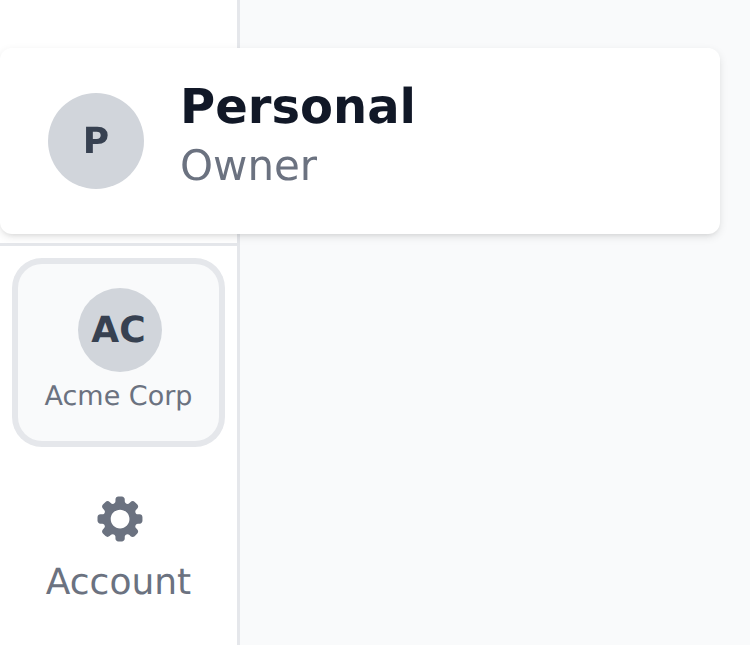
Click one to switch. The Dashboard reloads with that organization's projects, and the sidebar shows whichever Settings tabs your role there allows.
Roles don't carry across organizations
You can be Owner in one and Member in another. The badge next to each name in the switcher tells you which you have where.
Update your profile
The Account button sits just below the organization pill.
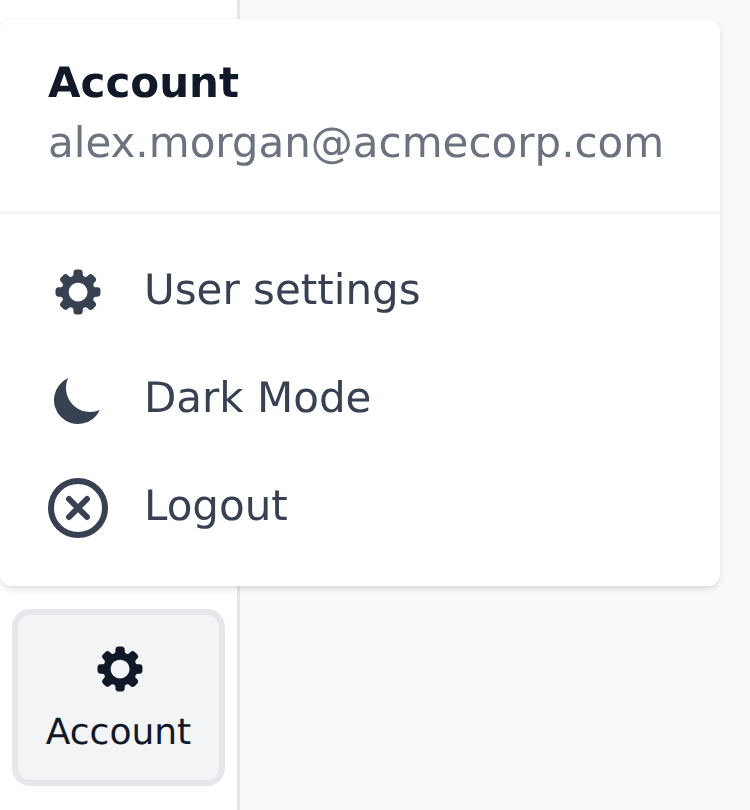
Click User settings to manage your account. The same menu holds a Dark Mode toggle and Logout.
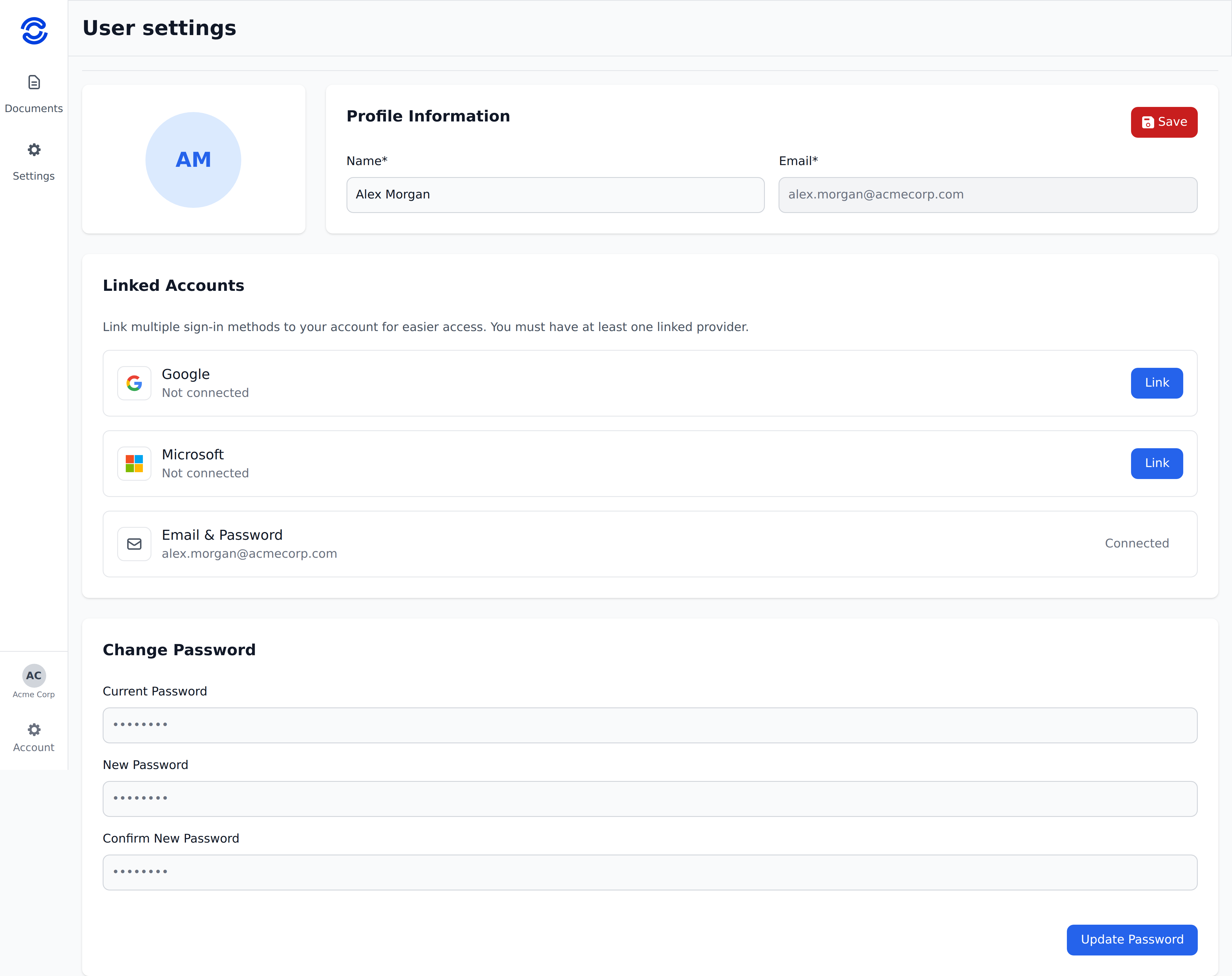
Three things you can change here:
- Profile Information — your display name. The email field is read-only.
- Linked Accounts — three slots: Google, Microsoft, and Email & Password. Link a second one and either method signs you in next time. Email & Password counts as a provider, so the "you must have at least one linked provider" rule really means you can't remove your last way in.
- Change Password — only relevant if you sign in with email and password.
Your email address is fixed
The address in Profile Information can't be changed here. Ask your admin or Recognito support if it needs updating.
Notification settings aren't on this page — they're configured per project, in Notifications. Recognito's interface is English-only today.
What's next
- 5-minute quick start — put a document through the system and watch what happens to it.
- How Recognito works — the mental model behind projects, statuses, and the Mapping engine.
See also
- Configuring Recognito → Users and permissions — what your admin chose when they invited you, and what each permission level lets you do.