
Appearance
How Recognito works
Five ideas explain every screen in the product: how projects scope your work, what field categories really mean, why a document carries two statuses, what the Mapping rule engine does, and how data gets out. Five minutes.
This is the anchor page for the rest of the documentation. Read it once and the UI stops surprising you.
1. Projects scope everything
Every customer works inside an organization, and inside it creates one or more projects. Open a project's Settings and you can see the scope for yourself — this whole menu belongs to one project.
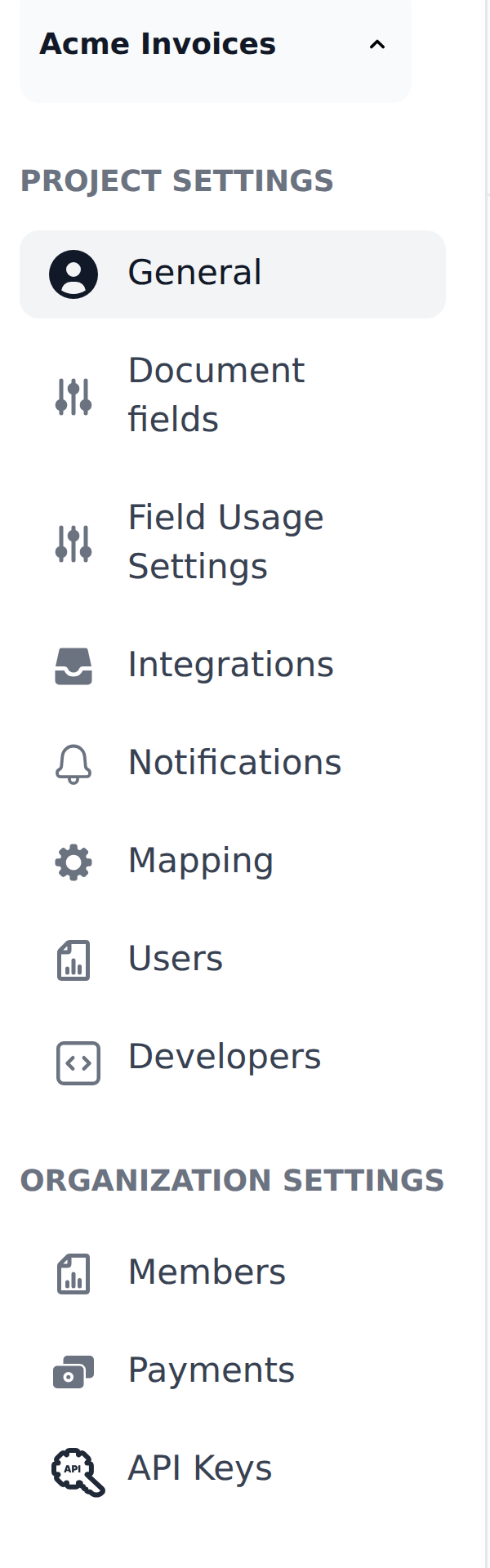
A project pins down:
- The document type it processes — Invoice, Receipt, Handover & Acceptance Certificate, or a custom model.
- Its field schema — what gets extracted, what category each field belongs to, what's mandatory.
- Its mapping rules — entities, definitions, workflows.
- Its users and their permissions — who reviews, who approves, who sees what.
- Its integrations — webhooks, exports, and its own inbound mailbox.
Only three things live above the project, under Organization settings: Members, Payments, and API Keys. Everything else in that menu is per-project, which is why opening a different project changes almost every screen.
When to split into separate projects
A project has one field schema, one initial workflow, one mailbox and one response schema. Split when those genuinely differ — a different document type, a different downstream system, a separate group of users. You don't need a project per country or per vendor; Mapping handles those differences inside one project.
2. Field categories are conventions, not boundaries
Every Invoice project ships with five field categories, and the field editor groups them exactly this way.
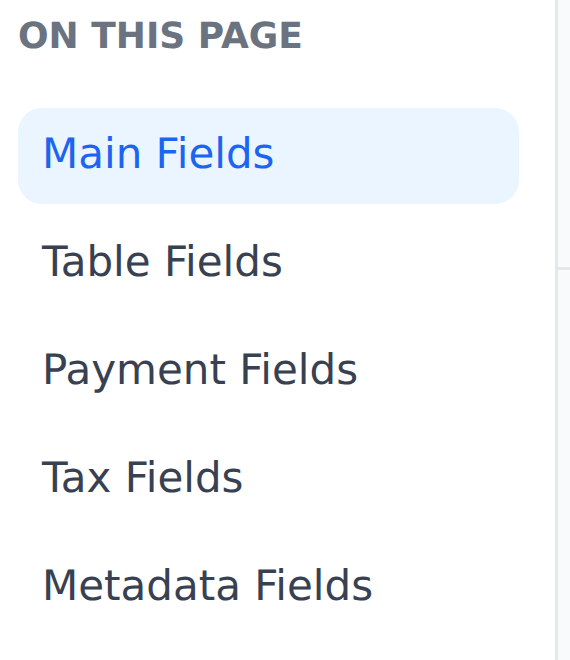
| Category | What it usually holds |
|---|---|
| Main | The primary fields — invoice number, total, dates |
| Table | Line items |
| Payment | Bank account, IBAN, payment terms |
| Tax | Tax rate, tax amount, VAT codes |
| Metadata | Vendor name, project, GL account, department |
The convention is that Main, Table, Payment and Tax fields come off the document, and Metadata fields come from your reference tables via Mapping.
Architecturally there is no such rule. Any field in any category can be extracted or Mapping-fed, and real configurations mix them constantly — the Table category routinely carries extracted Quantity and UnitPrice alongside Mapping-fed item and GL codes.
This is the most-misunderstood part of the product. When these docs say "by convention X", they mean the system also supports Y.
3. Documents have two status tracks
Every document carries two statuses at once, in two separate columns.
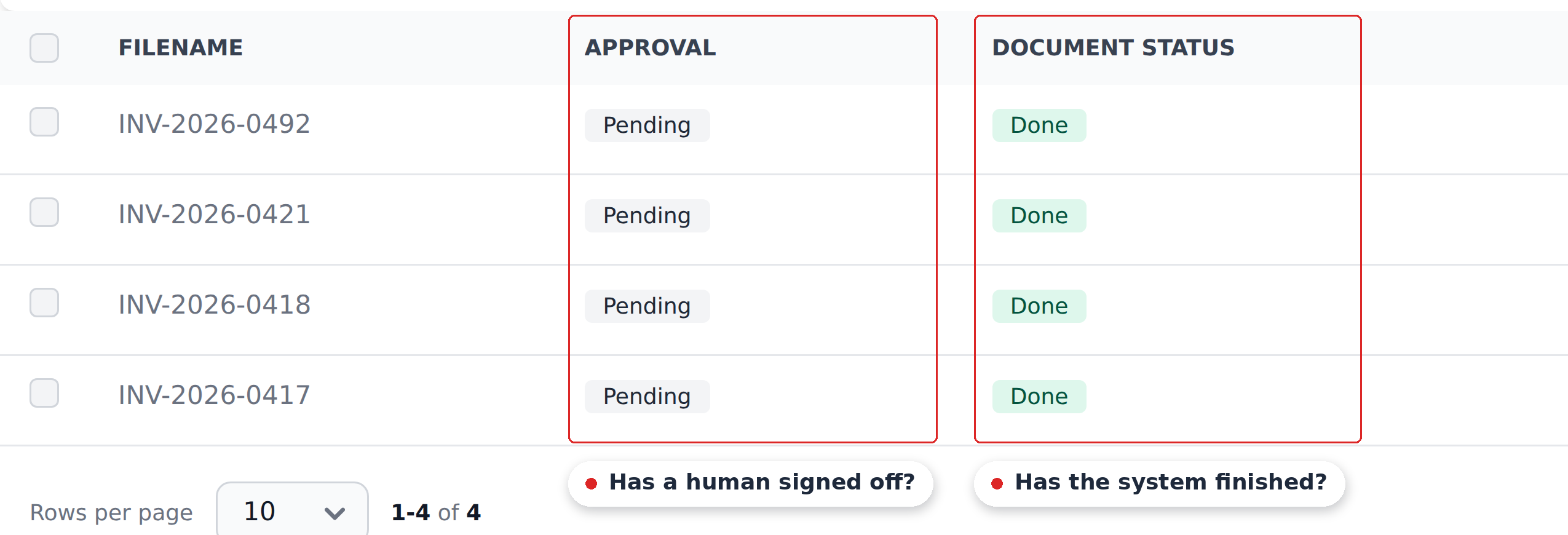
| Track | Question it answers | States |
|---|---|---|
| Document status | Has the system finished its work? | The processing lifecycle, ending at Done, plus an Exported state and a branch for documents that need your confirmation before scanning |
| Approval | Has a human signed off? | Pending → Validated → Approved, plus Rejected and Duplicate |
They move independently. A document can be Done and still Pending — extraction finished, nobody has looked at it. It can be Done and Rejected — read perfectly, refused on business grounds.
The filter strip above the table filters the Approval track, because that's the one that tells you what still needs a person. Full reference: Statuses.
Long documents pause before scanning
When a document has more pages than the project's auto-scan threshold (default: 5), Recognito holds it and waits for you to confirm which pages to process. That's what keeps a 200-page statement from quietly consuming your page allowance.
4. Mapping is the rule engine
Extraction reads what's printed. Mapping is what turns that into data your finance system can accept — matching vendors, deriving codes, routing approvals.
It has three layers, and the dependency only runs one way:
- Entities — your reference tables. A
Vendorsentity with columns for name, tax code, currency and GL account; aGeneralLedgerentity holding the chart of accounts. Pure data, no behaviour. - Definitions — reusable lookups over one entity. "Match the document's vendor name against
Vendors.vendorName, then write that row'svatCodeanderpVendorIdonto the document." - Workflows — an ordered chain of definitions plus a trigger.
A real workflow looks like this:
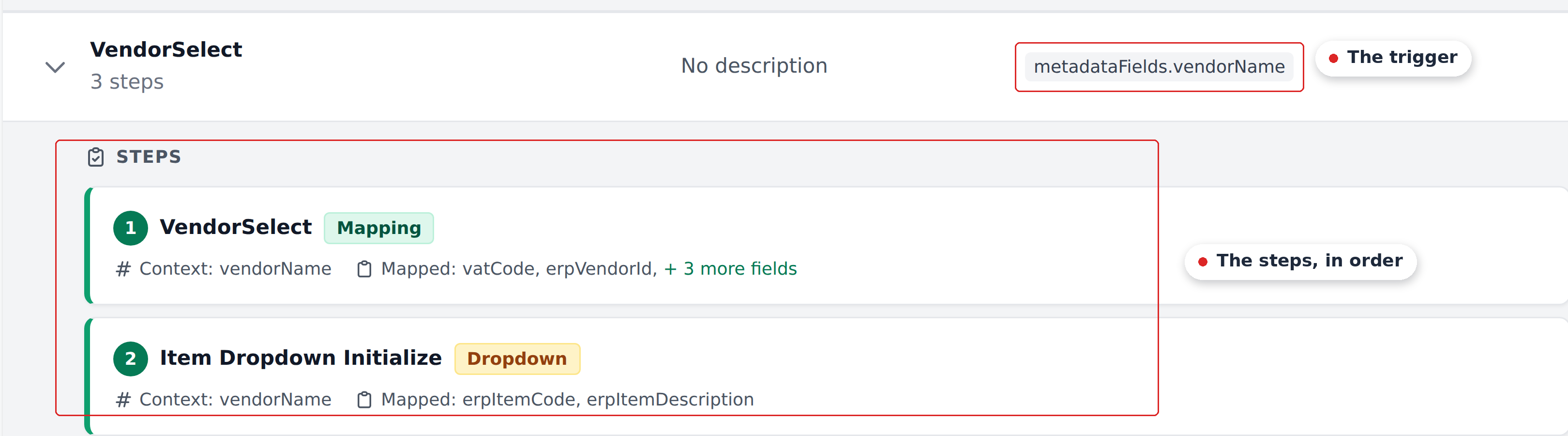
Two kinds of trigger exist:
| Trigger | Fires when | Used by |
|---|---|---|
| Document Analysed | Extraction finishes | The project's Initial_Workflow — one per project |
| On field select | A reviewer picks or edits the watched field | Every other workflow you create |
Three rules govern all of it:
- Workflows don't trigger other workflows. A step that writes to a field updates it but does not fire the workflow watching that field. To chain logic, put the steps in one workflow.
- Steps run in declared order, and later steps see earlier writes. That's how composite lookups work — step 1 resolves the vendor, step 2 uses it as context.
- An empty entity cell never overwrites the document. If the matched row has a currency but no accountant, the document takes the currency and keeps its existing accountant.
Don't try to memorise the engine now. Read Mapping & Workflows when you actually sit down to write rules.
5. Data leaves through outbound integrations
Once the document has been reviewed and signed off, it leaves. Recognito's integrations catalogue lives in each project's Settings.
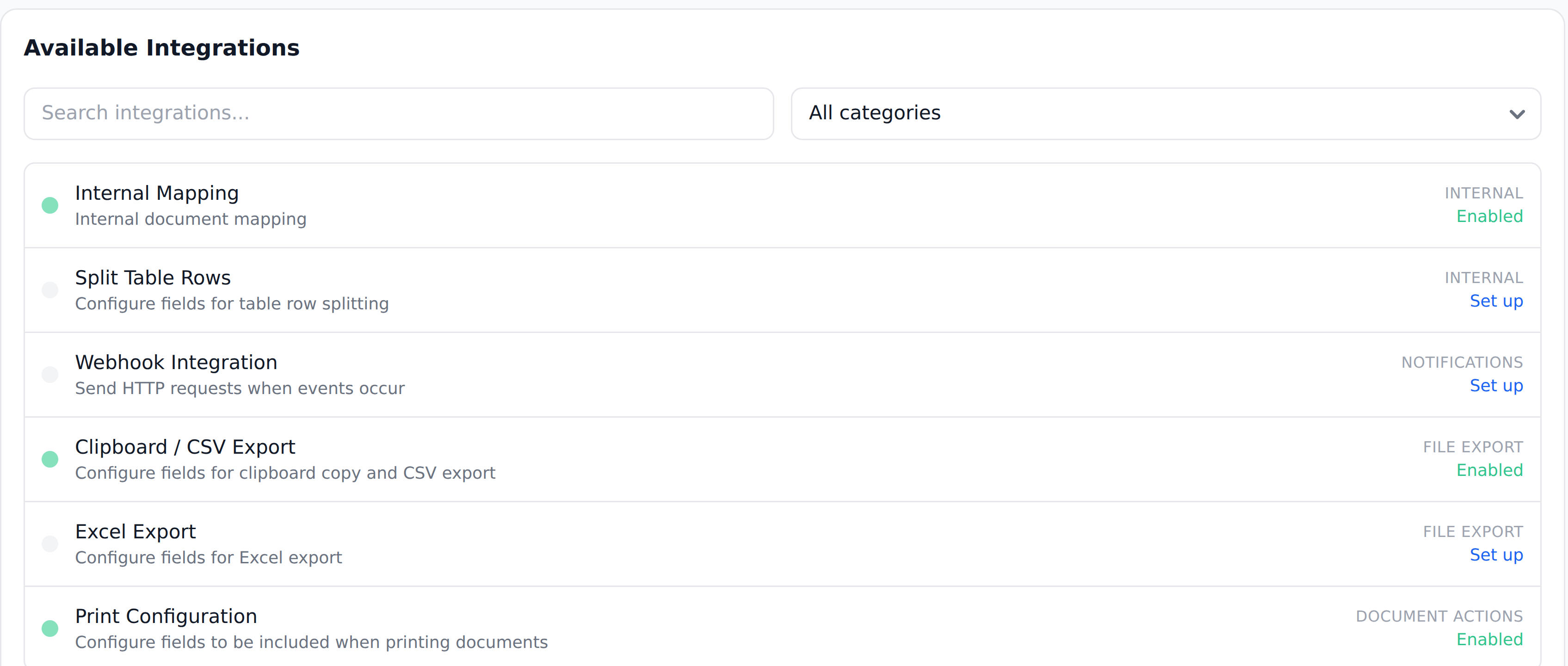
| Channel | Best for |
|---|---|
| Webhook | Pushing to your ERP, BI tool, or anything that accepts an HTTPS POST |
| Clipboard / CSV, Excel, Print | Teams that paste or import into accounting software by hand |
| REST API | Custom integrations that pull approved documents |
| Make.com / n8n nodes | Low-code pipelines — the nodes are Recognito-built and live on those platforms |
The payload shape is yours to control. The Custom Response Schema under Settings → Developers reshapes Recognito's JSON into whatever your downstream system expects, so the integration absorbs the difference instead of the ERP.
The Make and n8n nodes aren't configured here
You add them inside Make or n8n and paste in a Recognito API key. There's no card for them in Recognito's own Integrations list — the entries there are the ones shown above.
What's next
That's the whole model. From here the docs split by what you do:
- Using Recognito — the daily reviewer loop: finding documents, fixing fields, approving.
- Configuring Recognito — the admin side: fields, capture channels, users.
- Mapping & Workflows — the rule engine in depth.
- Integrations — the outbound channels from idea 5, one page each.