
Appearance
5-minute quick start
Put one document through Recognito from upload to sign-off. Six steps, five minutes, and by the end you'll understand the loop you'll repeat every day.
You need an account and access to a project. If you don't have those yet, start with Account setup.
Bring a real document if you can — an invoice from a supplier you actually use. Real layouts show you what extraction does with the messy parts. PDF, PNG, JPEG, GIF, BMP, TIFF, WEBP and SVG all work.
Step 1 — Open a project
Sign in at app.recognito.io and click a project on the Dashboard. You land on its Documents view — the queue of everything in that project.
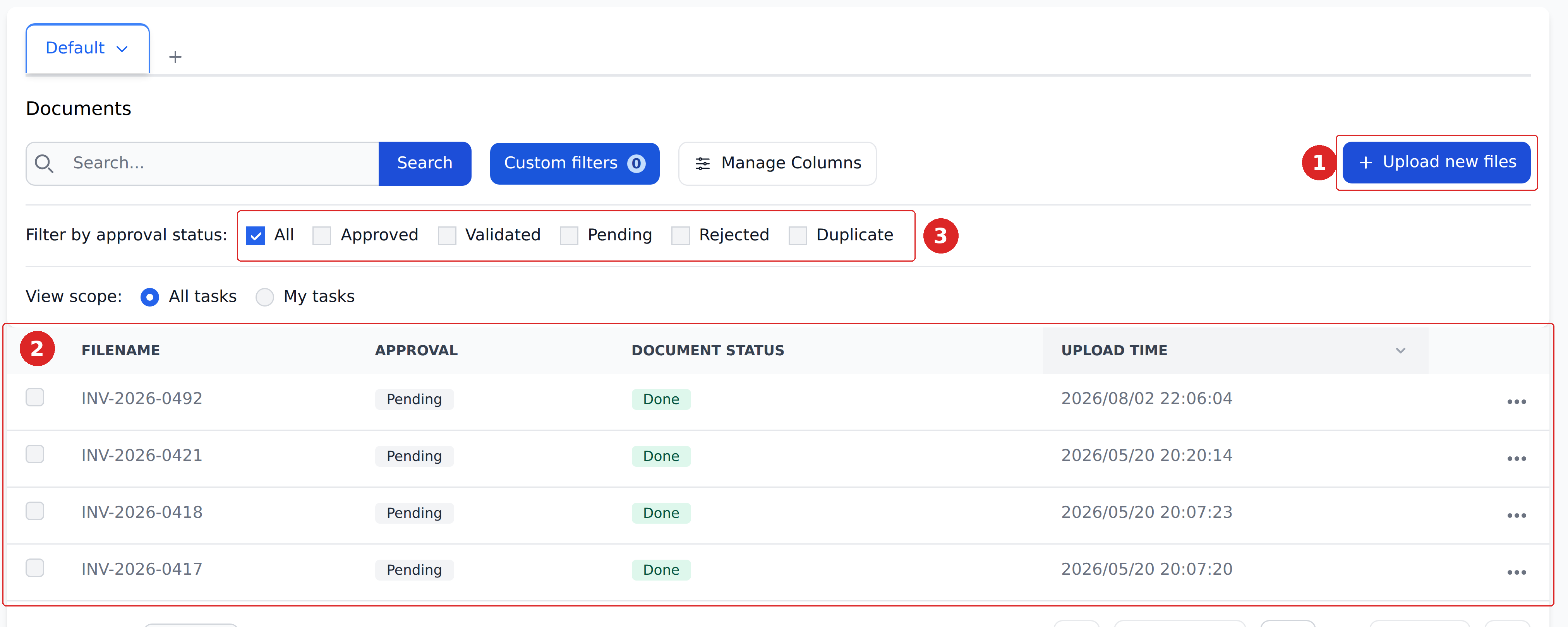
Three things to notice before you upload anything:
- Upload new files — top-right, where documents come in.
- The document table — one row per document, with Approval and Document status in their own columns. Those two columns answer different questions; How Recognito works explains why.
- Filter by approval status — the fastest way to see just what still needs a human.
Step 2 — Upload the document
Click Upload new files.
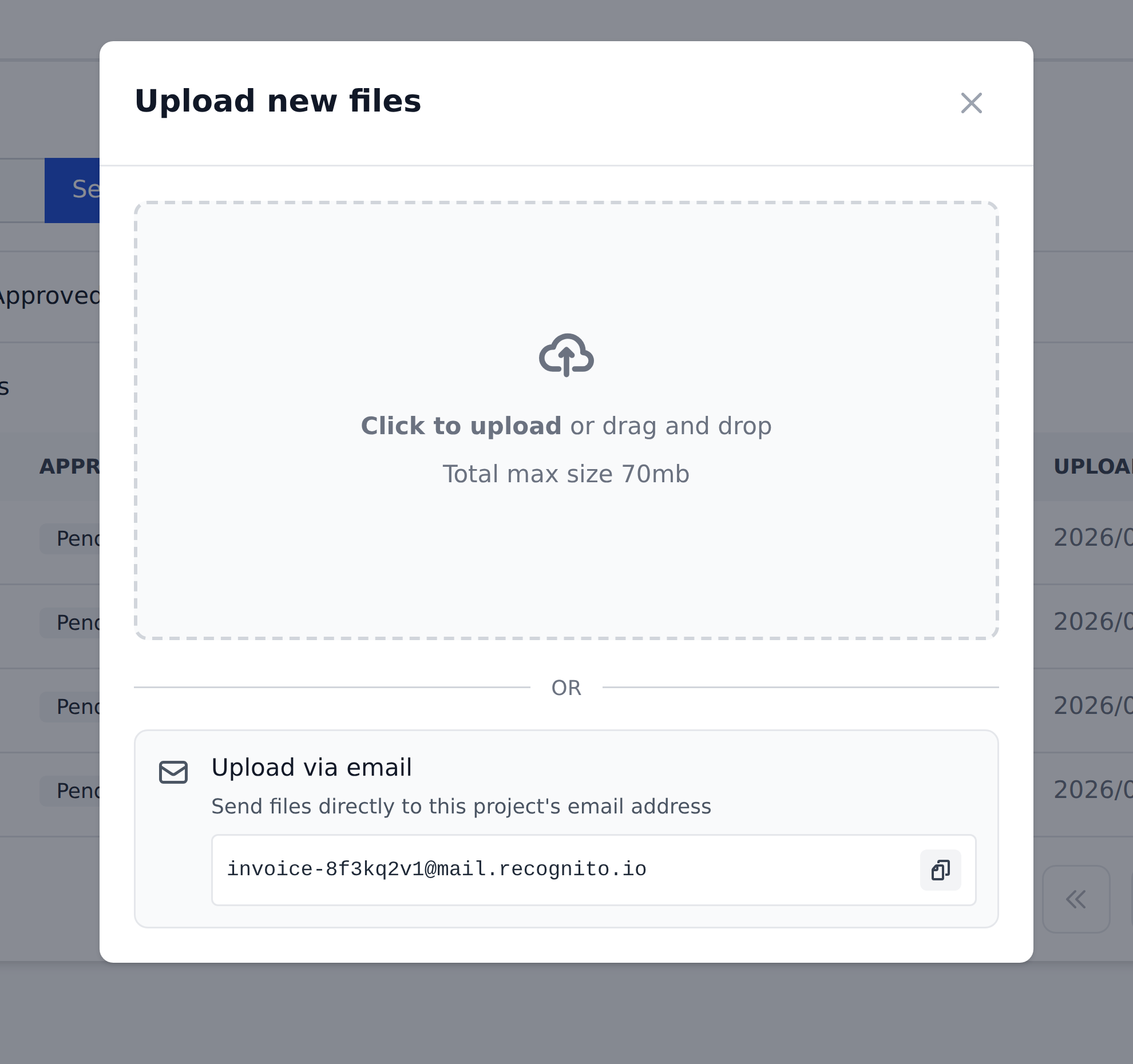
Two ways in, and you'll use both eventually:
- Drop a file into the dashed area, or click it to browse. 70 MB total per batch.
- Forward an email to the address at the bottom of the dialog. Every project has its own. Give it to suppliers, or add a forwarding rule in your mail client, and documents arrive without anyone touching the interface.
Pick a file and the upload starts immediately — there's no separate confirm button. Close the dialog and watch the new row appear at the top of the table.
Document status moves to Done when extraction finishes. A single-page invoice usually takes well under a minute.
Long documents wait for you
If a document has more pages than the project's auto-scan threshold (default: 5), Recognito holds it instead of scanning. Open it and confirm which pages to process. That's what stops a 200-page statement from consuming your page allowance by accident.
Step 3 — Open it in Studio
Click the row. Studio opens — the screen where all document review happens.
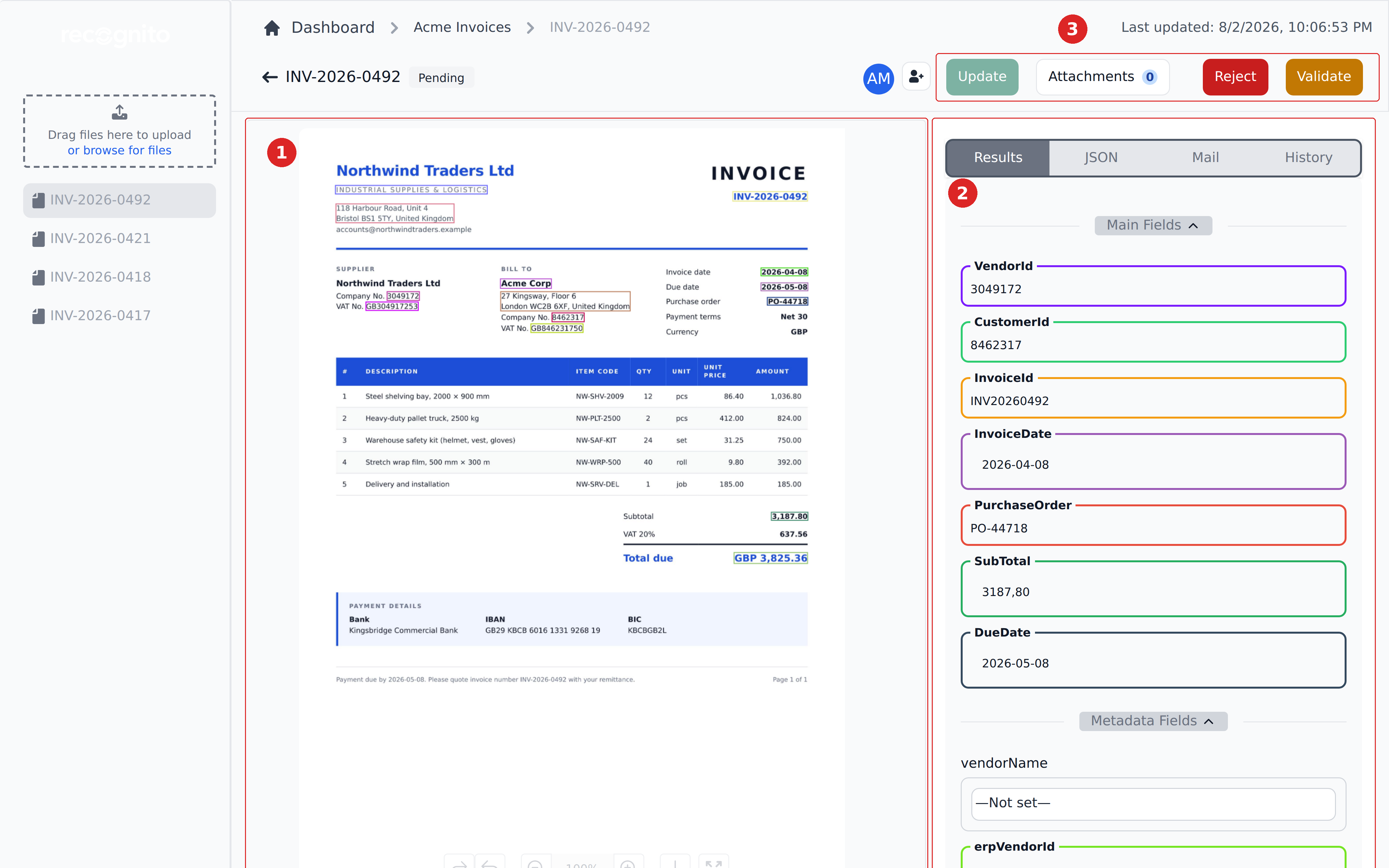
- The document — your original file, with a coloured box drawn around every value the engine read.
- The fields — everything extracted, grouped into Main Fields, Metadata Fields and the rest. Scroll down for the line-items table.
- The actions — Update saves your edits; Reject and Validate hand the document on.
Fields showing —Not set— aren't errors. Those are usually Metadata fields waiting on a Mapping rule or on your input — see How Recognito works.
Step 4 — Check the values against the page
Click any field. Recognito highlights the exact place on the document it read that value from, and shows the raw text it saw.
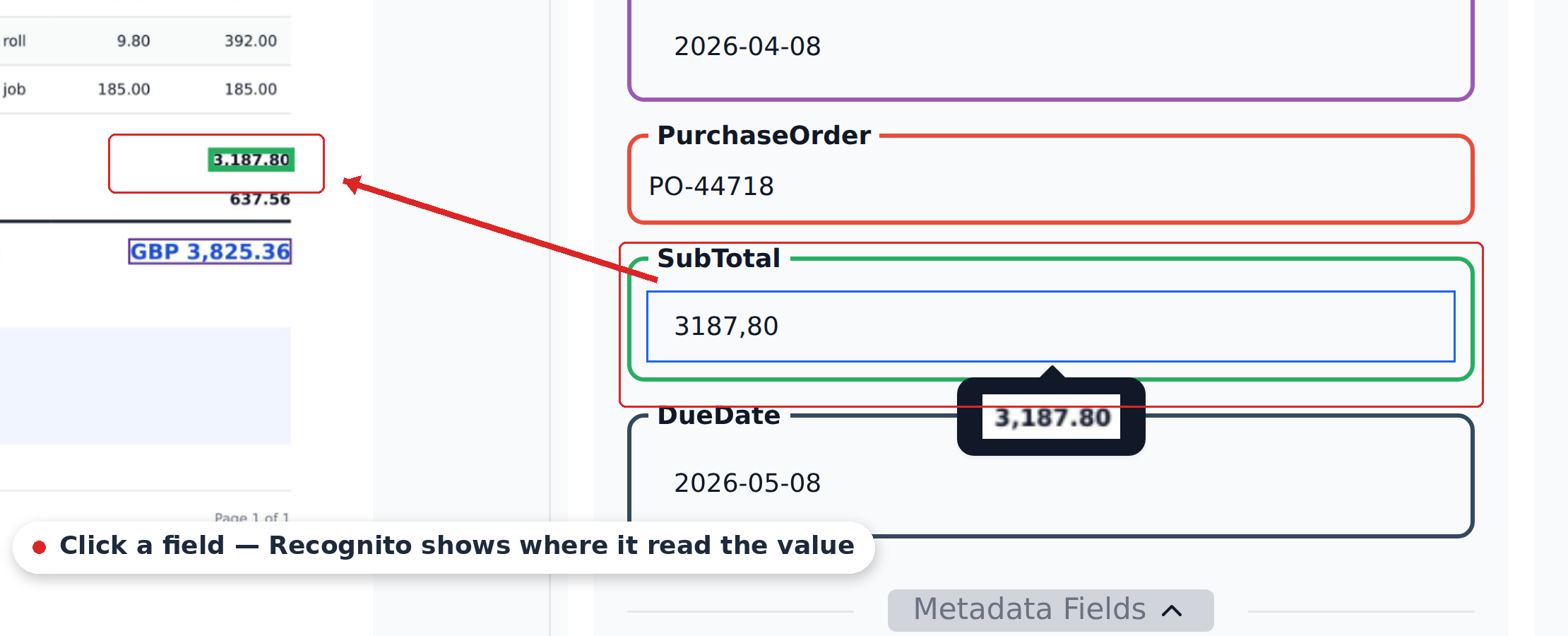
This is the fastest way to check a document: click down the fields and watch the highlight jump around the page. If the highlight lands somewhere sensible, the value is almost certainly right.
Worth a closer look every time:
- The total — the most consequential field, and the one with the most competing numbers near it.
- Dates — invoice date and due date are easy to swap when both appear in the same block.
- Vendor identifiers — these drive the downstream match to your vendor master.
- Line items — scan the table for a quantity or price that reads oddly.
To fix a value, click into the field and type. Recognito does not autosave — click Update when you're done, or your edits are lost on reload.
Editing one field can update others
Change a field that a workflow watches — a vendor name, a department — and the related lookups re-run on their own. GL codes, payment terms and approvers can all shift as a result. Give it a second and re-read the panel before you save.
Step 5 — Hand it on
When the data is right, use the buttons in the top bar.

- Update — saves your edits and leaves the document where it is.
- Validate — says "the data is correct." Approval status moves to
Validated. - Reject — says "this document shouldn't be processed." Reversing a rejection needs elevated permissions, so use it deliberately.
If a mandatory field is still empty, fill it before validating.
Step 6 — Confirm what happened
The status badge next to the filename now reads Validated, and the Reject and Validate buttons are gone — your part is done, so the buttons that were yours to press disappear.

What happens next depends on the project. If approver groups are configured, the document is now waiting on them; you can see who, and where it is in the chain, from the approvers panel described in Approving documents.
Once a document reaches its final approved state, any outbound integration the project has — a webhook, a scheduled export — fires on its own.
What actually ran
Three things happened between your upload and that screen:
- Extraction — OCR and machine learning read values off the page and filled the fields you saw.
- The initial workflow — the project's
Initial_Workflowran the first pass of lookups: matching the vendor, deriving GL codes, working out who approves. - Field-change workflows — every edit you made to a watched field re-ran the lookups that depend on it.
Everything in Studio was the combined result of those three.
What's next
- How Recognito works — the five ideas behind all of it. Read this before you configure anything.
- Using Recognito → Reviewing extracted fields — the deeper Studio guide for people who do this all day.
- Using Recognito → Statuses — the full status reference.
- Configuring Recognito — when you're ready to set up your own project, fields, and rules.