
Appearance
Document Fields
Customize the information your project collects by managing main, table, payment, tax, and metadata fields.
This guide explains how document fields work, how each section is used, and how you can add or update fields to match your project requirements.
Overview
Document fields define what information your project captures from each document. Each field group (Main, Table (Items), Payment, Tax, and Metadata) contains defaults, but all sections are fully customizable. You can enable or disable fields, edit labels, change how data is captured, or create new fields that fit your workflow.
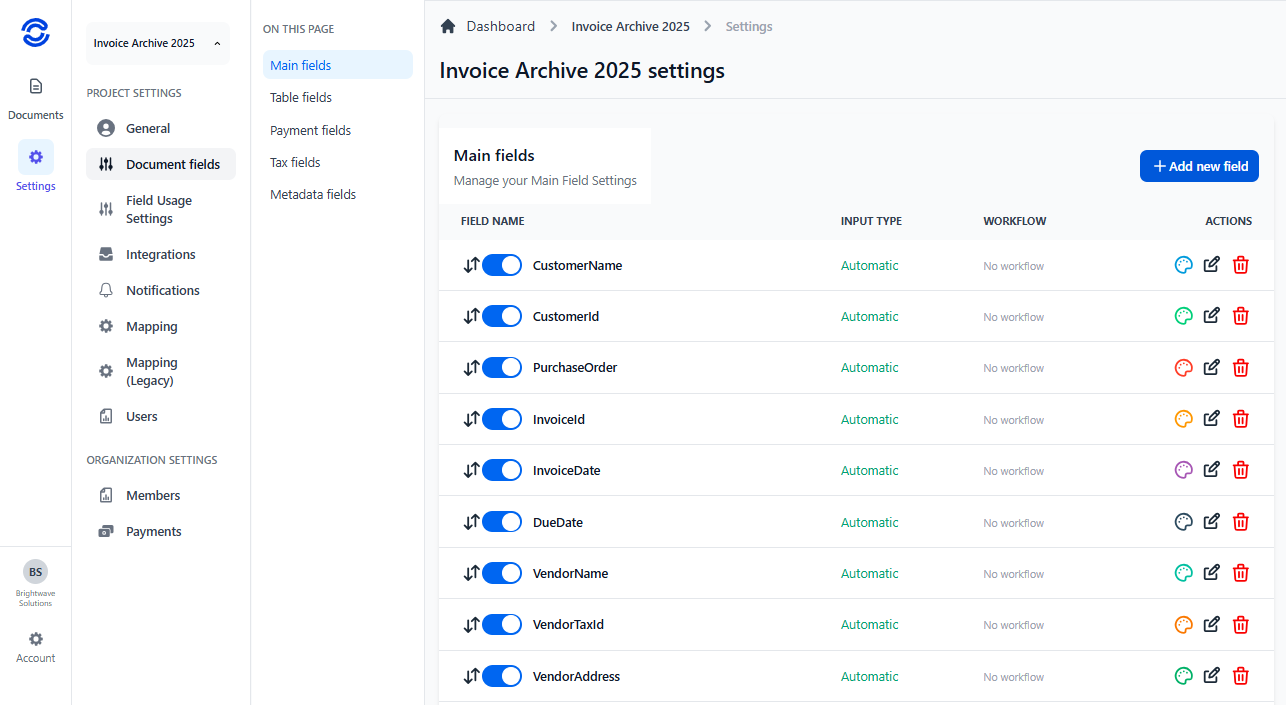
Field Structure
Every field follows the same structure:
- Toggle to enable or disable the field
- Lock icon (indicates if edits are restricted once locked by workflow or document status)
- Field name and input type
- Workflow status (when applicable)
- Three action buttons: color palette, edit, delete
A + Add new field button appears in each section to create additional fields.
Main Fields
Main fields represent core details found on most documents (e.g., customer, totals, dates, addresses). Preloaded examples can be renamed or removed. You can add new main fields if your documents contain extra information.
When adding or editing main fields you can choose:
- Input Type: Automatic (system attempts extraction) or Manual (user supplies value)
- Mandatory: Whether completion is required before progressing workflow
Built‑in fields are starting points; tailor them to reflect business terminology.
Table (Items) Fields
Table fields handle repeating line item data (quantities, unit prices, descriptions, taxes). Adjust existing item fields or add new ones for additional row‑level attributes.
Adding a new table field allows:
- Form Input Type selection (e.g., text, number, dropdown)
- Input Type (from dropdown; often indicates data format)
- Workflow name assignment if a specific review or validation stage applies
Payment Fields
Payment fields store payment details such as IBAN or SWIFT codes. Defaults are examples; rename, disable, or create new fields to match regional formats.
Configuration options when adding payment fields:
- System field name & user‑friendly label
- Mandatory toggle
- Form Input Type (e.g., masked text, dropdown)
Tax Fields
Tax fields capture tax amounts and rates. Customize existing fields or create new ones for unique tax regimes.
Adding a tax field mirrors payment configuration (names, input type, mandatory) without workflow assignment.
Metadata Fields
Metadata fields store optional or project‑specific details not present on the source document (internal tags, routing codes, custom attributes). This section starts empty so you can design it freely.
Metadata field creation offers maximum flexibility:
- Automatic or Manual input selection
- Form Input Type
- Additional Input Type dropdown values (for structured variants)
- Workflow name assignment (if the metadata participates in review/approval)
- Mandatory toggle
Use metadata fields for internal tracking, enrichment, or downstream integration hooks.
Adding a New Field
Selecting + Add new field opens a creation form. Available options vary by field group but commonly include:
- Field name (system)
- User‑friendly label
- Input type (Automatic/Manual; Automatic applies only to Main fields)
- Form Input Type dropdown
- Mandatory toggle (Yes/No)
- Additional Input Type dropdown (Table & Metadata fields)
- Workflow name (Table & Metadata fields)
After saving, the field appears in the chosen group and can be enabled, styled (color palette), edited, locked, or deleted.
Editing or Removing Fields
Per‑field actions:
- Color palette: Adjust visual classification or grouping
- Edit: Update settings, rename, change mandatory status
- Delete: Remove field from the project (irreversible after confirmation)
Fields you modify remain active until you commit changes at the bottom of the page.